
Check sellers' products
Multi-VendorDecide which sellers' products wait for a check before they go live, then approve or decline them from the Products to review queue.
In the admin: MarketplaceProducts to review
On this page
Product checks let your team look at a seller's product before customers can buy it. You choose which products wait for a check in Settings, then work through the waiting products in Marketplace > Products to review. Use checks when you want to keep the quality of your marketplace high, for example for new sellers or for categories with rules of their own.
Only sellers' own work is checked: products a seller creates, imports or publishes in its panel. Your own products and anything your staff create never wait.
Choose which products are checked
Go to Settings, and in the Marketplace group open Product check rules.
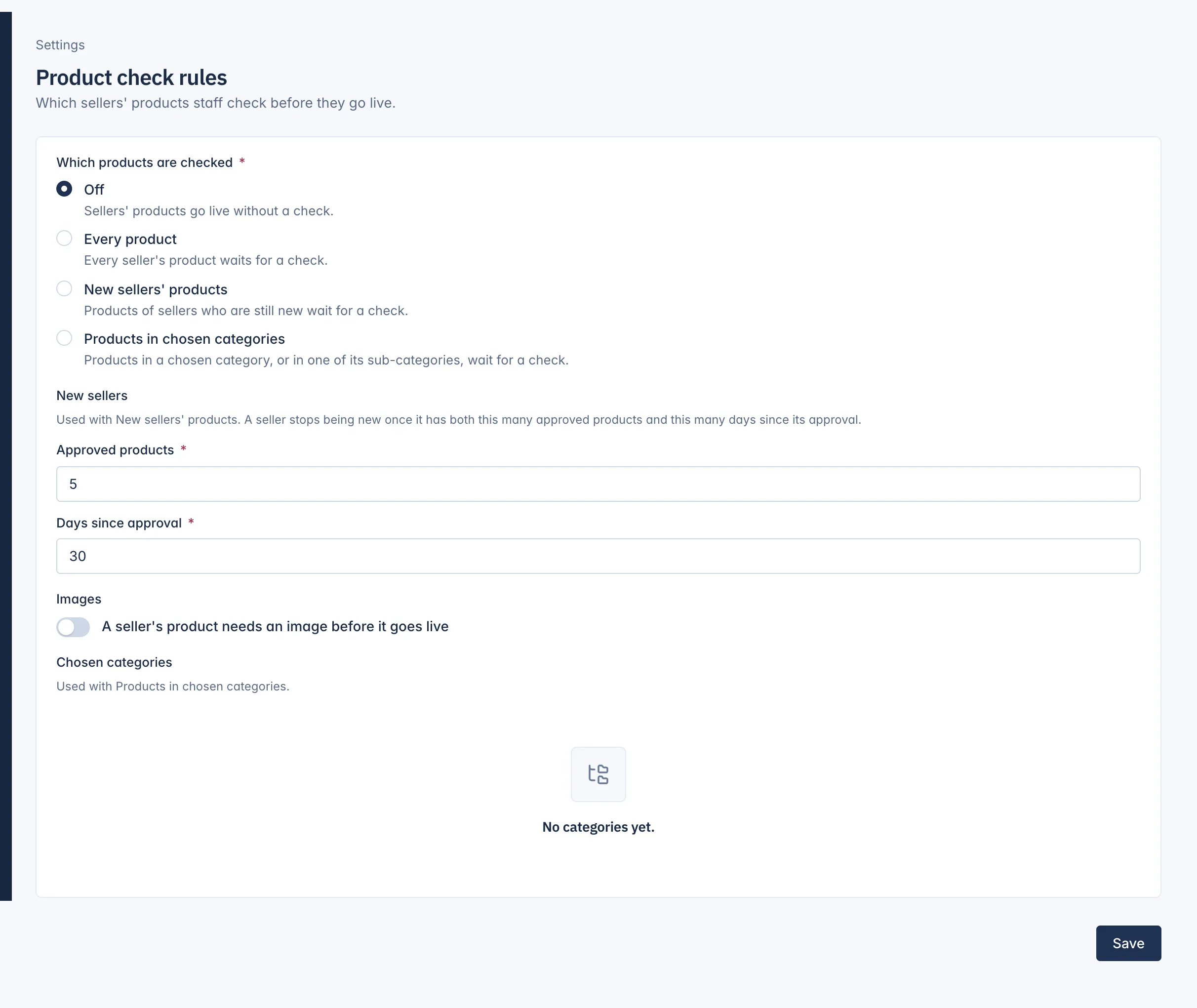
Under Which products are checked, pick one:
| Choice | What waits for a check |
|---|---|
| Off | Nothing. Sellers' products go live without a check. This is the default. |
| Every product | Every seller's product. |
| New sellers' products | The products of sellers who are still new. |
| Products in chosen categories | Products in a category you tick under Chosen categories, or in one of its sub-categories. |
For New sellers' products, set when a seller stops being new under New sellers. It needs both a number of Approved products (5 by default) and a number of Days since approval (30 by default).
Under Images, switch on A seller's product needs an image before it goes live to refuse publishing a seller's product with no image. This works whichever choice you made above, even Off.
Press Save.
What a change does:
- A check applies when a seller publishes a new product. Editing a product that is already approved does not send it back for a check, except when the seller moves it into a chosen category while you check Products in chosen categories.
- Making the rules stricter never takes approved products out of the shop.
- Making the rules looser approves, after a short while, the waiting products the new rules no longer hold back. A product you declined before always waits for a person, whatever the rules.
A rule for one seller
On a seller's page, Change beside Product checks gives that seller its own rule: Follow the shop's rule (the default), Always check new and changed products, or Never check this seller's products. Use it to watch one seller closely, or to trust an established one. See Manage a seller.
Work through the queue
Marketplace > Products to review has two tabs:
- Waiting: products sent for a check, the longest waiting first, with the Seller, when it was Sent for a check and its Category.
- Declined: products you declined, with the Reason and Note.
Filter by Seller or Category and press Apply. The count of waiting products also shows on Marketplace > Overview.
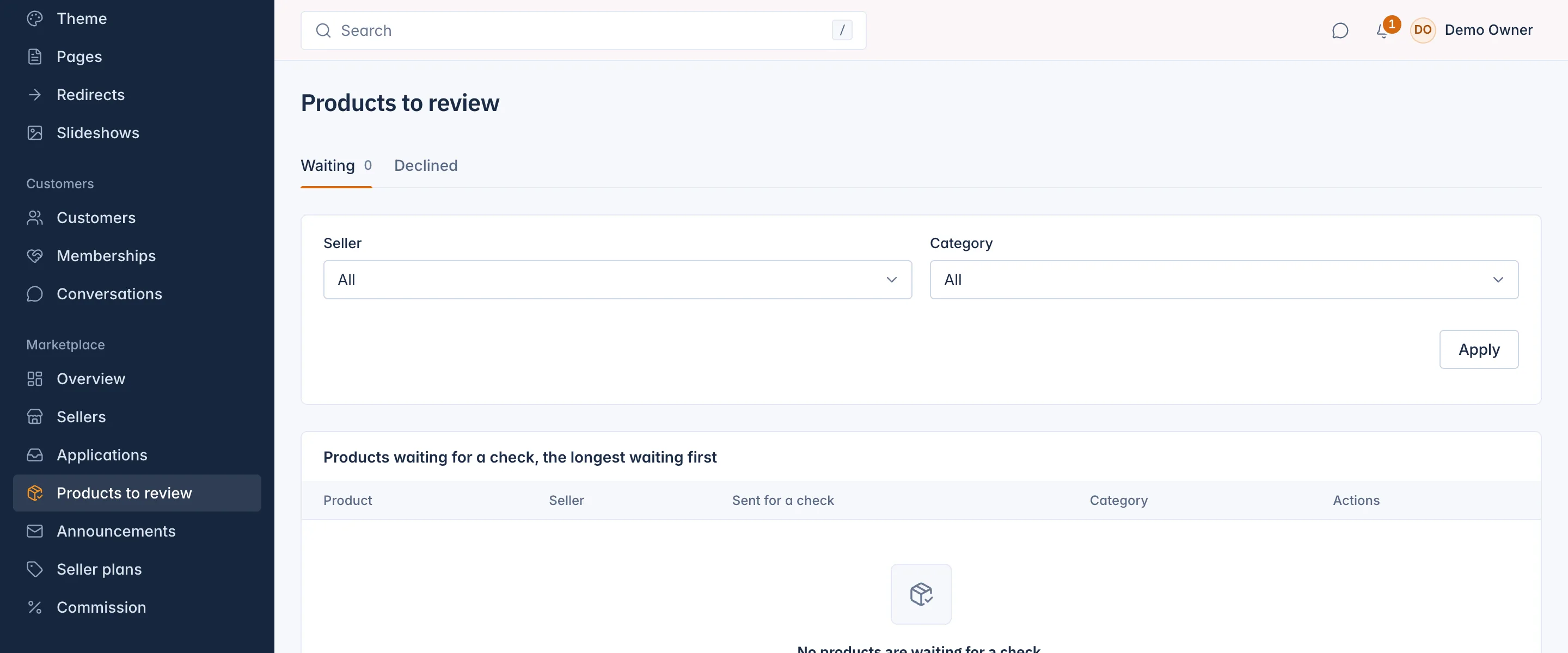
Click a product's name to open it and look it over before you decide.
Approve a product
Press Approve on the product's row. The product goes live, unless something else stops it, and the seller is told. A suspended seller's products stay in the queue; approving one shows nothing to customers until the seller is reinstated.
Decline a product
- Press Decline on the product's row.
- Choose the Reason: Photos, Description, Prohibited item, Price or Other.
- Write a Note for the seller. It is optional, except for Other, and can be up to 1,000 characters.
- Press Decline product.
The seller is told by e-mail and in its panel, with the reason and your note. It fixes the product and sends it again, and the product comes back to Waiting.
Deciding needs the right to check products.
Related
Updated 13 November 2026