
Payouts and seller statements
Multi-VendorFollow the money you owe sellers and they owe you: payouts, supplier payments, monthly seller statements, credits and each seller's balance.
In the admin: MoneyMoneyPayouts
On this page
Every seller has a running account with your marketplace: what you owe it from its sales, and what it owes you in commission and fees. This article shows where to follow that account: the Payouts and Statements tabs under Money > Money, and the Money tab of each seller. How money moves in the first place depends on your selling mode; see Selling modes and money flows.
Payouts
Money > Money > Payouts lists every payout to a seller and every payment to a supplier, newest first.
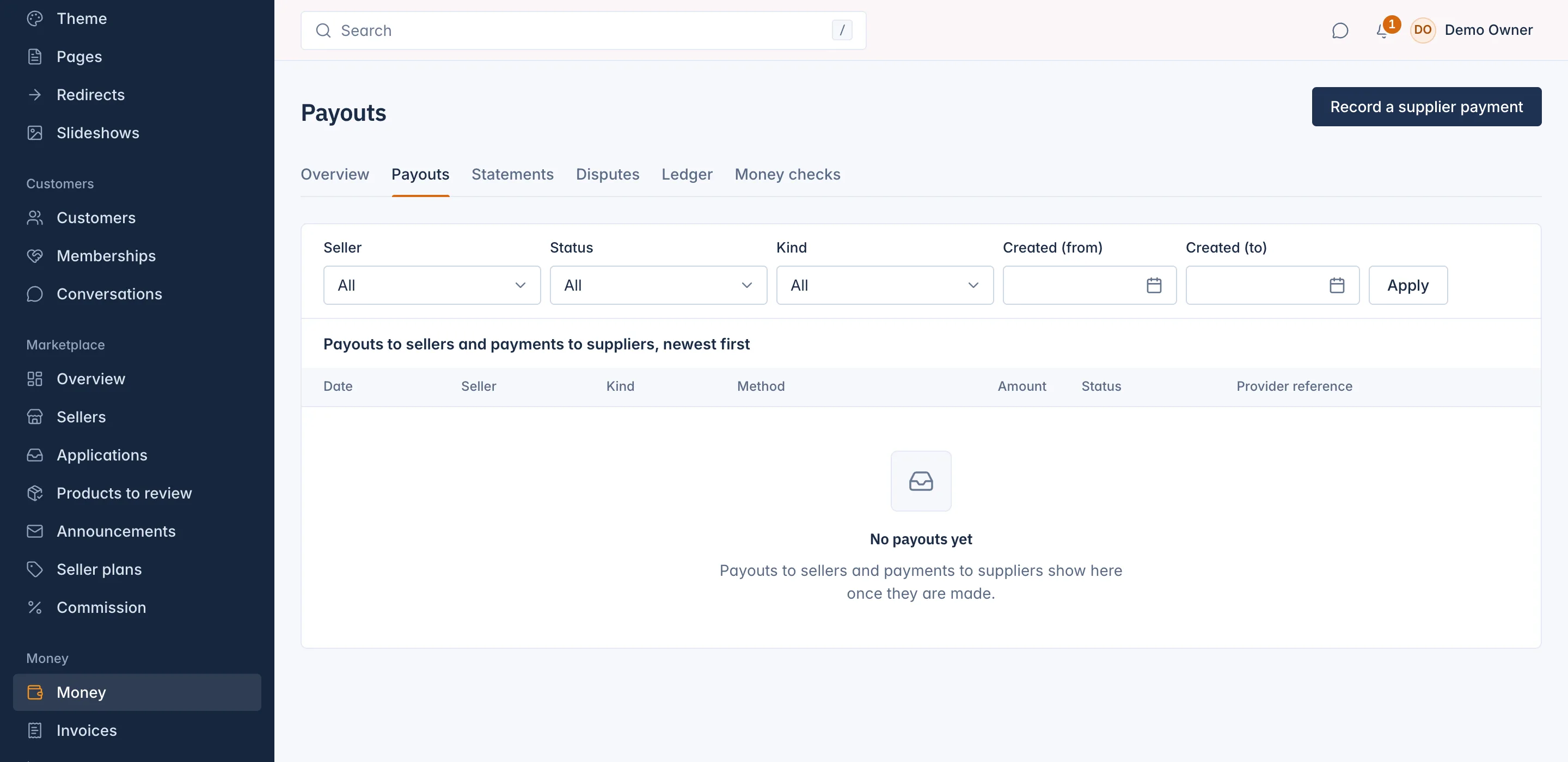
Each row shows the Date, Seller, Kind, Method, Amount, Status and Provider reference. Filter by Seller, Status, Kind or the Created dates and press Apply.
| Kind | What it is |
|---|---|
| Seller payout | Money paid out to a seller's bank by your payment provider, in Split mode and for connected sellers in Mixed mode. |
| Seller bank debit | Money your payment provider took from a seller's bank, when the seller owed more than its balance, for example after a refund. |
| Supplier payment | A bank payment you made to a supplier in Reseller mode, recorded by your team. |
The Method is Through the payment provider or Bank transfer. The Status is In transit, Paid, Failed or Cancelled. Open a payout to see its details and, if it failed, why.
When payouts run is set by Payouts run in Settings > Payments; see Choose your selling mode and money rules. Sellers that take payments themselves, in Direct mode, are paid by their own payment provider and do not show here.
Record a supplier payment
In Reseller mode you pay your suppliers yourself, by bank, and record each payment so their balance stays right.
- On the Payouts tab, press Record a supplier payment.
- Choose the Supplier.
- Type the Amount and choose the Currency. It can be at most what you owe the supplier.
- Set the Paid on date and the Bank reference.
- Press Record payment.
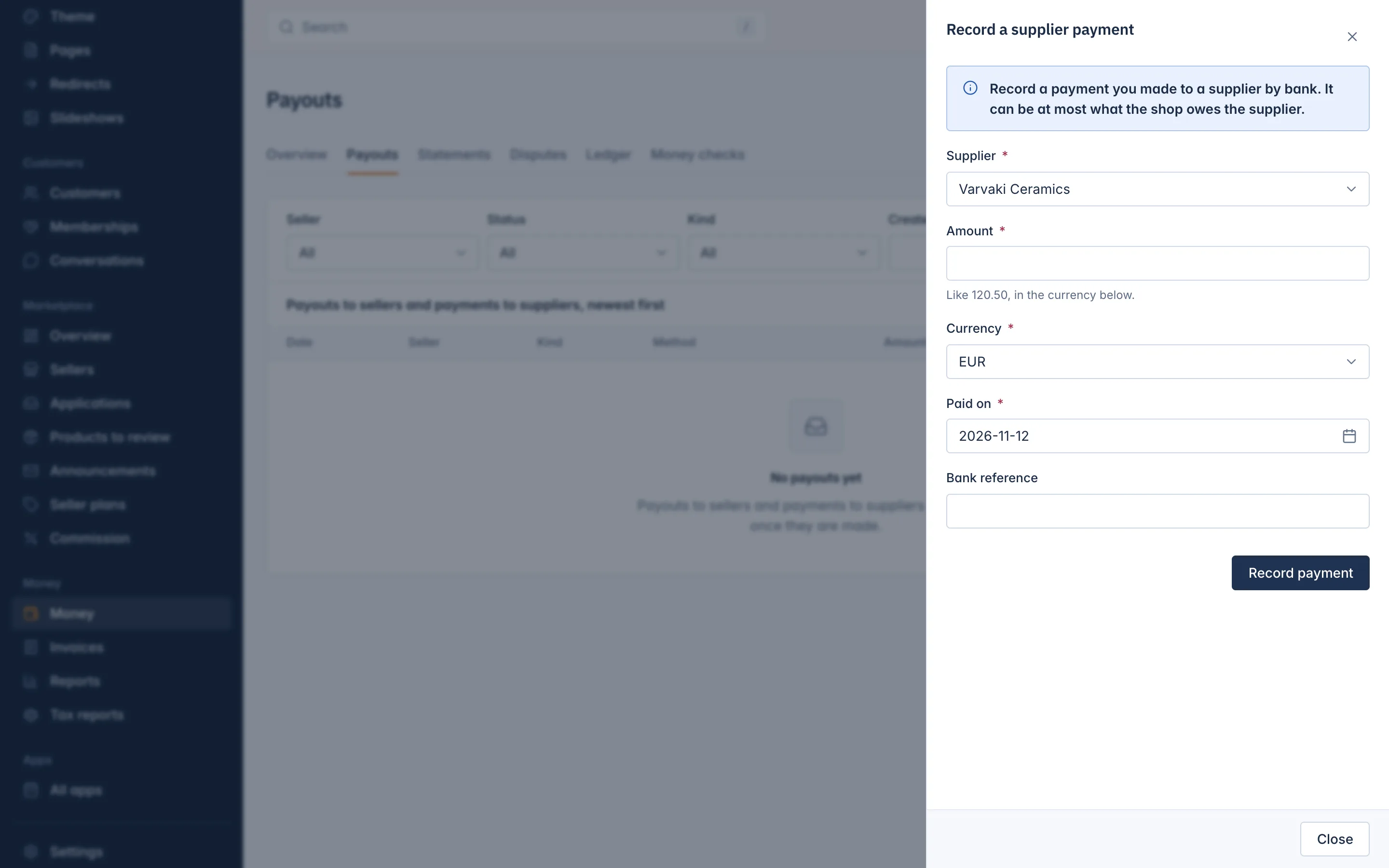
Only a supplier, a seller whose goods your marketplace sells in its own name, can be paid this way. Recording needs the right to release payouts.
Seller statements
At the end of each month, every seller's account closes into a statement for that month, one per currency. It closes about an hour after the month ends, and the seller gets an e-mail that it is ready.
On Money > Money > Statements, choose the Month and Currency and press Show.
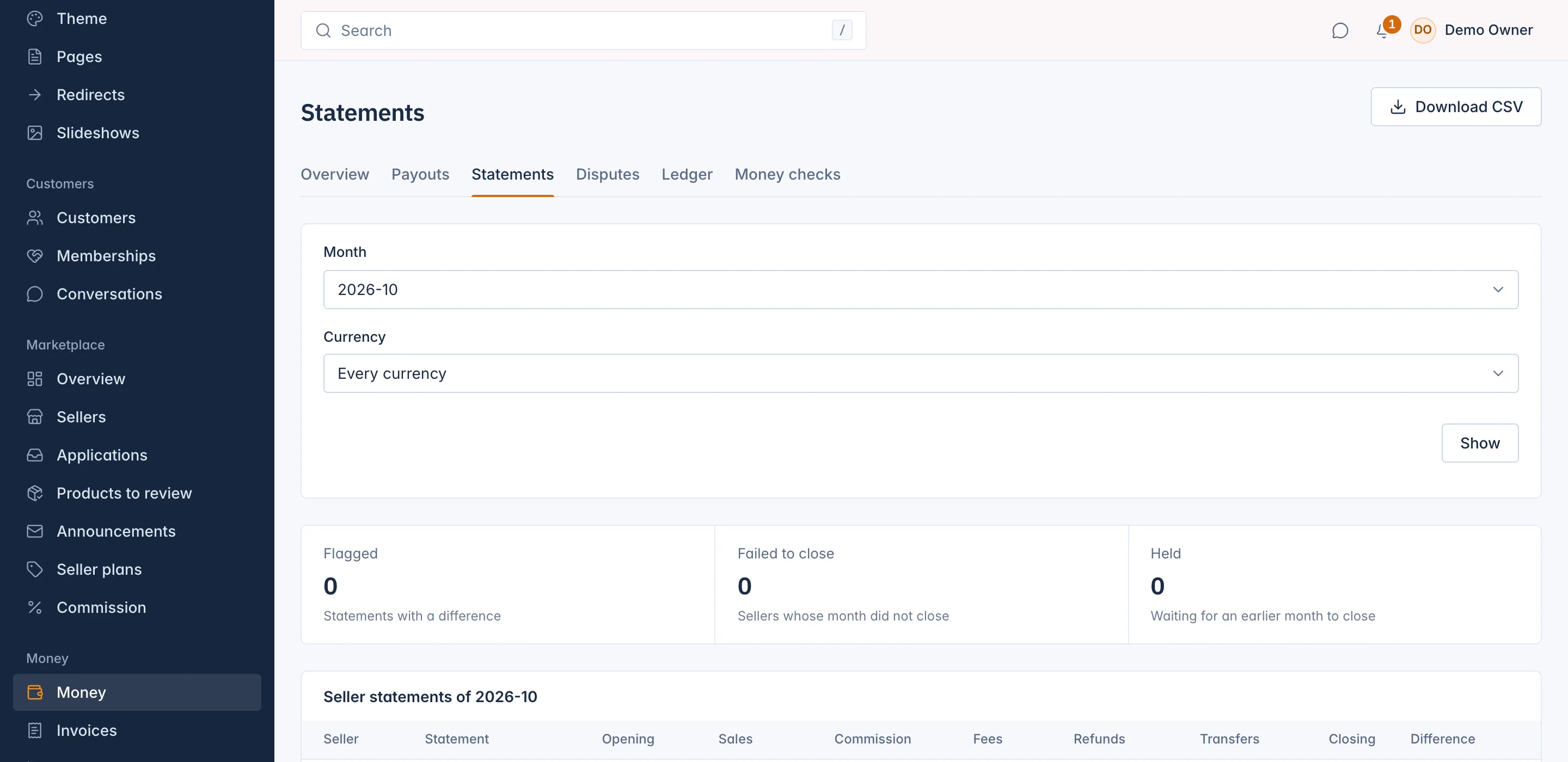
Three counts sit above the list:
- Flagged: statements with a difference (see below).
- Failed to close: sellers whose month did not close. Your team is told, and the month is tried again every hour.
- Held: statements waiting for an earlier month to close.
The list has a row per seller with the Opening balance, Sales, Commission, Fees, Refunds, Transfers, Closing balance and Difference. Download CSV saves the month's list, and the same button on a statement saves its lines.
Open a statement to see its Totals, from Customers paid and Sales through Commission, Payment provider fee, Refunds, Disputes, Payouts and Plan fees, to Paid to the seller directly, and every Line in the order it was recorded.
A seller's money
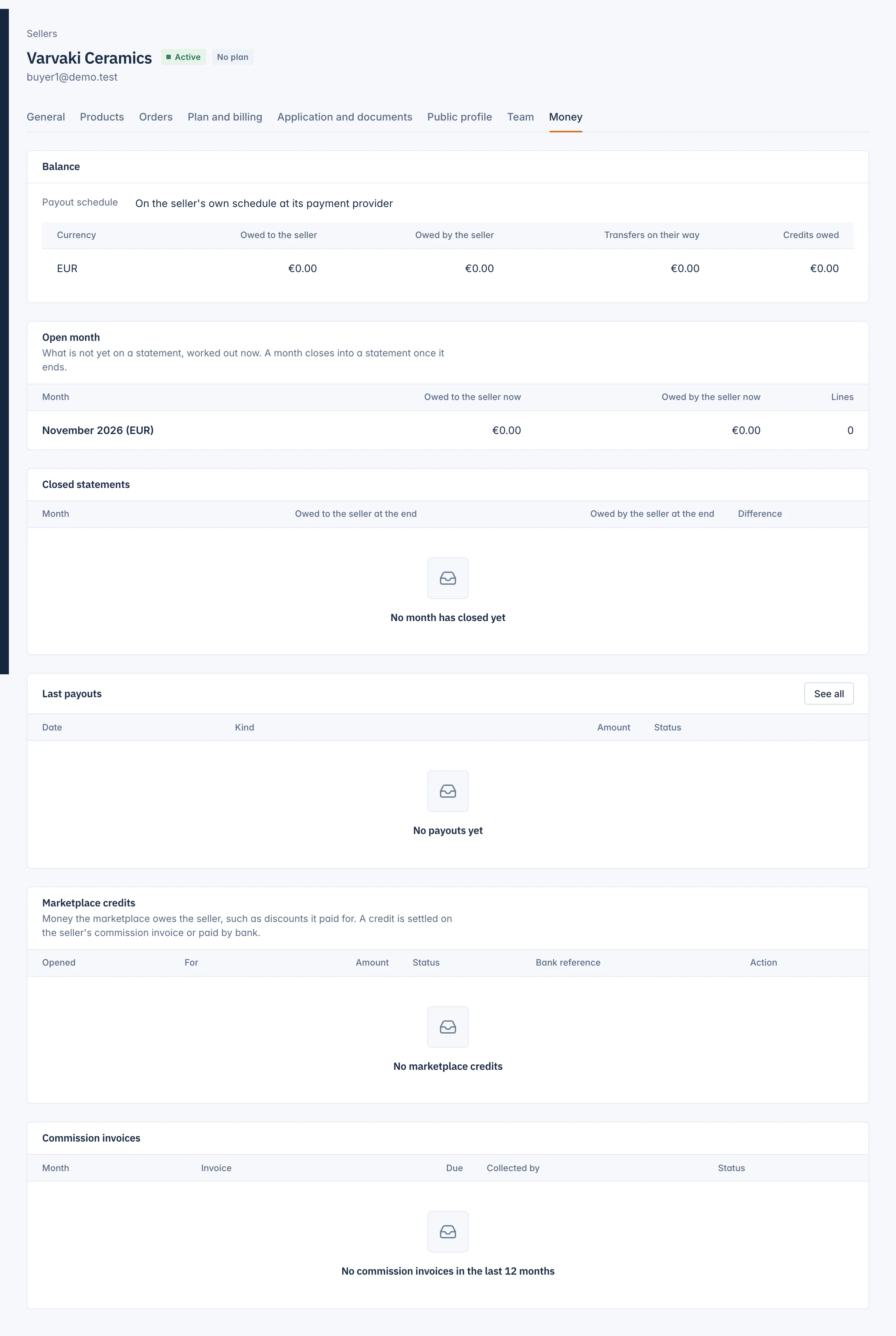
The Money tab on a seller's page brings the seller's account together:
- Balance: per currency, what is Owed to the seller, Owed by the seller, Transfers on their way and Credits owed, with the Payout schedule.
- Open month: what is not yet on a statement, worked out now.
- Closed statements and Last payouts.
- Marketplace credits: money you owe the seller outside its sales, for example a discount or points your marketplace paid for, or a fee or commission given back with a refund.
- Commission invoices of the last 12 months; see Commission invoices.
Settle a marketplace credit
A credit is normally taken off the seller's next commission invoice. When it cannot be, for example in Split mode, pay it by bank and record it: press Settle on the credit, type the Bank reference, and confirm. The whole credit is settled.
The seller sees the same figures in its panel, under Money. See The seller panel.
Related
Updated 13 November 2026