
Choose and style your theme
Pick one of the five IXXO Cart themes, add your logo, choose colours and fonts in the theme editor, and publish the new look.
In the admin: Online storeTheme
On this page
Your theme decides how your shop looks: the layout, colours, fonts and the sections on each page. Every shop starts with a theme already in place, so your shop looks finished from day one. This quick guide shows how to add your logo, pick a theme and give it your colours. The theme editor, its sections and styles are covered in depth in Online store.
The Theme page
Open Online store > Theme. The page shows Your theme with a preview and the date it was last published, and two buttons: View shop opens your shop in a new tab, and Customise opens the theme editor.
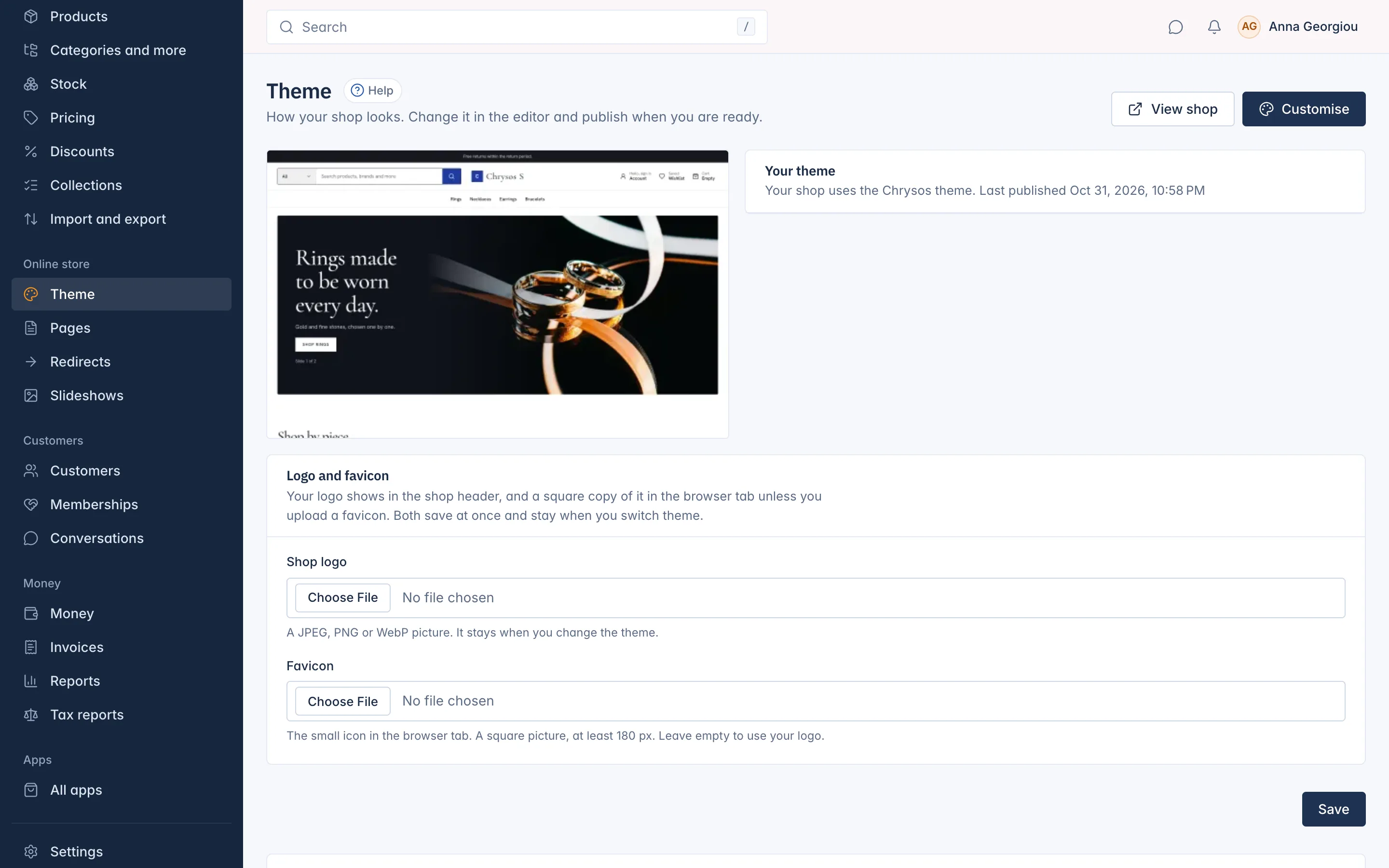
Add your logo and favicon
- Under Logo and favicon, choose your Shop logo: a JPEG, PNG or WebP picture. Without a logo, the shop shows its name instead.
- Optional: choose a Favicon, the small icon in the browser tab. Use a square picture of at least 180 px. Without one, your logo is used.
- Press Save.
The logo and favicon show in your shop at once, and they stay when you switch theme.
Choose a theme
IXXO Cart has five themes: Ampere (the one new shops start with), Chrysos, Moda, Salve and Spool. You switch theme in the editor, so you can look at the result before customers do.
- On the Theme page, press Customise.
- Open More options at the top and choose Theme.
- Pick a theme and press Switch theme.
The switch goes into your draft. Your live shop changes only when you press Publish, and Discard draft undoes the switch.
Also import demo content adds the theme's sample products, categories, pictures and home page sections, so you can see the theme as it was designed. Your own products are not changed. When you no longer need them, press Remove demo data on the Theme page; anything your own items still use is kept.
Style it in the editor
The editor is called Customise your theme. On the left are three tabs: Sections, Styles and Custom CSS. In the middle is a live preview of your shop.

- Open the Styles tab. It sets how your whole shop looks.
- Under Colours, click one of the Palettes. One click fills all the colours, and you can still change each one afterwards.
- Adjust the Page width, Space between sections, Corner rounding and the look of Product cards.
- Further down, choose your buttons, fonts and text size.
- Use Desktop and Mobile at the top to check both sizes, and Page to look at other pages.
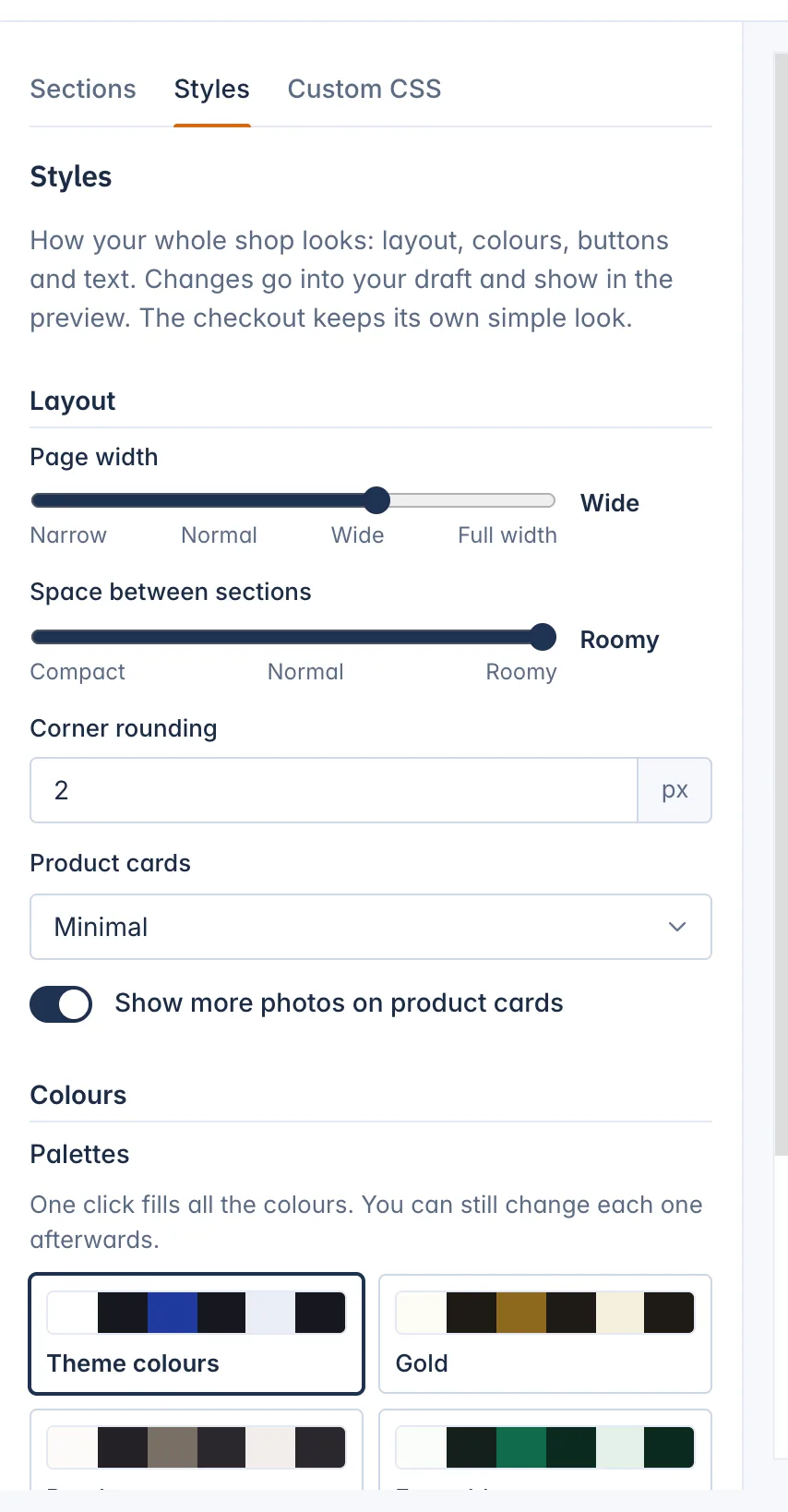
The checkout keeps its own simple look, whatever styles you choose.
To change what is on a page, use the Sections tab: the header, the page's own sections and the footer. Add section adds one, and you can drag sections to put them in order. Click a section to change its settings.
Publish your changes
Everything you change is saved by itself into a draft. Customers keep seeing the published version until you press Publish.
- Discard draft throws away everything since the last publish.
- Versions lists your last 10 publishes. Restore copies one into your draft; publish it to bring it back.
Related
Updated 13 November 2026