
Create and edit shop pages
Write your About us, Delivery, Returns and other information pages, set their address and search engine texts, publish them and add sections to them.
In the admin: Online storePages
On this page
Pages are your shop's information pages: About us, Delivery, Returns and withdrawal, your terms, a size guide, a story about your workshop. Customers find them through the footer, your menu links and search engines. This article shows how to write and publish them, and how to add theme sections around their text.
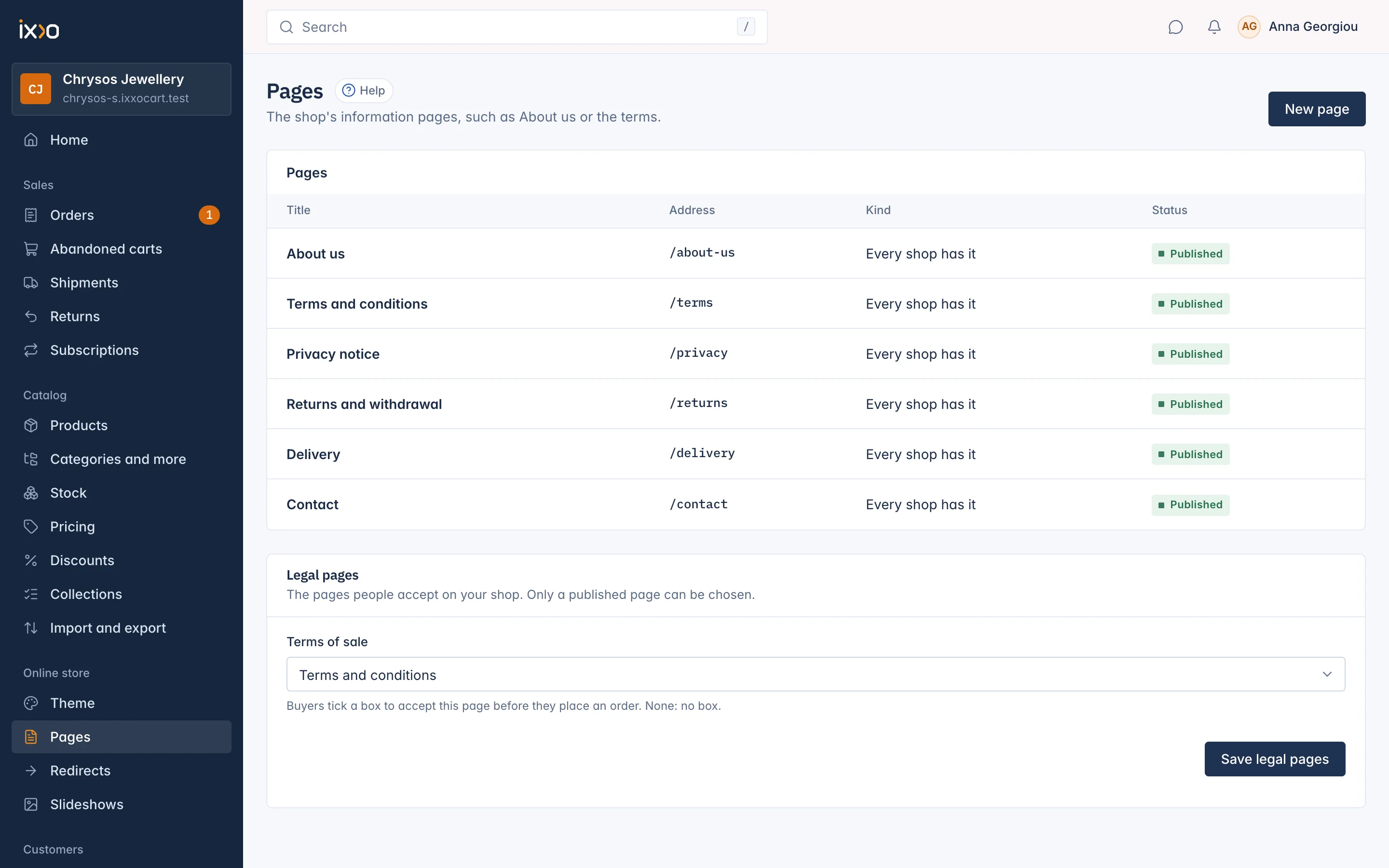
The six pages every shop has
Every shop starts with six pages. They are marked Every shop has it in the Kind column:
| Page | Address | What it is for |
|---|---|---|
| About us | /about-us | Who you are |
| Terms and conditions | /terms | Your terms of sale |
| Privacy notice | /privacy | How you handle personal data |
| Returns and withdrawal | /returns | Your returns policy and the right of withdrawal |
| Delivery | /delivery | Delivery times, areas and costs |
| Contact | /contact | How to reach you, with a contact form |
They start as drafts with a short placeholder text, so nothing half written shows in your shop. Write each one and set it to Published before you open your shop.
These six pages cannot be deleted, because the shop links to them in several places, such as the footer. To hide one, set it to Draft.
Write or change a page
- Go to Online store > Pages and click the page, or press New page for a new one.
Fill in the texts. If your shop has more than one language, use the language switch (for example EN and EL) at the top of the form to fill in each language:
- Title: the page's heading. Required in your shop's main language.
- Text: the page's content, with headings, bold, italics, links and lists.
- Title for search engines: optional. Empty: the page title.
- Description for search engines: optional, the short text search engines may show under your page's title.
- Address in this language: in your other languages only. Optional. Empty: the main address is used in this language too.
- Set the Address, the last part of the page's address, such as
size-guide. Empty: made from the title. - Set Status to Draft (Not shown in the shop.) or Published.
- Press Save.
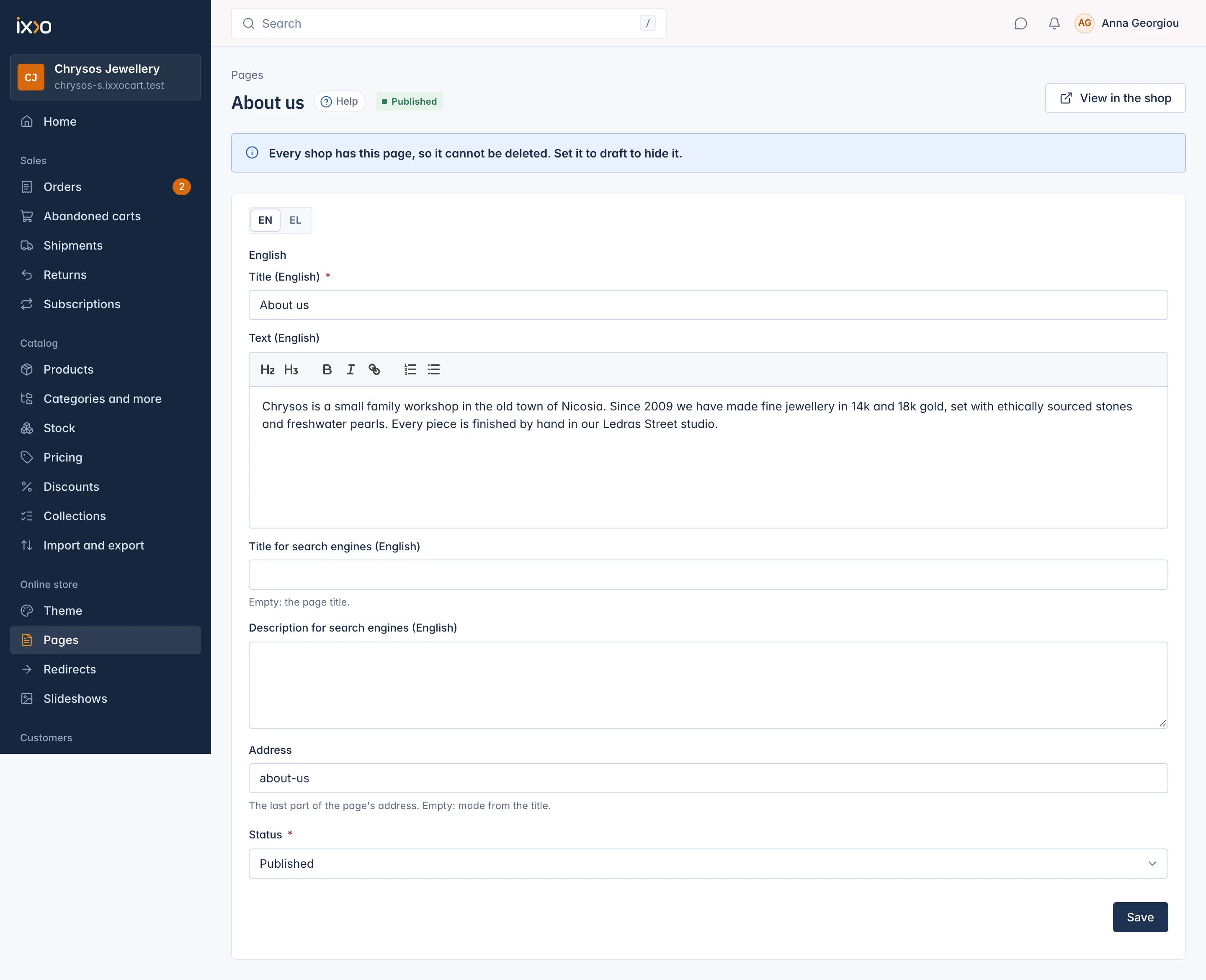
Press View in the shop at the top to see the page as customers do.
Addresses
A page's address shares the same space as your products, categories and other pages, so two of them cannot have the same address. If you pick one that is taken, the message suggests a free one, for example This address is already used. You can use size-guide-2 instead.
If you change a page's address, the old address keeps leading to the page: visitors and search engines are sent on to the new one. You do not need to add a redirect yourself. See Redirect old addresses for how this works.
Delete a page
Only pages you made yourself can be deleted. Open the page, press Delete page in Delete this page and confirm. Its address stops working, and this cannot be undone. If other sites link to the page, add a redirect to a page that still exists.
Add sections to a page
A page's text is often enough, but you can make a page richer with theme sections: a picture with text above it, a product row below it, a contact form, a trust strip.
- Go to Online store > Theme and press Customise.
- Open Page: in the top bar and choose the page under Content pages. Draft pages are marked (Draft).
- The locked Page content row stands for the page's own title and text. Add sections with Add section and drag them above or below it.
- Press Publish when you are done.
These sections belong to the theme, so they follow the theme's draft and Publish, and they reset if you switch theme. See Add, hide and arrange sections.
The Contact page shows a contact form by default. See The contact form.
Link to your pages
- The footer's Help pages (filled in for you) column lists Delivery, Returns and withdrawal, Contact and About us once they are published.
- Terms and conditions and the Privacy notice are always linked in the footer's legal row once published.
- For any other page, add it to the header's Menu links or a footer Links column with its address, such as
/size-guide. See Change the shop's navigation menu.
A page that is a draft is never linked anywhere, and its address shows a "page not found" to customers.
Related
Updated 13 November 2026