
Your admin home page
What the admin home page shows: the Set up your shop card, the go-live card, this month's numbers, the latest orders and what needs your attention.
In the admin: Home
On this page
Home is the first page you see after signing in. While you set up, it tells you what is still to do; once you sell, it shows how the month is going and what needs you today. Each block only shows to the people it is for, so two staff members can see a different Home.
The Set up your shop card
Set up your shop lists the few steps between a new shop and its first order. Each step is worked out from your real data, so it ticks itself off when the work is done. A step still to do says how to finish it and has a button to the screen where you do it.
| Step | Done when | Opens |
|---|---|---|
| Shop details | The shop has a name and a currency. | Open shop details (Settings > Shop) |
| Tax | You chose the country your shop is based in, so the checkout can work out tax. | Open tax (Settings > Tax) |
| Delivery | You have a shipping zone with at least one shipping method. | Open shipping (Settings > Shipping) |
| Payments | A payment provider is in use, or bank transfer or pay on pickup is switched on. | Open payments (Settings > Payments) |
| First product | A product is published with stock, or with stock not counted. | Open products |
| Legal pages | You chose the page with your terms of sale. | Open pages (Online store > Pages) |
| A test order (optional) | An order was placed. Place one yourself to see what customers see. | Open orders |
The Delivery step is left out when your shop sells only digital products, or when you chose We arrange delivery ourselves in the shipping settings.
Next step takes you to the first step still to do. Dismiss hides the card for everyone in the shop. The card also goes away by itself once every step except the optional test order is done.
The card shows to people who may change the shop's settings. The quick guides in this section follow the same order:
- Add your first product
- Connect Stripe or PayPal
- Set up shipping
- Choose and style your theme
- Connect your mail account
The go-live card
While your shop is not live yet, the Owner also sees Before your shop goes live: "Visitors see a coming soon page until you go live." It lists three checks, a Go live button and Preview shop, which opens your shop in a new tab as customers will see it. Only the Owner sees this card. How it works is in Put your shop live.
This month's numbers
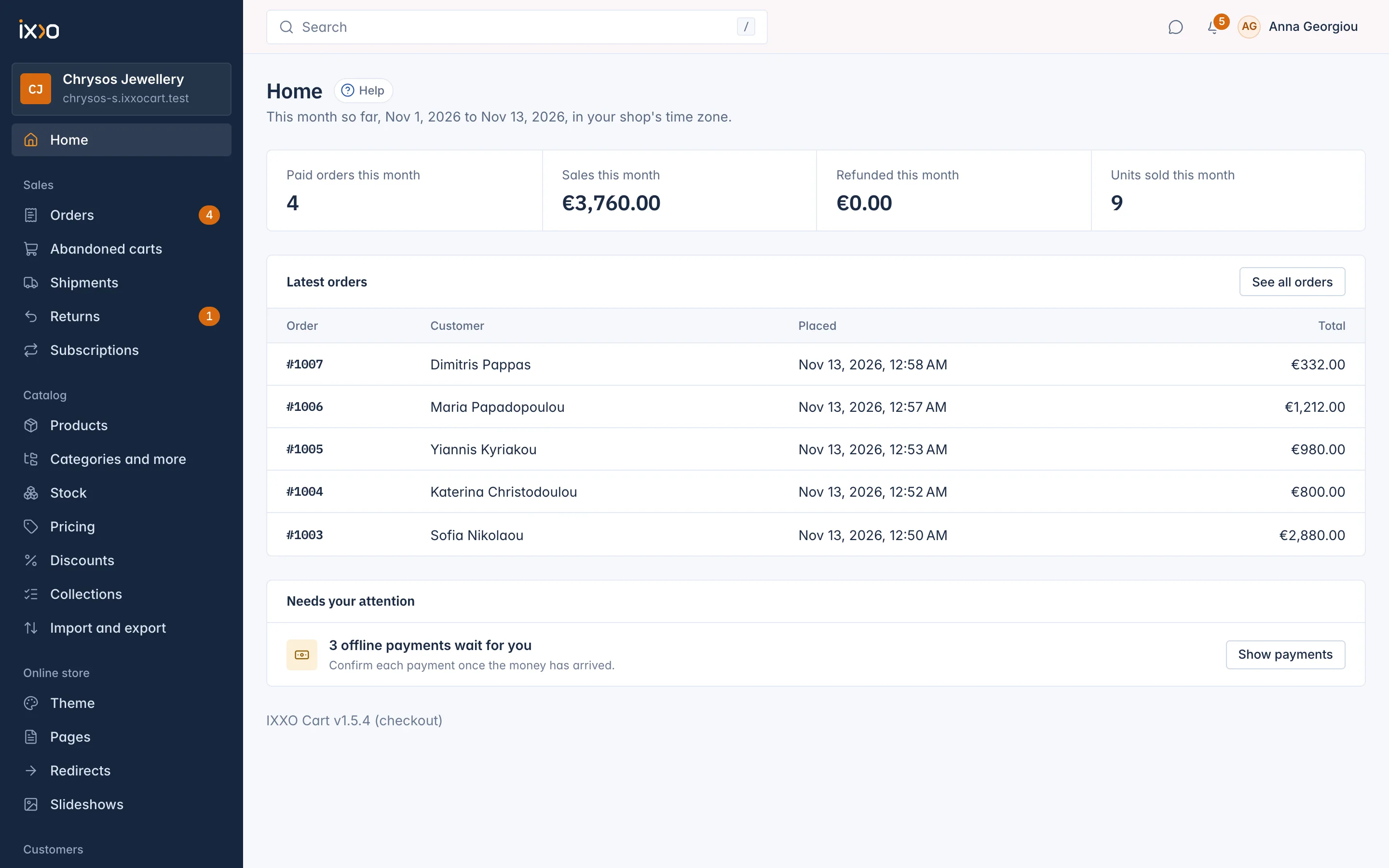
Four tiles show the current month so far, from the 1st to today in your shop's time zone:
- Paid orders this month: click it to open the list of those orders.
- Sales this month
- Refunded this month
- Units sold this month
The numbers and the latest orders show to people who may see orders.
Latest orders
Latest orders shows the five newest orders with their number, customer, when they were placed and their total. Click an order number to open it, or See all orders for the full list. Before your first order it says No orders yet.
Needs your attention
When something waits for a person, a Needs your attention card lists it with a button to deal with it. For example:
- 1 offline payment waits for you: a bank transfer or pay on pickup order to confirm once the money has arrived.
- Your mail account stopped sending: your shop's e-mails wait until you fix the mail settings and send a test e-mail.
Each person sees the rows that concern their own work. When there are many, the card shows the first ones and says how many more there are.
At the foot of the page a small line shows the IXXO Cart version your shop runs on.
Related
Updated 13 November 2026