
Custom fields
Add your own product details, such as material, fineness or volume, show them on the product page and let customers filter by them.
In the admin: CatalogCategories and moreCustom fields
On this page
Custom fields are product details you define yourself, such as the material of a ring, the volume of a bottle or the age range of a toy. You make a field once, choose which categories it applies to, and then fill in a value on each product. The values show on the product page under Specifications, and customers can filter category pages by them.
Custom fields describe a product. They are not choices the customer makes: for sizes and colours, use attributes. See Add sizes, colours and other attributes.
Make a custom field
- Go to Catalog > Categories and more and open the Custom fields tab.
- Click Add a custom field.
- Choose the Type (see below). "It cannot change later: stored values depend on it."
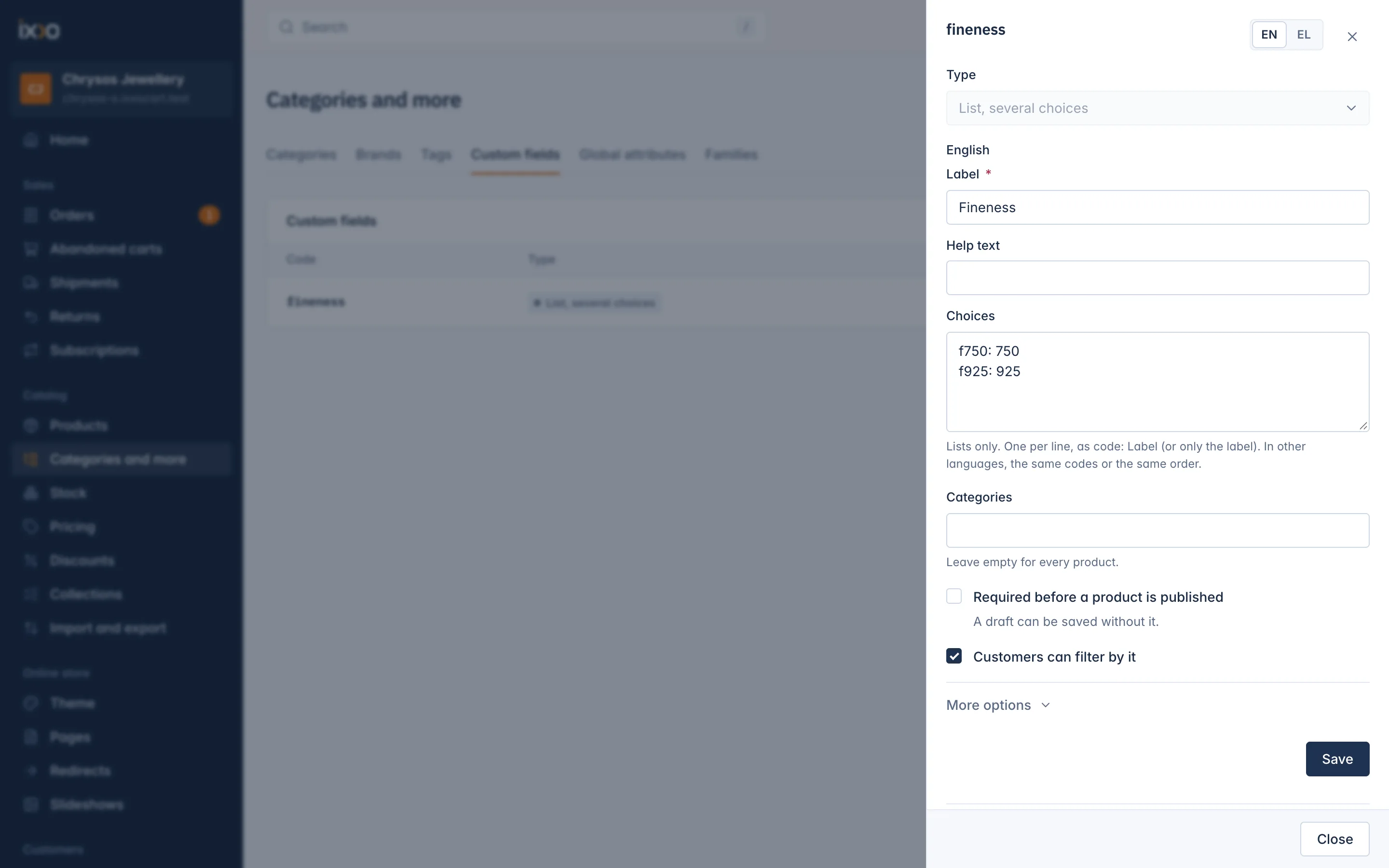
- Type the Label customers see, such as "Fineness", and if you like a Help text, shown under the field in the product editor.
- For a list, type the Choices: one per line, as
code: Label, for examplef750: 750. You can also type only the label. - Under Categories, pick the categories whose products have this field. Leave it empty for every product.
- Choose the options that apply (see below), and click Save.
Field types
| Type | Example |
|---|---|
| Text | Stone: Diamond |
| Long text | Care instructions |
| Number | Width in mm: 3 |
| List, one choice | Material: Gold, Silver or Platinum |
| List, several choices | Fineness: 750 and 925 |
| Yes or no | Nickel free |
| Date | Release date |
| Web address | Link to a size guide |
Options
- Required before a product is published: a product with this field cannot be published without a value. "A draft can be saved without it." A Yes or no field always has an answer, so it is never required.
- A value per language: for Text and Long text fields in a shop with several languages, so each language gets its own value. Leave it off for values that are the same in every language, such as a model number.
- Customers can filter by it: the field becomes a filter on category pages in your shop, listing the values your products have.
More options, folded away because the defaults suit most shops:
- Code: "Made from the label when left empty. Lower-case letters, digits and _ only, such as volume_ml. It cannot change later." Imports and the API use the code.
- Shown on: The product page, The comparison or Both.
With several languages, use the language switch at the top of the drawer to type the label, help text and choices in each language. For list choices in another language, use the same codes or the same order.
Fill in the values on a product
- Open the product and go to the Advanced tab.
- The Custom fields card shows "The fields that apply to the product's categories". Fill in each one. A field that is needed to publish says "Needed before the product is published."
- Click Save at the top of the page.

If the card says No custom fields apply to this product, the product is not in any category the fields are set for. Add it to a category first, on the General tab.
The list
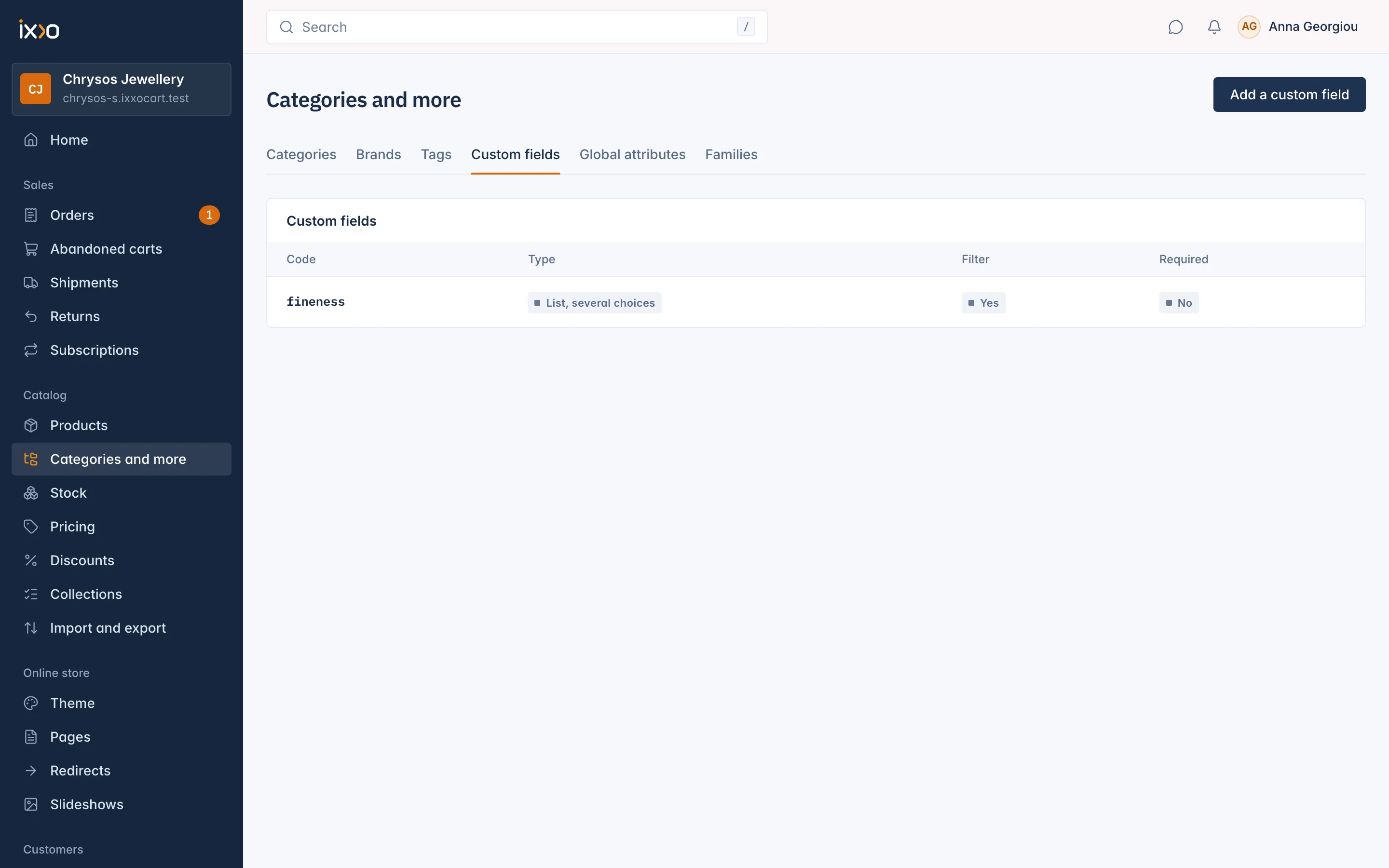
The Custom fields tab lists each field by its Code, with its Type, whether customers can Filter by it and whether it is Required. Click a code to change the field.
Delete a custom field
Open it and delete it. "Every product loses its value for this field." This cannot be undone.
Related
Updated 13 November 2026