
Connect Google Analytics to your shop
Send your shop's visits and sales to your own Google Analytics account. Paste your measurement ID, turn it on, and it waits for each shopper's yes.
In the admin: AppsGoogle Analytics
On this page
The Google Analytics app sends your shop's visits and sales to your own Google Analytics 4 account. You see where visitors come from, which products they look at, and what they buy.
Set it up
Google Analytics is a free app.
- Go to Apps > All apps, open Google Analytics and click Install.
- In Google Analytics, open Admin, Data streams, your web stream, and copy the Measurement ID. It starts with G-.
- In your shop, open Apps > Google Analytics, turn on Send visits and sales to Google Analytics, paste the ID in Measurement ID and click Save.
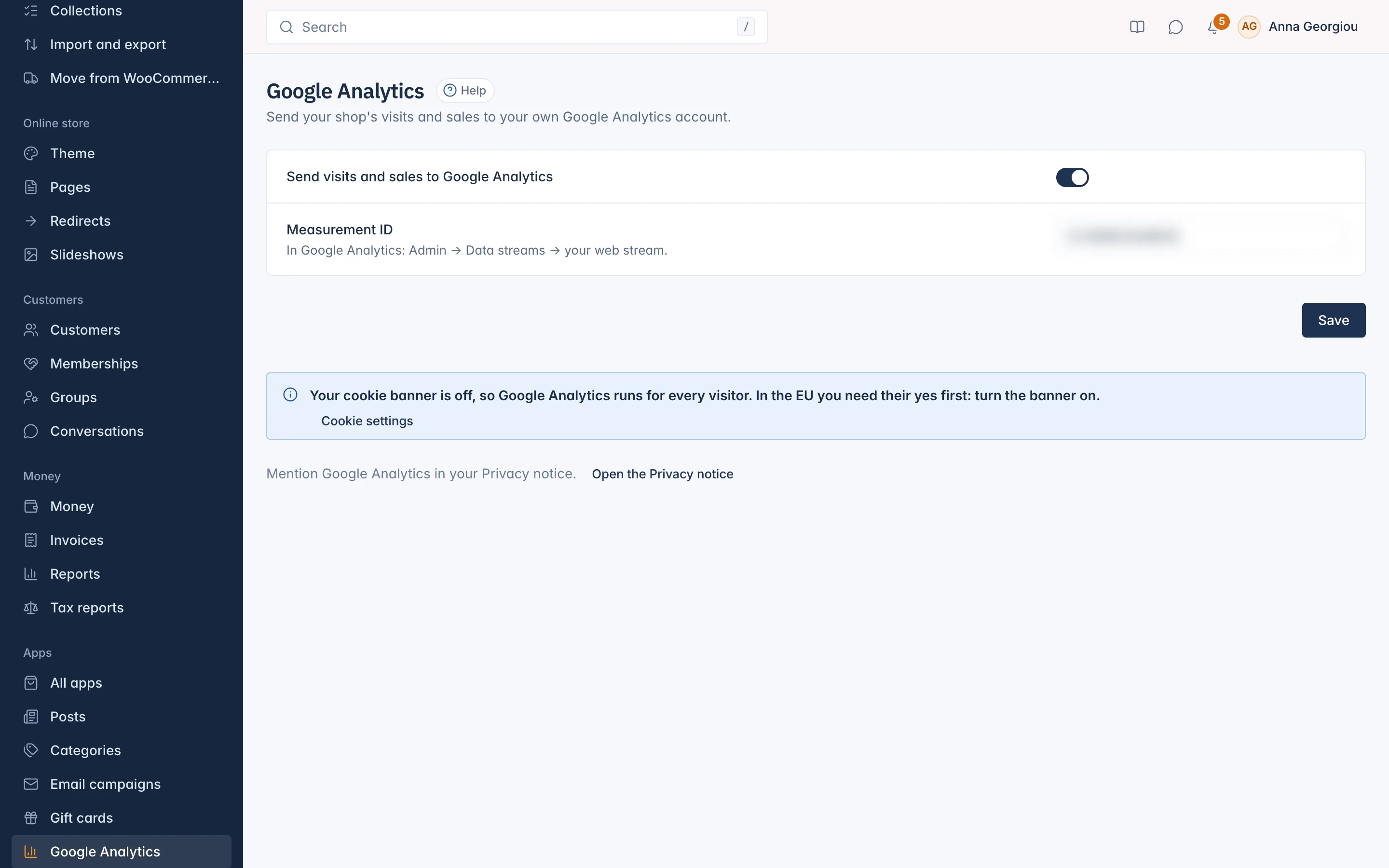
An old Universal Analytics ID (UA-) is refused: Google stopped Universal Analytics, so it collects nothing.
Use one Google Analytics property for each shop. Order numbers belong to each shop, so two shops sending to one property would mix their figures, and Google can drop a sale whose order number it has seen before.
What it sends
Page views, products viewed, product lists, searches, add to cart, remove from cart, checkout clicks and purchases. A purchase counts the goods after discounts, without tax and delivery.
Nothing is sent from the checkout, pay, saved cards or order acceptance pages, or from pages opened by a private link (a guest's order link from an e-mail, a password reset). Visits by your staff (previews, signed in as a customer) are not counted.
Cookies and consent
Turn the cookie banner on in Settings > Privacy and cookies. Google Analytics then waits for each shopper's yes to Analytics cookies, and the banner lists its cookies by itself. With the banner off it runs for every visitor; in the EU you need their yes first.
Mention Google Analytics in your Privacy notice.
Related
Updated 28 November 2026