
Export products, prices and categories
Download your products, the prices and stock of every variant, or your category tree as a CSV or Excel file, ready to edit and import back.
In the admin: CatalogImport and exportExport
On this page
An export gives you a file of your catalogue: for a backup, for a price list to a partner, or to change many products in a spreadsheet and import them back. Each file uses the same columns as our import, so it imports back unchanged.
Export a file
- Open Catalog > Import and export and click the Export tab.
Under What do you want to export?, choose one:
- Products: "Your products with texts, pictures and variants, ready to import back."
- Prices and stock: "SKU, prices and stock of every variant, to change and import back."
- Categories: "Your category tree, with names, descriptions and pictures."
- Choose the options below (only the ones for your kind are shown).
- Choose the File type: CSV ("Opens in any spreadsheet program.") or Excel (.xlsx).
- Click Export.
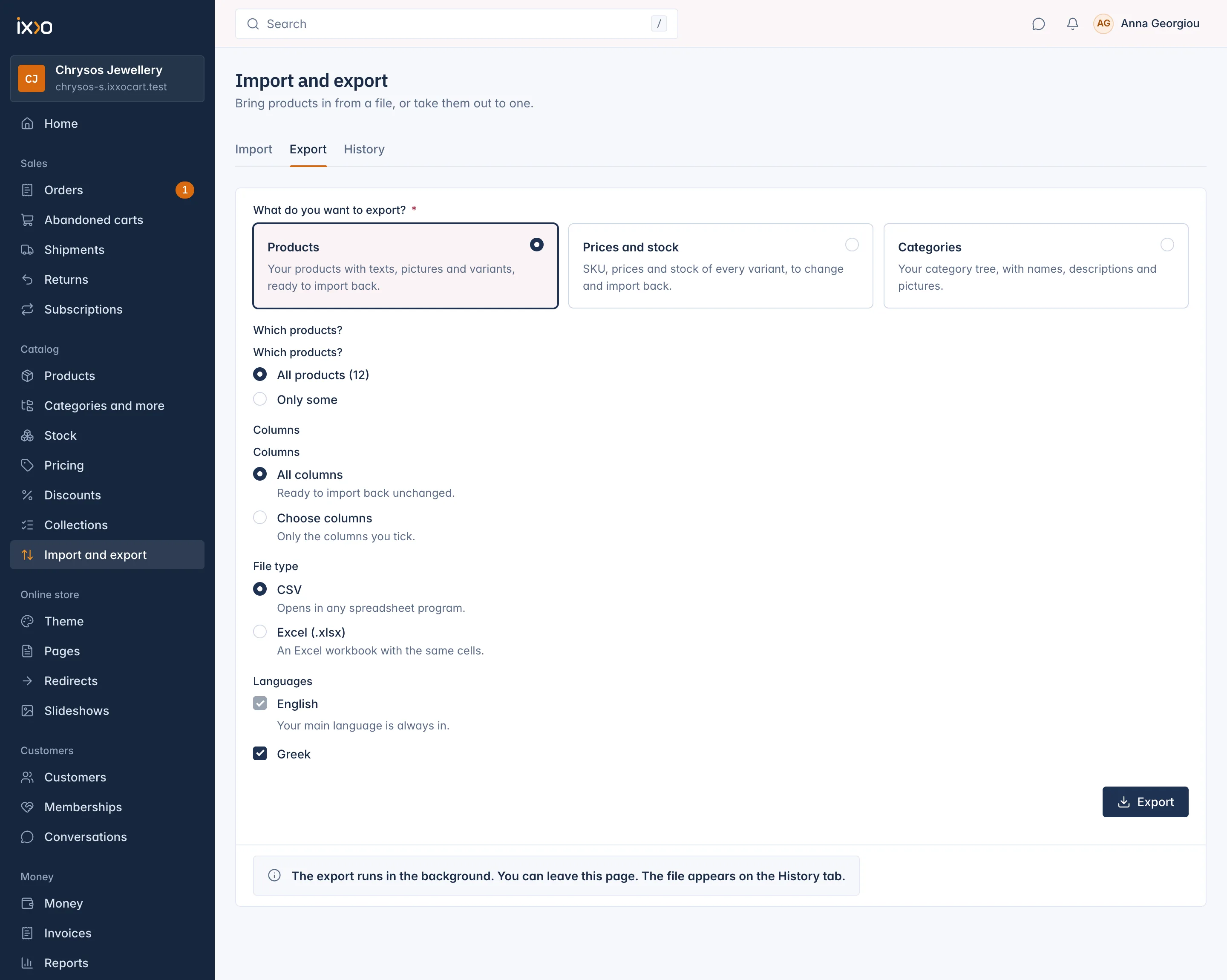
The export runs in the background, and you can leave the page. The file appears on the History tab when it is ready: click Download there.
Which products
For Products and Prices and stock, choose under Which products?:
- All products, with their number.
- Only some: then pick a Category, a Status (Active, Draft or Archived) and a Brand. The page counts how many products match, for example "12 products".
Which columns
For Products, choose under Columns:
- All columns: "Ready to import back unchanged."
- Choose columns: tick only the columns you want under Columns in the file. The SKU and the variant ID are always in, so the file can be imported back.
The cost price is only in the files of staff who may see cost prices.
Languages
If your shop has more than one language, tick the languages whose texts you want under Languages, for Products and Categories. Your main language is always in.
What is in the file
- One row per variant. The
variant_skuandvariant_idcolumns find each variant again when you import the file back. Leave them as they are. - Prices are in cents, in the columns
price_minor,compare_at_minorandcost_minor:3990means 39.90. The import reads them back as cents. - The
on_handcolumn is the stock at your default location. - Barcodes and SKUs stay text, so their leading zeros are kept.
A product with a very long text (more than 32,767 characters in one cell) cannot go into an Excel file, because Excel does not allow it. The export then stops and names the product: export as CSV instead.
The History tab
The History tab lists your imports and exports of the last 30 days, with who started each one and its status. Download each export file from the Download column. "Files are kept for 30 days." After that, the file is gone: export again.
Other exports
Orders are exported from the Orders screen, not from here. See Orders and delivery.
Related
Updated 13 November 2026