
Connect your mail account
Send your shop's e-mails from your own address: enter your SMTP details or connect a Google or Microsoft mailbox, then send a test e-mail.
In the admin: SettingsMail account
On this page
Your shop sends e-mails to customers and staff: order confirmations, payment receipts, shipping updates, password resets and more. They go out through your own mail account, from your own address, so customers recognise the sender, replies reach you, and your e-mails are less likely to land in spam. This article shows how to connect your mail account, test it, and what happens if you do not.
Open Settings > Mail account. The page is called Outgoing e-mail. For your safety it may ask for your password again first.
Why it matters
Until your mail account has passed a test:
- While your shop has never been live, its e-mails (for example the invitations you send to staff) go out through the IXXO Cart platform, so you can set up without it.
- Once your shop has gone live, there is no platform fallback. Without a tested mail account of its own, your shop sends no e-mails to customers: no order confirmations, no payment receipts, no shipping updates. The e-mails are kept in the log and fail until you fix it.
That is why "Send a successful test e-mail from your own mail account" is the first check on the go-live card. It does not stop you going live, but the Go live confirmation warns you: Until your own mail account passes a test, your shop sends no e-mails to customers.
What you need
The SMTP details of the mailbox you want to send from. Your e-mail provider or host publishes them, usually under "SMTP settings" or "outgoing mail server":
- the server name (host), such as
smtp.yourprovider.com - the port and the encryption: 587 with STARTTLS is the most common, 465 with SSL/TLS the other usual choice
- the username (often your full e-mail address) and its password. Some providers, Google and Microsoft among them, ask for a separate app password when two-step sign-in is on.
Enter your SMTP details
In the SMTP server card, fill in:
- SMTP host: your provider's outgoing server.
- Port and Encryption: STARTTLS (port 587), SSL/TLS (port 465) or None. Choose None only if your provider tells you to.
- Username and Password. The password is stored encrypted and never shown again; leave the field empty later to keep it.
- Sender address: the address customers see your e-mails come from. Use an address this account is allowed to send from.
- Sender name: usually your shop's name.
- Optional: press Test connection. It signs in to your server with what you typed and sends nothing, so you can catch a wrong password or port before saving. A success says Connected to … and signed in. Nothing was sent. Save the settings to use them.
- Press Save. The page says Settings saved. Send a test e-mail to verify them.
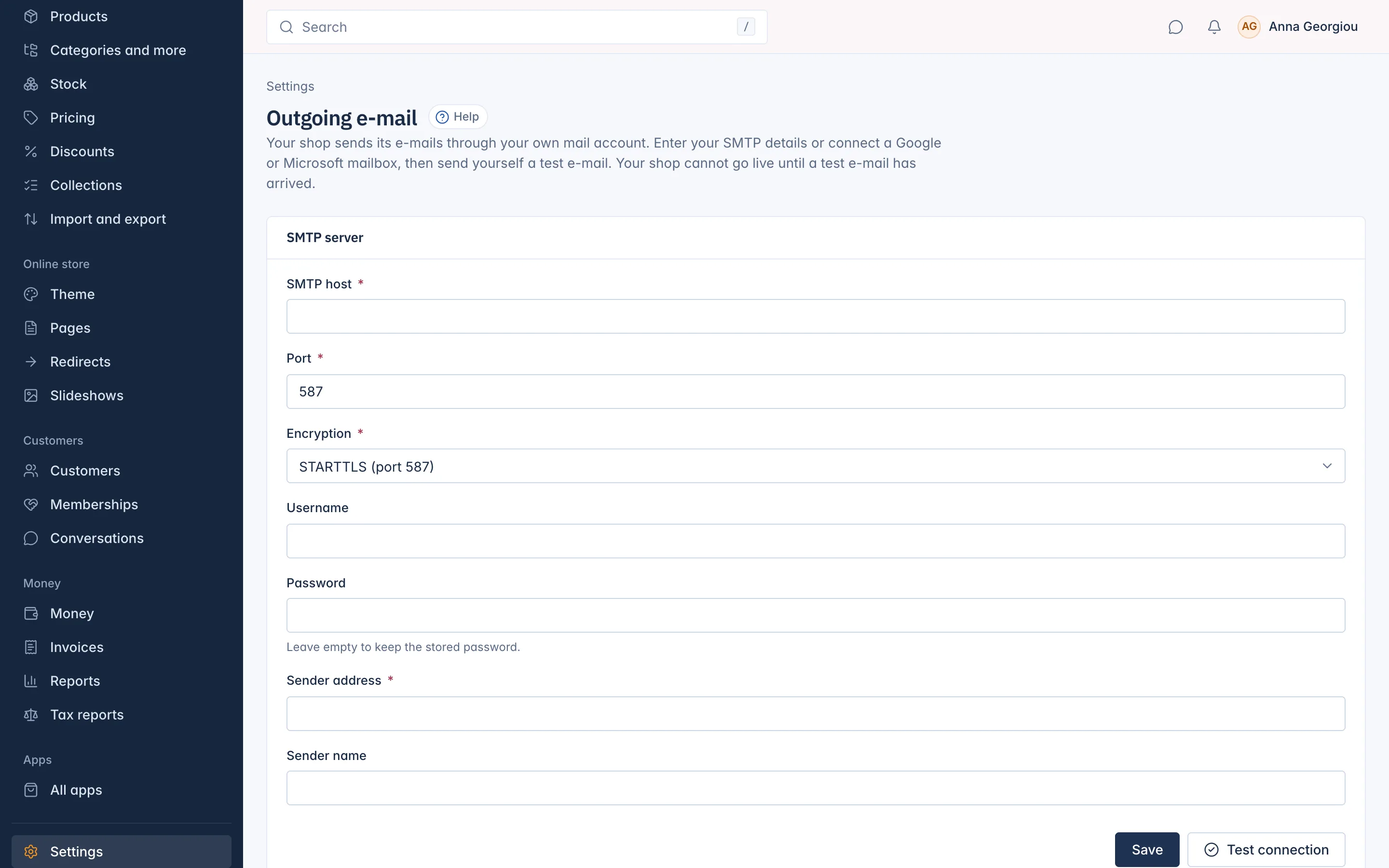
Or connect a Google or Microsoft mailbox
When the platform offers it, the page also shows a card per provider with Connect Google or Connect Microsoft. Type the Sender name and Sender address, press the connect button, sign in at Google or Microsoft and allow access. Back in the admin you see The mailbox is connected. Send a test e-mail to verify it.
If these cards are not on your page, use the SMTP details of your Google or Microsoft account instead.
Send a test e-mail
Saving is not enough: the account counts only once a real e-mail has gone through it.
- In the card at the top, which shows your account, press Send a test e-mail to me.
- The test goes to the e-mail address you sign in with. The page says The test e-mail was sent to … Check your inbox.
- When your mail server accepted it, the card shows Verified on …: test e-mail delivered. Check that it really reached your inbox, and your spam folder.
You can send three test e-mails every ten minutes.
If the test fails, the page explains why in plain words, followed by the server's own message, for example The mail server refused the login. Check the username and the password (some providers ask for an app password).
If your mail account stops working
If sends fail several times in a row (the number is set under Settings > E-mail), the account counts as broken. The Owner gets an e-mail, Home shows Your mail account stopped sending under Needs your attention, and your shop's e-mails wait. Fix the settings and send a test e-mail; the waiting e-mails can then go out.
Remove this account deletes the mail account. A live shop must keep a working account, so removing is refused while the shop is live: replace the account and test it instead.
The e-mails themselves
Which e-mails your shop sends, their wording in each language and your logo at the top of them are set under Settings > E-mails. Settings > E-mail has the reply-to address for shop e-mails. The Owner can see the e-mails sent in the last 3 days under Settings > E-mail log. All three are explained in Settings.
Related
Updated 13 November 2026