
The Settings page
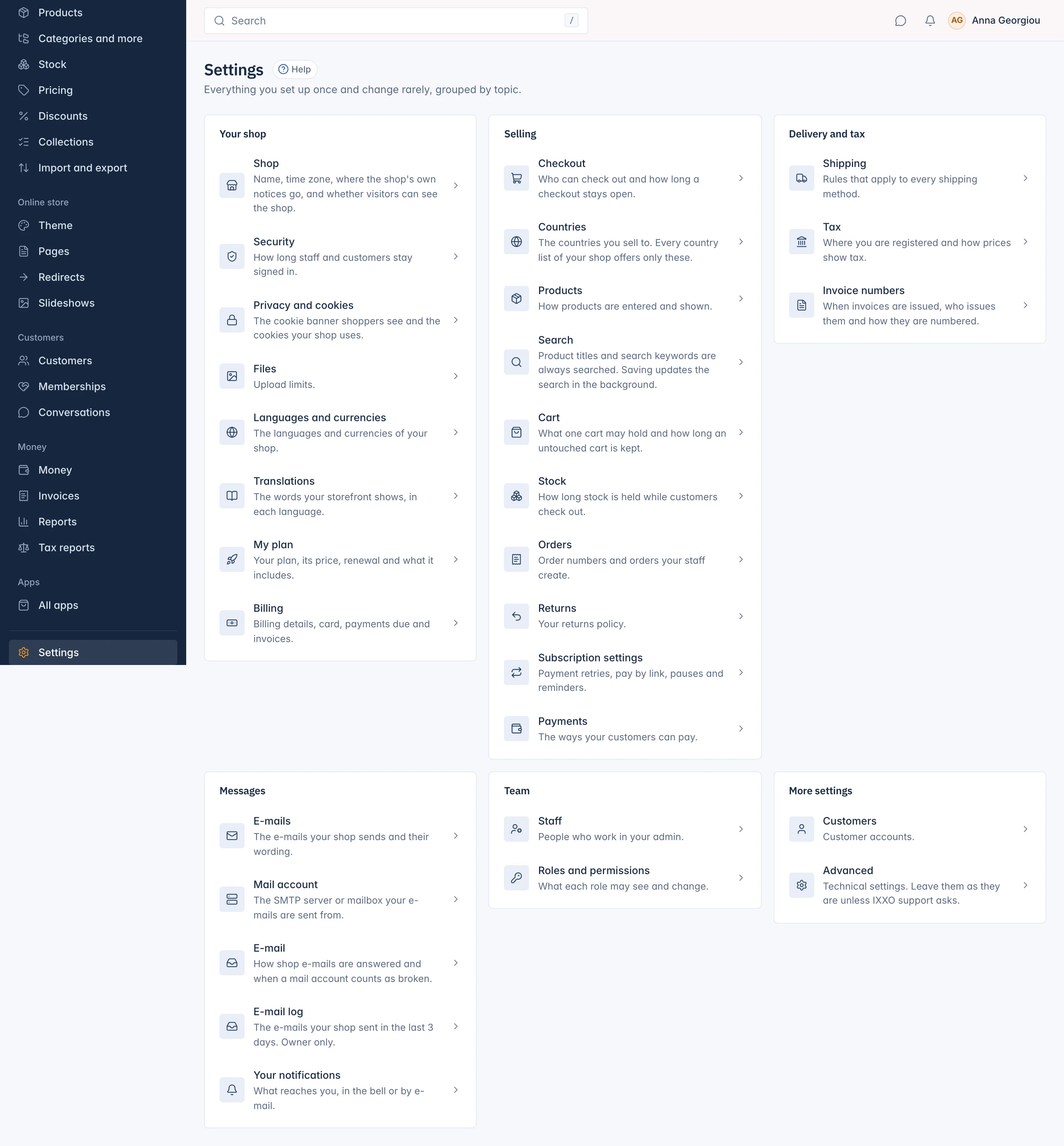
A tour of the Settings page: every set-up screen of your shop, grouped by topic, and who sees which rows.
In the admin: Settings
On this page
The Settings page is where you set up the parts of your shop you change rarely: your shop details, languages, payments, shipping, tax, e-mails and your team. Open it with Settings at the bottom of the admin menu. Each row opens one screen, and every setting starts on a safe default, so you only change what you need.
What each group holds
The page is split into groups. This table lists every row and where it is explained.
| Group | Row | What it opens |
|---|---|---|
| Your shop | Shop | Shop name, time zone, notice e-mail, maintenance mode, date format and the Store online switch. See Shop details. |
| Security | How long people stay signed in, two-step sign-in for all staff and bot protection. See Security settings. | |
| Privacy and cookies | The cookie banner. See the Online store section. | |
| Files | Upload limits: Largest image or file upload (MB) (25 by default) and Largest video upload (MB) (500 by default). | |
| Languages and currencies | See Languages, currencies and translations. | |
| Translations | The words your storefront shows, per language. Explained in the same article. | |
| My plan and Billing | Shown to the shop's Owner only. See Your plan and billing. | |
| AI usage | Credits left, buying more credits and the latest AI calls. Owner only, on plans with the AI tools. See the Apps and AI section. | |
| Selling | Checkout, Products, Search, Cart, Stock, Orders, Returns, Subscription settings, Payments | How selling works. These are explained in the Orders and delivery, Catalog and Money and tax sections. |
| Countries | The countries you sell to. See Choose the countries you sell to. | |
| Delivery and tax | Shipping, Tax, Invoice numbers | See Orders and delivery and Money and tax. |
| Messages | E-mails, E-mail, E-mail log | See E-mail templates and The e-mail log and reply-to address. |
| Mail account | The account your e-mails are sent from. See Connect your mail account. | |
| Your notifications | What reaches you in the bell or by e-mail. See Your profile and notifications. | |
| Team | Staff, Roles and permissions | See Staff accounts and Roles and permissions. |
| API keys | Only on plans with API access. See the Developers section. | |
| More settings | Customers | One switch: New customers confirm their e-mail address (on by default). |
| Advanced | Cache lifetime (seconds), 300 by default. Leave it as it is unless IXXO support asks. |
Why you may see fewer rows
The page only lists the screens you may open. A staff member whose role cannot change shipping does not see the Shipping row, for example. Some rows have extra rules:
- My plan, Billing, AI usage and E-mail log are for the shop's Owner only, whatever a role grants.
- AI usage shows only when your plan includes the AI tools.
- API keys shows only when your plan includes API access.
- Subscription settings shows only when your plan includes subscriptions.
If a whole group has no row you may open, the group is not shown. When nobody has given you access to any set-up screen, the Settings entry leaves the menu too.
Closing your shop
There is no setting to close your shop. How closing works and how you get a copy of your data is in Close your shop and export your data.
Moving between settings screens
Most settings screens show a list of the other settings groups on the left (Shop, Products, Search, Cart and so on), so you can jump from one to the next without going back to the Settings page. Each screen has its own Save button. Nothing changes until you press it.
Every setting with a question mark beside it has a short tip. Point at the question mark to read it.
Related
Updated 13 November 2026