
Sell routines and kits with Set builder
The Set builder app lets shoppers build a routine or kit step by step from products you choose, and add it all to the cart at once.
In the admin: AppsSets
Set builder turns a group of products into a guided set: a skincare routine, a gift box, a starter kit. You split the set into steps, such as Cleanser, Serum and Cream, and choose the products a shopper may pick for each step. In your shop, shoppers keep or change the product of each step, see the running total and click Add all to cart. Each product goes into the cart as a normal line, at its normal price.
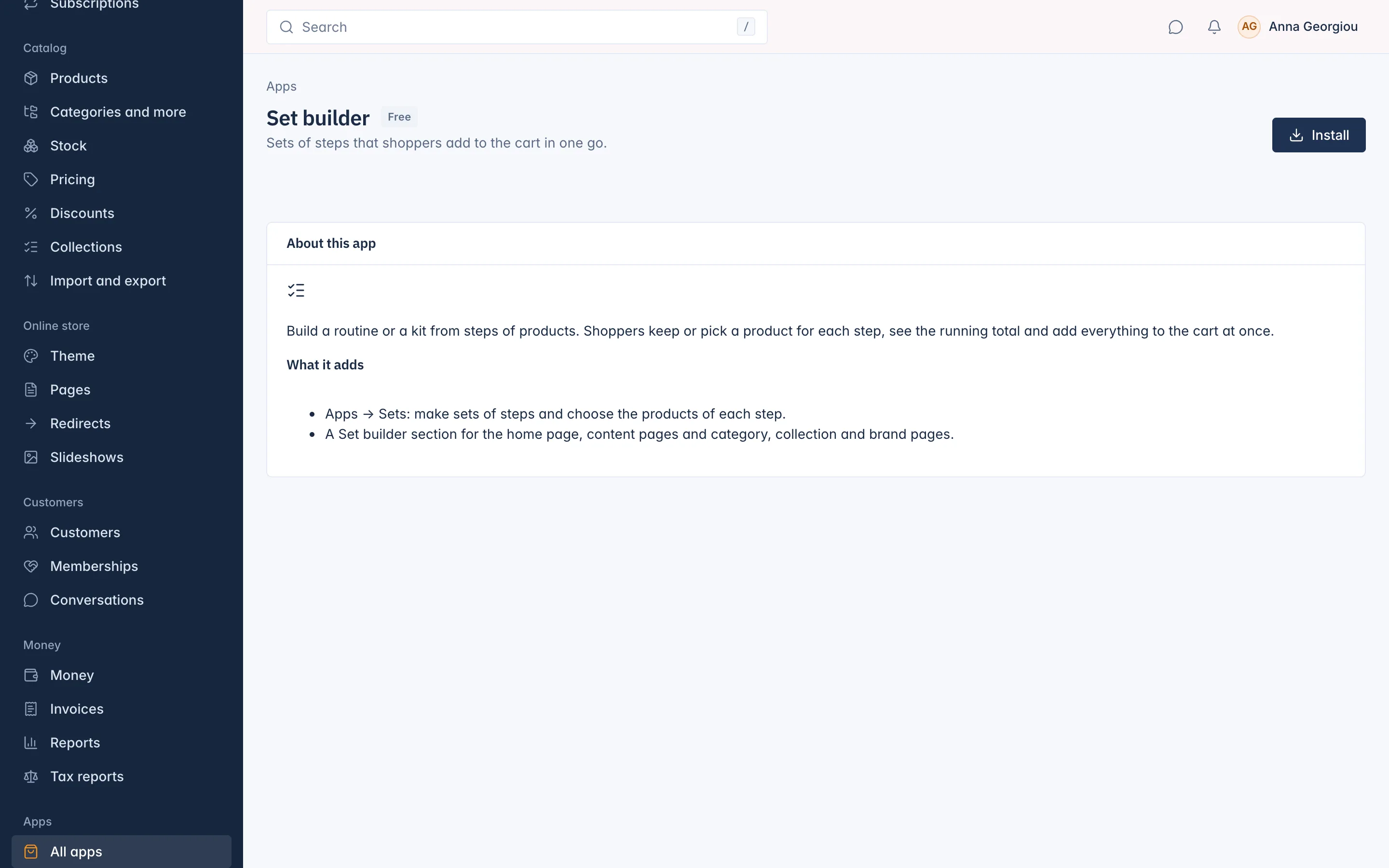
Install the app
Set builder is a free app.
- Go to Apps > All apps and open Set builder.
- Click Install.
The app adds Sets under Apps in the menu, and a Set builder section for your theme. See Apps and AI for how apps are installed and removed.
Make a set
- Go to Apps > Sets and click New set.
- Type the Name. "Shoppers see it when a section shows several sets."
- Turn on Used as a routine if the section will show this set with the Routine layout. Each step can then be marked Morning, Night or both.
- Under Steps, click Add step and type the Step name, such as "Cleanser".
- Tick Required if "Shoppers cannot add the set without this step". A step that is not required shows as Optional, with a Skip this step button.
- Click Add product and search for each product the shopper may choose for this step. For a product with combinations, also choose the Variant.
- Add the other steps the same way, and click Save.
A set holds up to 12 steps, and each step offers up to 12 products. Drag a step or a product to change its place. Adding steps and products needs JavaScript in your browser.
Show a set in your shop
Sets show through the Set builder section. Add it in the theme editor to the home page, a content page, or a category, collection or brand page, and set:
- Heading and Text above the set,
- Sets: up to six sets. With more than one, shoppers switch between them with tabs,
- Layout: Routine shows one product per step, which shoppers can switch, with morning and night marks; Builder lists all the products of each step, which suits a kit.
See Online store for the theme editor.
What shoppers see
For each step, the shopper keeps the first product or chooses another. The Total updates as they choose. Add all to cart puts every chosen product in the cart. If a product is sold out or needs options chosen on its own page, it is skipped and the shopper is told why, for example "... is sold out."
Stock, prices and discounts work exactly as for products bought one by one.
Delete a set
Open it and click Delete set. "The set and its steps are deleted. Your products stay." A section that showed the set stops showing it.
Related
Updated 13 November 2026