
Manage an order
A tour of the order page: the items, payment and money cards, the timeline with staff notes, the customer, invoices, and every action you can take.
In the admin: SalesOrdersan order
On this page
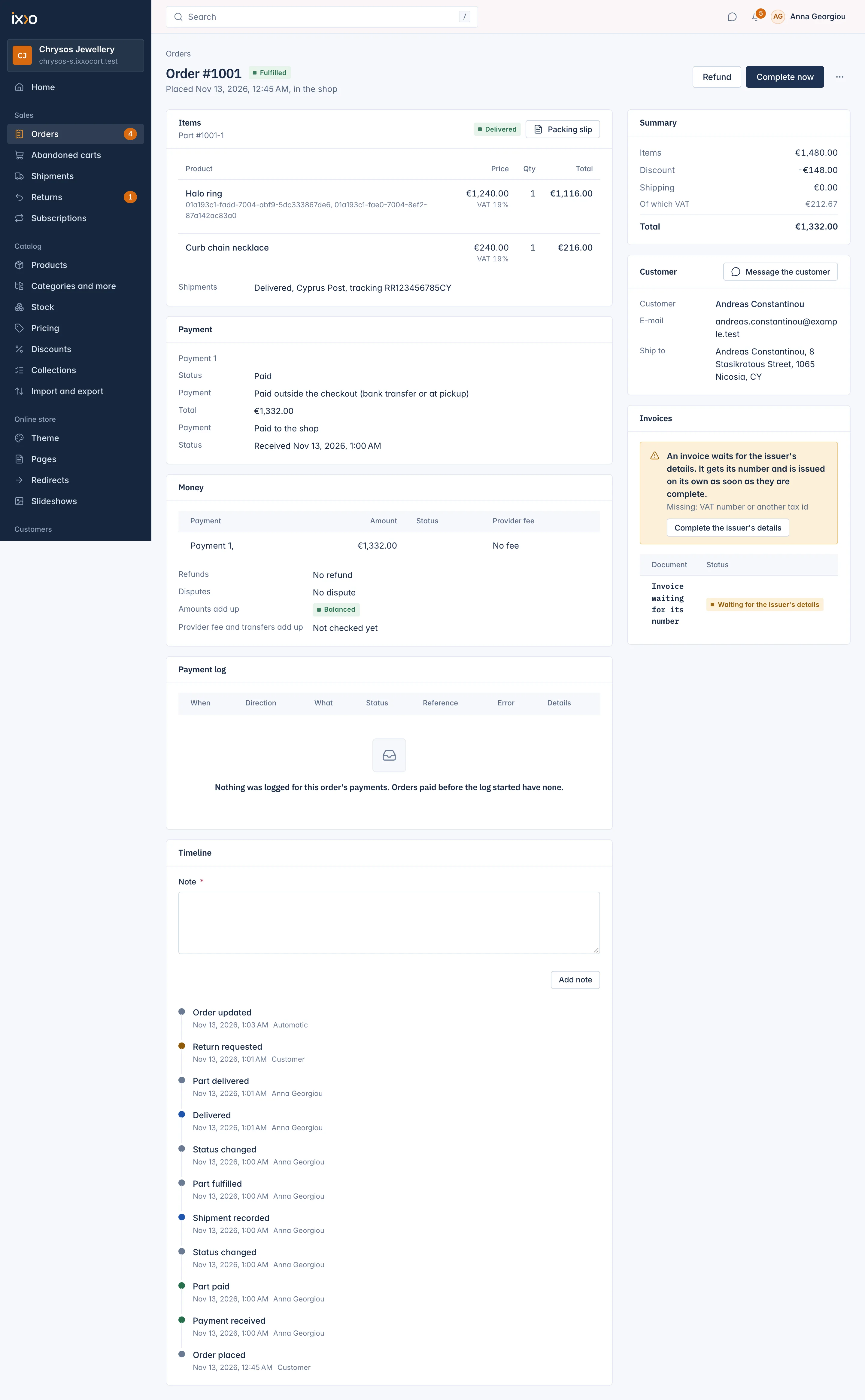
The order page holds everything about one order: what was bought, how it was paid, where it goes, which invoices were issued and everything that happened to it. Open it from the orders list by clicking the order number. This article walks through the page and points to the articles for each task.
The header
The header shows Order #1042, when and how it was placed ("Placed 12 Nov 2026, 14:05, in the shop", "by staff", "through the API" or "as a subscription renewal"), the order status and any flags as tags.
The buttons on the right change with the order's state. You only see the ones that apply now and that your role allows:
| Button | Shows when | What it does |
|---|---|---|
| Cancel order | The order is Waiting for payment. | Cancels the order and puts its stock back. The customer is told by e-mail. |
| Send payment link | An order you created is still unpaid. | E-mails the customer a link to pay. See Create an order by hand. |
| Mark as paid | A bank transfer or pay on pickup payment is waiting. | Records that the money arrived. See Confirm bank transfer and pay on pickup payments. |
| Refund | The order is paid and has something left to give back. | Gives money back for units or shipping. See Refund an order or cancel items. |
| Change a paid order | The order is paid and has units not shipped yet. | Cancels units before they ship and refunds them. |
| Complete now | The order is Fulfilled. | Closes the order before its returns window ends. |
| More actions > Issue invoice now | The order is paid and has an invoice still to be numbered. | Issues the invoice at once. |
The items card
The Items card lists each product with its variant, SKU, price, quantity, VAT rate and line total. Refunded units are marked on their line. A tag on the card shows its fulfilment status, such as Not fulfilled.
The card also holds the delivery buttons: Record by hand, Buy label, Ready for pickup, Mark as delivered and Packing slip. Under the lines, a Shipments row lists each parcel with its status, carrier and tracking number. All of this is explained in Ship an order and add tracking.
The payment card
The Payment card shows how the order is paid. For each payment you see:
- its status, such as Waiting or Paid;
- the method, for example Card, PayPal, or "Paid outside the checkout (bank transfer or at pickup)";
- the amount;
- who receives it ("Paid to the shop");
- when the money arrived, or until when the shop waits for it.
The money card
Staff who may see money also get the Money card. It lists each payment with the fee the payment provider took, once the provider reports it (a bank transfer has No fee), every refund with its status, and any dispute (chargeback). Two checks at the bottom confirm the numbers: Amounts add up and Provider fee and transfers add up. Balanced means all is well; Not balanced names the problem.
Staff allowed to view the payment log also see a Payment log card: every call the shop made to the payment provider for this order and every notice the provider sent back. Click Details on a row to read one entry. It is useful when a payment did not go through and you want to know why.
The timeline and staff notes
The Timeline lists everything that happened to the order, oldest first, with who did it: Customer, a staff member's name, or Automatic. It includes the order being placed, payments, reminders, shipments, refunds, invoices, credit notes, returns and staff notes.
To add a note, type it in Note under the timeline and press Add note. Notes are for your team only: customers never see them, and they are not sent anywhere. Use them for things like "Customer called, wants delivery after Friday".
The summary card
The Summary card on the right shows the money of the order: Items, Discount, Shipping, Of which VAT, Refunded and the Total.
The customer card
The Customer card shows the customer's name, e-mail address and the Ship to address. A guest order says Guest. If the customer has an account, the name opens their customer page.
Message the customer starts a conversation with the customer about this order. The customer reads and answers it in their account, so the button shows only for customers with an account, not for guests. Conversations are covered in the Customers section.
The invoices card
The Invoices card lists the order's invoices and credit notes with their status and total. Click one to open it. An invoice is issued automatically when the payment is received; a credit note follows each refund.
If an invoice waits for your shop's invoice details (your company name, address or VAT number), the card says so with a link Complete the issuer's details. The invoice gets its number by itself once those details are complete. Invoices and credit notes are explained in the Money and tax section.
Related
Updated 13 November 2026