
Ship an order and add tracking
Print a packing slip, record parcels with carrier and tracking number, mark orders delivered or ready for pickup, and complete them.
In the admin: SalesOrdersan order
On this page
Once an order is paid, you pack it and tell the shop it has left. The customer then gets a shipping e-mail with the tracking details, and the order moves on to Fulfilled. This article covers sending parcels with your own carrier and recording them by hand. To buy carrier labels from inside the shop instead, see Buy shipping labels and track parcels.
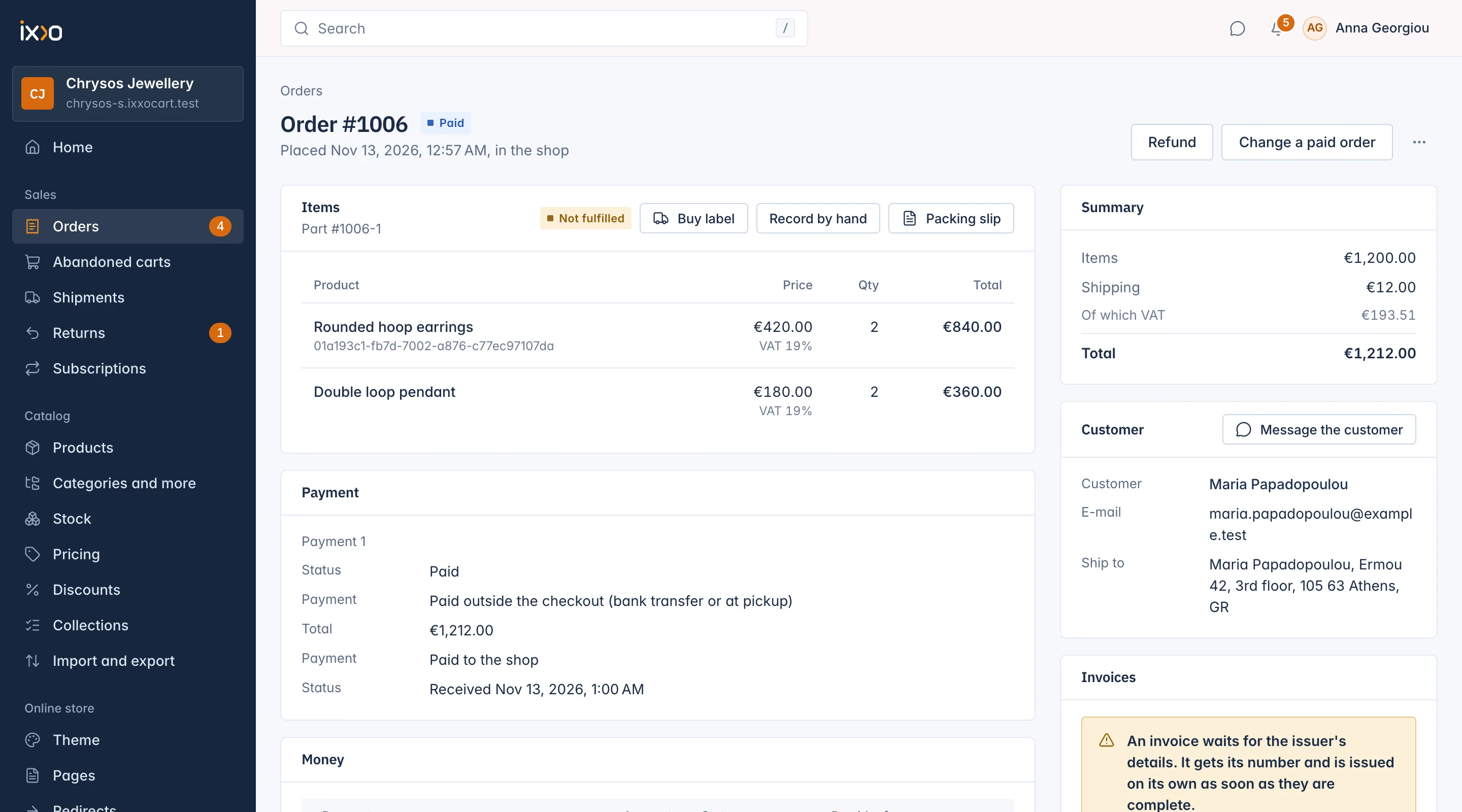
The delivery buttons sit on the order's Items card. Packing slip is always there; the other buttons appear only once the order is paid, and only for staff allowed to record shipments.
Print a packing slip
Press Packing slip on the Items card. It opens in a new tab and the print window opens by itself. The slip shows:
- your shop as the sender, and the customer's delivery address;
- the order part number and the date the order was placed;
- each item with its variant, SKU and quantity, without prices.
Put it in the parcel, or use it as a picking list.
Record a parcel
- Pack the goods and send them with your carrier.
- On the order, press Record by hand.
- The dialog Record a shipment by hand fills in every unit still to ship. If some units are not in this parcel, lower their number.
- Type the Carrier (for example ACS or DHL), the Tracking number and, if you have it, the Tracking link (it must start with
http://orhttps://). All three are optional, but customers like to have them. - Press Save shipment.
You see "Shipment recorded." The Items card lists the parcel under Shipments, for example "On its way, ACS, tracking 7212345678". The customer gets the "shipped" e-mail with the carrier and tracking details.
Ship in several parcels
Record each parcel on its own, with the units it holds. After the first parcel the order is Partly fulfilled; when the last unit has left it becomes Fulfilled. Record by hand stays on the card while units are left to ship.
Mark the order delivered
When the parcel has arrived, press Mark as delivered. You see "Marked as delivered." The customer gets the "delivered" e-mail, and the returns window starts from now.
Mark a delivery only once everything in it has left: a delivery that still has units to ship refuses with "The order is not in a state that allows this." Once a delivery is marked delivered, it takes no more parcels.
Orders the customer collects
When the customer chose a pickup method at checkout, the Items card shows Ready for pickup instead of the parcel buttons.
- Prepare the order and press Ready for pickup. You see "Marked ready for pickup." The customer gets an e-mail that the order is ready. The order counts as Fulfilled.
- When the customer collects it, press Mark as delivered.
See Let customers collect orders in person for setting up pickup.
Complete an order early
An order completes by itself when the returns window after delivery has ended. To close it sooner, press Complete now on an order that is Fulfilled and confirm: "The order closes before its returns window ends." An order with an open return cannot be completed.
When you arrange delivery yourself
If your shipping settings say We arrange delivery ourselves, checkout shows no delivery choice and no shipping cost. Orders still show Record by hand and Mark as delivered, so you can record what you sent; carrier labels are not offered. See Shipping settings and tax on shipping.
What the customer receives
| Step | E-mail to the customer |
|---|---|
| Parcel recorded, or label handed over | Your order has shipped, with carrier and tracking |
| Ready for pickup | Your order is ready for pickup |
| Marked delivered | Your order was delivered |
| Order completed | An optional e-mail, off by default |
Each e-mail can be switched on or off and reworded in Settings > E-mails.
Related
Updated 13 November 2026