
Redirect old addresses
Send visitors from old addresses to new ones: add a redirect, import a CSV list from your old shop, and see which renames redirect by themselves.
In the admin: Online storeRedirects
On this page
A redirect sends anyone who opens an old address on to a new one. You need redirects when a page has moved, and above all when you move to IXXO Cart from another shop: old links in search results, social posts and e-mails keep working, and search engines move your ranking to the new pages.
Redirects the shop makes by itself
You do not need a redirect when you rename something inside IXXO Cart. When you change the main address of a product, category or page, the old address keeps leading to the item. If you move a category under another one, its old address keeps working too.
Add your own redirects for addresses the shop cannot know about: your old shop's addresses, pages you deleted, or campaign links you want to point somewhere else.
Add a redirect
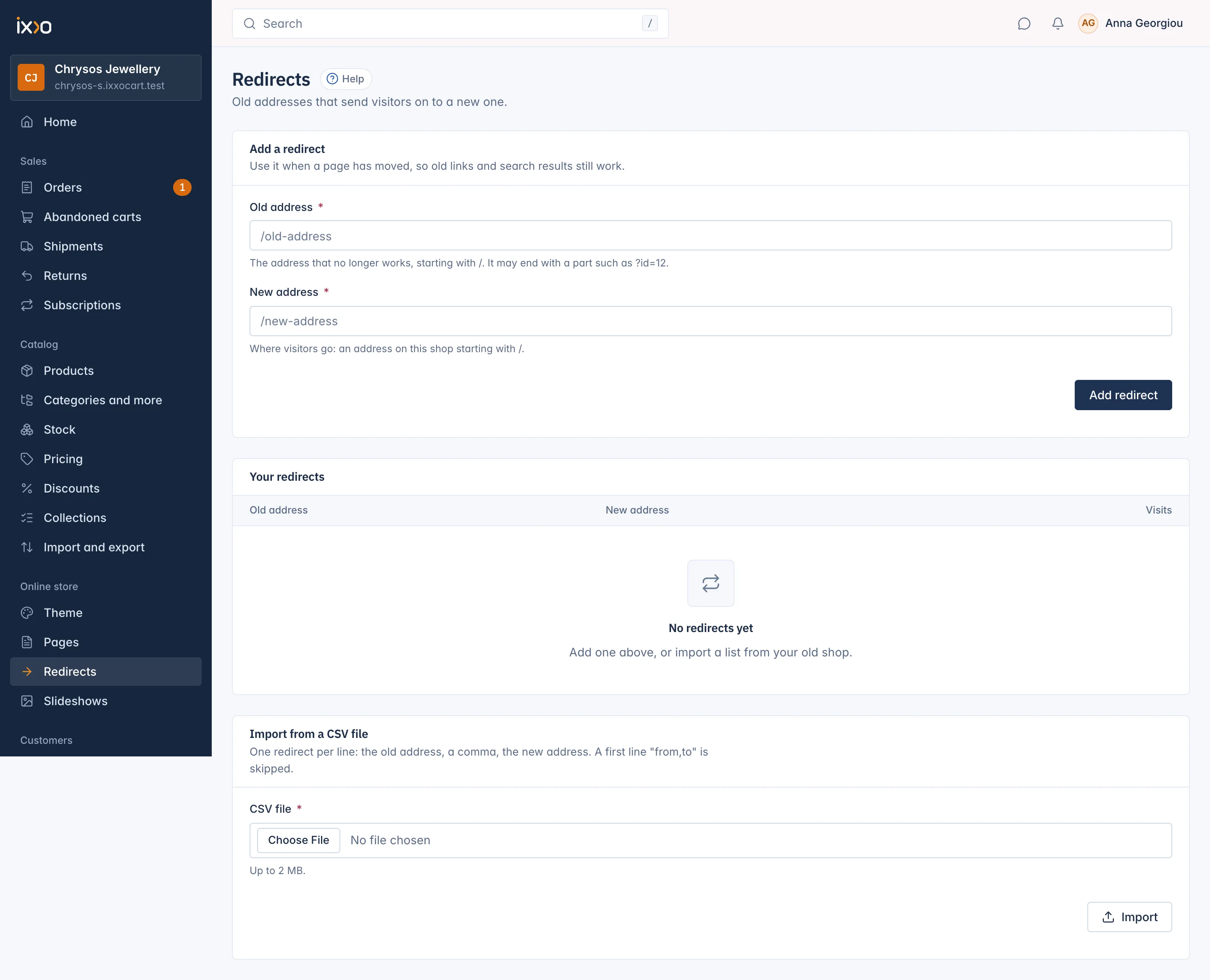
- Go to Online store > Redirects.
- In Old address, type the address that no longer works, starting with
/. It may end with a part such as?id=12. - In New address, type where visitors should go: an address on this shop starting with
/. - Press Add redirect.
You only type the part after your domain. For example, to send https://yourshop.com/old-rings to the Rings category, the old address is /old-rings and the new one is /rings.
Redirects always point to your own shop. You cannot send visitors to another website.
Addresses with a question mark
Many older shops used addresses like /index.php?p=product&id=12. You can redirect these exactly. The order of the parts after ? does not matter. A redirect without a ? part catches the address whatever is added after it.
Language prefixes
An address is matched exactly as typed, including any language part. A redirect from /el/old-page catches only /el/old-page, not /old-page. Add one redirect per language if your old shop had addresses per language.
Why a redirect is refused
| Message | What to do |
|---|---|
| A redirect cannot send an address to itself. | Check that the two addresses differ. |
| This address is a page of the shop, so a redirect from it would never be used. | The old address still shows a live product, category or page. Change or remove that item's address first. |
| Another redirect already starts at this address. | Find that redirect in the list and change it instead. |
| This redirect would send visitors round in a circle. | Another redirect already points back. Check the chain of redirects. |
Import redirects from a CSV file
Moving from another shop often means hundreds of old addresses. Put them in a CSV file and import them in one go.
- Make a file with one redirect per line: the old address, a comma, the new address. A first line
from,tois skipped. See the example below. - In Import from a CSV file, choose the file in CSV file. It can be up to 2 MB and hold up to 5,000 redirects. Split larger lists into several files.
- Press Import.
An example file:
from,to
/product.php?id=12,/gold-ring-classic
/category/rings,/rings
The result says how many were added and skipped, for example Added: 240. Skipped: 3., and lists the skipped lines with the reason, such as Line 4: this address is a page of the shop. Fix those lines and import them again: lines already added are refused as duplicates, so importing the same file twice does no harm.
Find, change or delete a redirect
Your redirects lists all redirects, 50 per page, with the Old address, the New address and Visits: how many times the redirect was used. Visits tell you which old links still bring people in.
Use the search box to find a redirect by its old or its new address. Click a redirect to change it, or to see Added by (typed in this screen or a CSV import). Delete redirect removes it after you confirm; the old address then shows the page not found.
Related
Updated 13 November 2026