
Your profile and notifications
Change your name, sign-in address and password, set up two-step sign-in, and choose which notices reach you by bell or e-mail.
In the admin: Your accountMy profile
On this page
Every staff member, the Owner included, has their own profile and their own notice choices. Nobody else can change them for you. Both are in the menu with your name at the top right of the admin.
The account menu
Press your name at the top right. The menu shows your role and these links:
- My profile: your name, sign-in address, password and two-step sign-in.
- My plan and Billing: only for the shop's Owner (see Your plan and billing).
- Your notifications: which notices you get, and how.
- Set up two-step sign-in, or the note Two-step sign-in is on once you use it.
- Sign out.
My profile
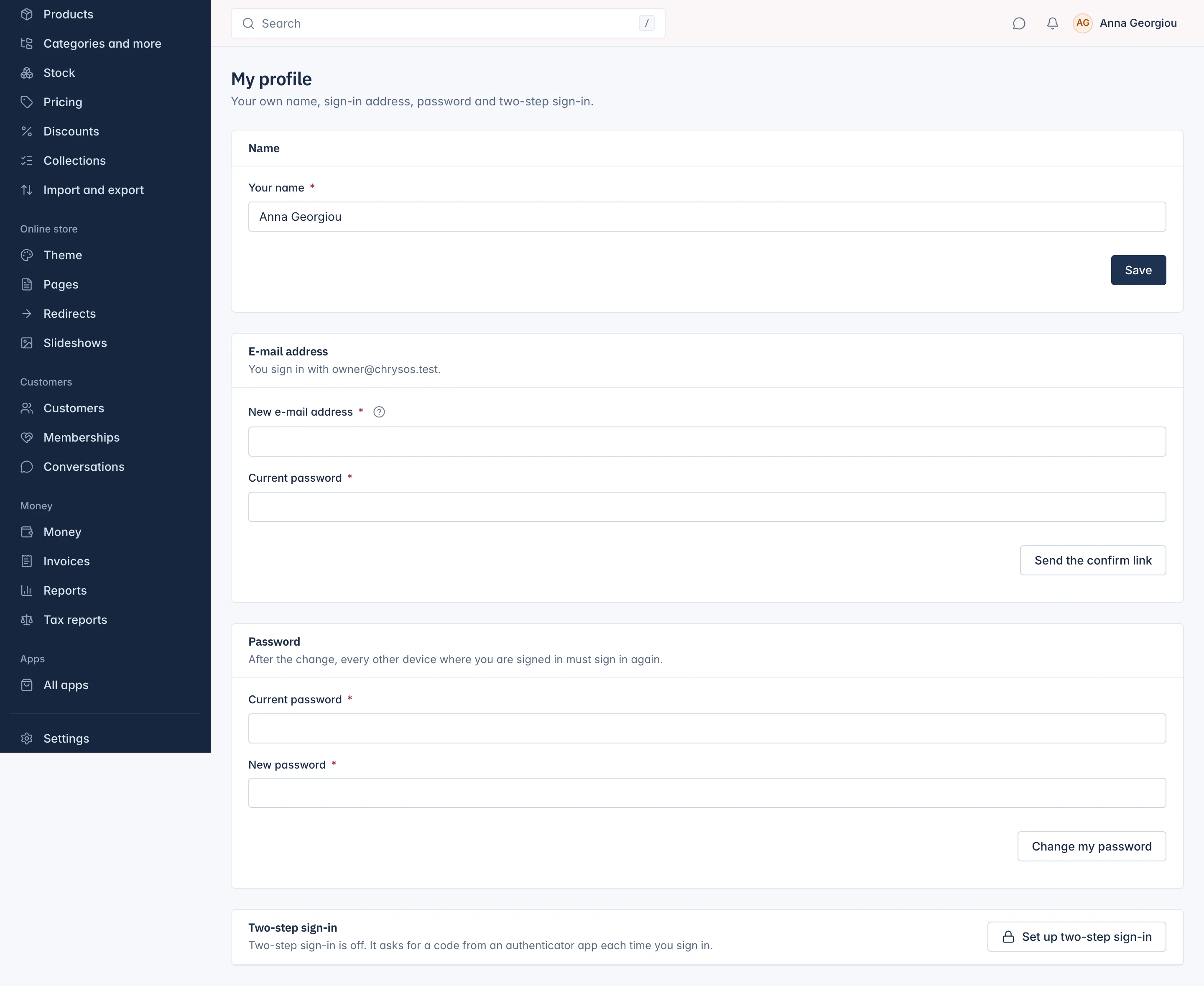
Change your name
Type it in Your name and press Save. Your colleagues see this name, for example on the staff list.
Change your sign-in address
- Under E-mail address, type the New e-mail address.
- Type your Current password.
- Press Send the confirm link.
We send a link to the new address. Open it within one hour and press Use this address. Until then you sign in with your old address.
Change your password
- Under Password, type your Current password and the New password. It needs at least 12 characters, and a password known from a data breach is refused.
- Press Change my password.
Every other device where you are signed in must sign in again. This is useful if you think someone else knows your password.
Two-step sign-in
Two-step sign-in asks for a 6-digit code from an authenticator app on your phone each time you sign in, so a stolen password alone is not enough. We strongly advise it for everyone who can refund, export data or change payments.
- Press Set up two-step sign-in, then Start.
- Scan the code with your authenticator app (Google Authenticator, Authy, 1Password or similar). If you cannot scan, type the key shown under it by hand.
- Enter the 6-digit code the app shows.
- Save Your recovery codes. There are 10, each signs you in once if you lose your phone, and they are shown only now.
To turn it off, type a Code from your app, or a recovery code and press Turn off two-step sign-in. If your shop requires two-step sign-in for all staff, it cannot be turned off (see Security settings).
Your notifications
Notices tell you when something needs you: a new paid order to prepare, a return request, low stock, a message from a customer. Choose for each kind how it reaches you.
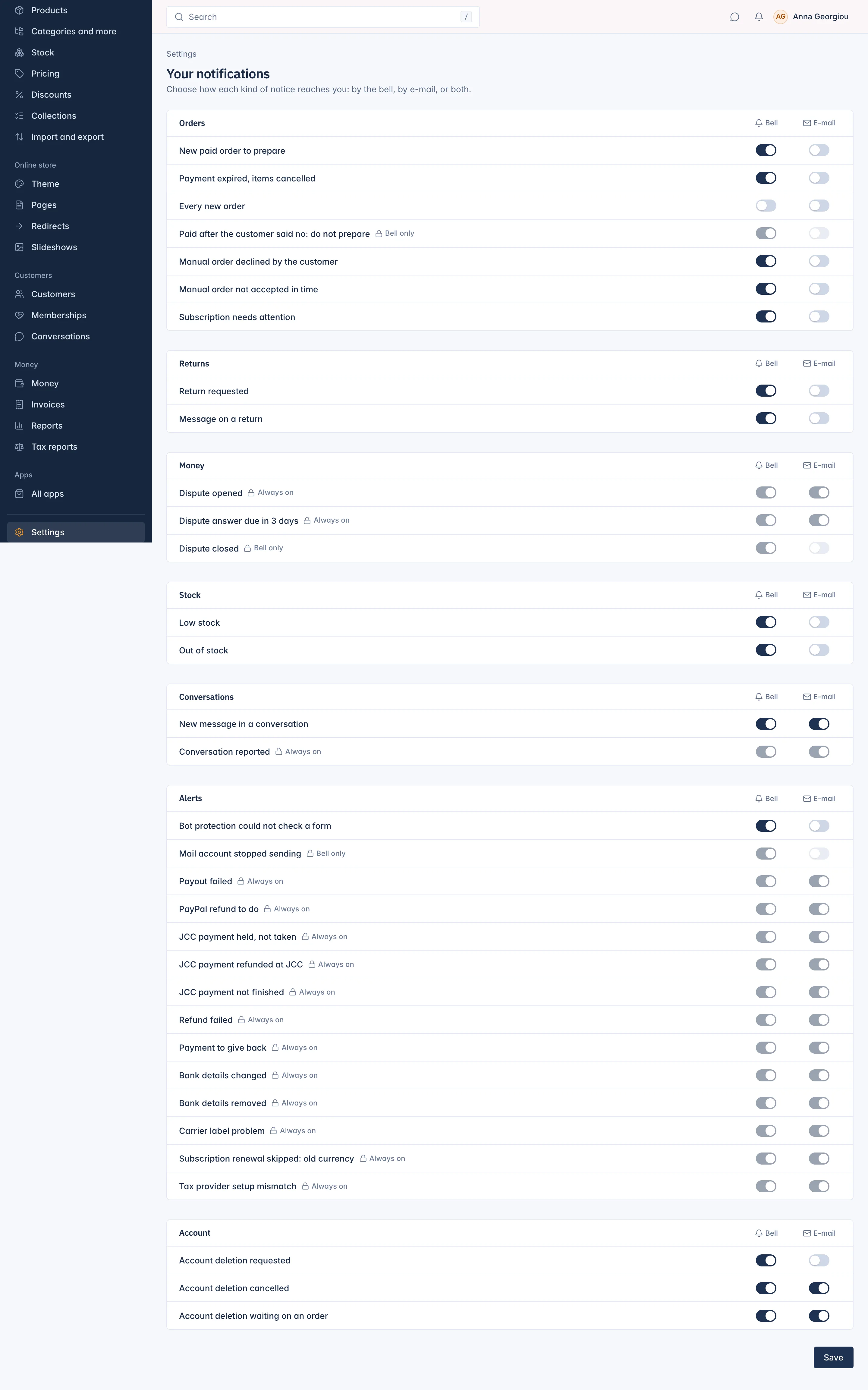
- Open Your notifications from the account menu.
- For each notice, tick Bell (shown on the bell at the top of the admin), E-mail, both or neither.
- Press Save.
The notices are grouped into Orders, Returns, Money, Stock, Conversations, Alerts and Account. You only see notices about work your role allows.
Some notices are marked:
- Always on: important notices about money or problems, for example Dispute opened, Refund failed or Bank details changed. You cannot switch them off.
- Bell only: shown on the bell and never sent by e-mail, for example Dispute closed or Mail account stopped sending.
These choices are only yours. Each colleague sets their own. The e-mails your customers get are set on Edit your shop's e-mail templates.
Related
Updated 13 November 2026