
Product reviews
The Product reviews app lets buyers rate what they bought with stars, a text and photos; you approve, hide and reply to reviews.
In the admin: AppsReviews
On this page
Reviews from real buyers help other customers decide. With the Product reviews app, customers who bought a product give it one to five stars, a short text and up to three photos. The product page shows the average, the count per star and the reviews themselves. You decide whether reviews show at once or only after you check them, and you can reply in public.
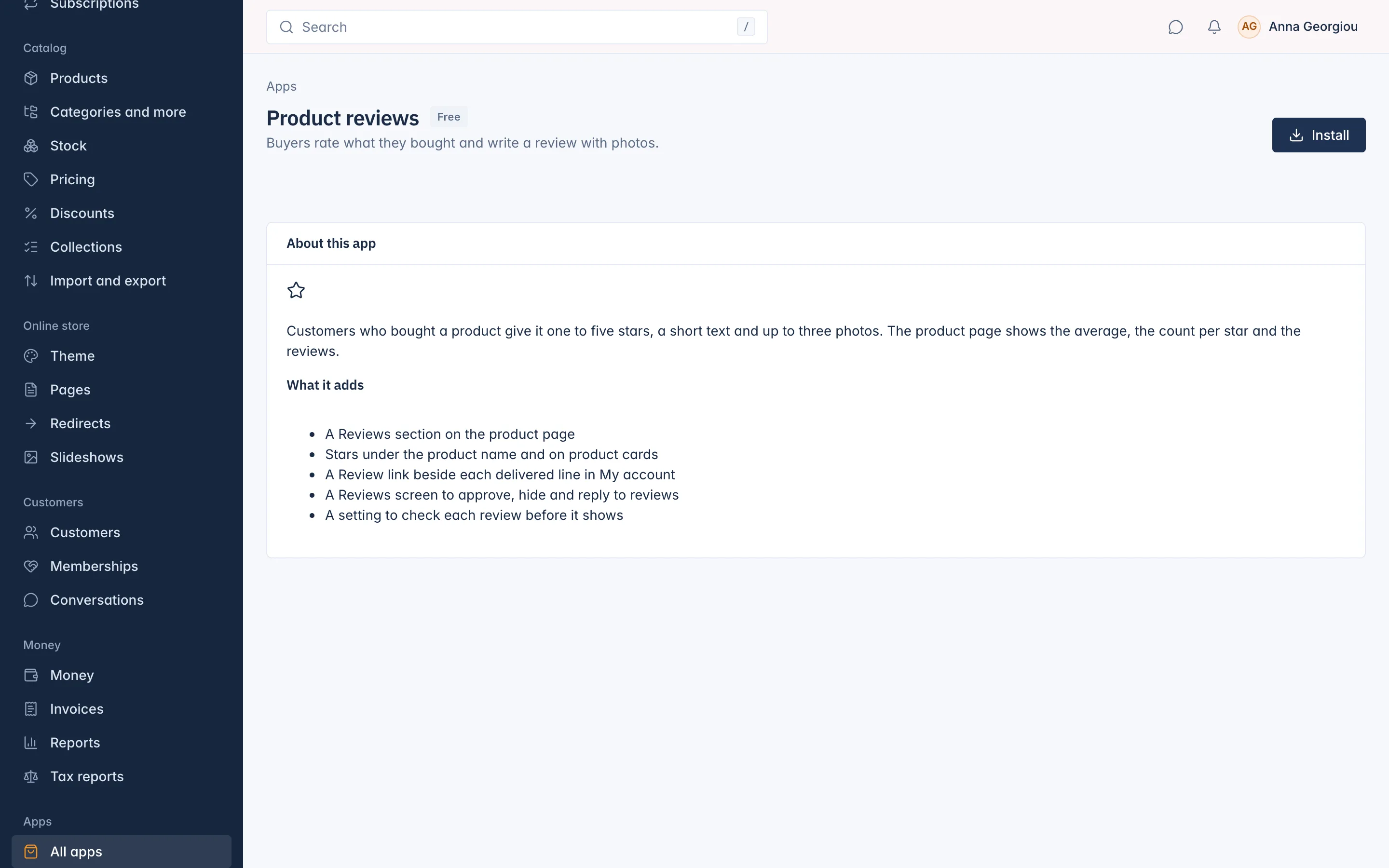
Install the app
Product reviews is a free app.
- Go to Apps > All apps and open Product reviews.
- Click Install.
The app adds:
- a Reviews section on the product page,
- stars under the product name and on product cards,
- a Review link beside each delivered line in the customer's account,
- Reviews under Apps in the admin menu, with the review settings.
The stars and average are also given to search engines, so they can show stars next to your products in search results. See Apps and AI for installing and removing apps.
Who can write a review
Only customers who bought the product, once their order line is delivered, collected, or paid when there is nothing to ship. Each customer writes one review per product and can edit or delete it later. A review shows a Verified buyer mark.
The customer writes:
- Your rating: one to five stars,
- Title (optional): up to 120 characters,
- Your review: the text, up to 5,000 characters,
- Photos: up to three JPEG, PNG or WebP photos, each up to 8 MB.
The review request e-mail
Seven days after an order can be reviewed, the customer gets one e-mail asking for a review, listing the products they have not reviewed or sent back yet. It is sent once per order. In the list of e-mails it is called Review request (Product reviews).
Check reviews before they show
By default, a review shows on the product page as soon as it is sent. To check each one first:
- Go to Apps > Reviews and click Settings.
- Tick Check each review before it shows.
- Click Save.
"New and edited reviews wait until you approve them. Reviews already on the product page stay there." The customer is told "Your review is waiting for the shop to check it."
Manage reviews
Apps > Reviews lists every review with its Stars, Product, who it was Written by, its Status (Pending, Shown or Hidden), whether you Replied, and the Date. Filter the list by status, stars or product.
Click a review to open it. You can:
- Approve a pending review: "The review is approved and shown."
- Hide a shown review, or Show a hidden one again. Hiding is the gentle way to take a review off the product page; the customer can still see and edit it.
- Delete review: "The review, its photos and its reply are deleted for good."
Reply to a review
- Open the review.
- Type your answer under Public reply. It is "Shown under the review on the product page at once", headed Reply from the shop.
- Click Send reply.
Change it later with Save reply. Hide reply takes your reply off the product page without deleting it, and Show reply brings it back.
Who can manage reviews
Staff need a role with See product reviews to see the list, and Manage product reviews to approve, hide, delete and reply.
In a marketplace
Sellers can see the reviews of their own products and reply to them, headed Reply from the seller, when their role allows it. A review has one reply: "This review already has a reply from someone else, so it cannot be replaced."
Related
Updated 13 November 2026