
Share attributes across products
Make an attribute such as a size list once as a global attribute, add it to many products, and change its choices in one place.
In the admin: CatalogCategories and moreGlobal attributes
On this page
A global attribute is an attribute you make once and add to many products, for example a ring size list or a gift wrap choice. Its name, choices and price changes live in one place: when you add a choice, every product using it can offer that choice. Use a normal product attribute when the choices belong to one product only. See Add sizes, colours and other attributes.
Make a global attribute
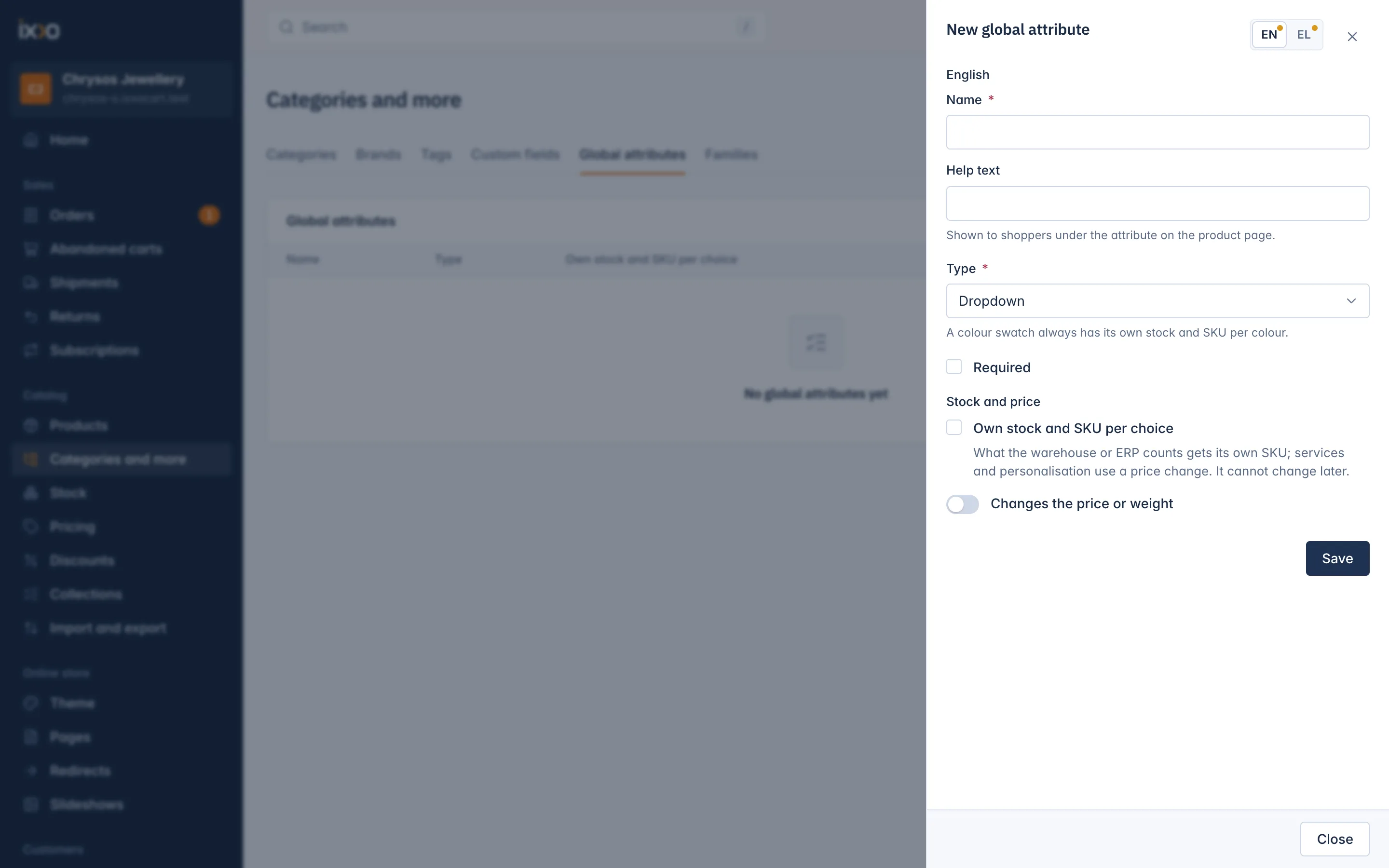
- Go to Catalog > Categories and more and open the Global attributes tab.
- Click Add a global attribute.
- Type the Name in each language, and if you like a Help text, "Shown to shoppers under the attribute on the product page", for example "Not sure? See our size guide."
- Choose the Type: Dropdown, Radio buttons, Colour swatch, Checkbox, Text box, Long text, Number, Date or File.
- Tick Required if the customer must answer it.
- Under Stock and price, tick Own stock and SKU per choice for sizes, colours and anything your stock counts apart. It can only be ticked for a dropdown or radio buttons, and a colour swatch always has it. It cannot change later.
- For an attribute without its own stock, turn on Changes the price or weight if it should add to the price (see below).
- Click Save.
For a text box, Most characters limits how long the customer's text can be. Leave it empty for no limit.
Add the choices
After the first save, the drawer shows a Choices card.
- Under Add a choice, type the Choice in each language. For a colour swatch, also pick the Colour (written #rrggbb, for example #1a2b3c).
- Click Add a choice.
Each choice in the list can be renamed; click Save choices to keep the changes. Remove takes a choice away: "Products using it lose this choice the next time their combinations are built." An attribute has at most 100 choices.
Price and weight change
On an attribute without its own stock, the change can sit on the attribute itself or on each choice, so "Gift box" can cost more than "Gift bag". Turn on Changes the price or weight, then set:
- Price change: None, Fixed amount in your currency, or Percent of the price.
- Amount: for example 15 or 2.50; a minus sign lowers the price.
- Weight change: grams added to the product's weight.
An attribute with its own stock never has a price change: each combination of the product has its own price.
Add it to products
On one product:
- Open the product on the Pricing and attributes tab.
- Under Global attributes, pick it in Choose a global attribute and click Add to this product.
- If it has its own stock, click Build combinations.
On many products at once: in Catalog > Products, tick the products and use Add a global attribute in the bulk bar. Then open each product with its own stock attribute and build its combinations. See Find and manage your products.
On a product, a global attribute shows the Global attribute badge. You change it under Catalog > Categories and more, not on the product. Take off this product removes it from that product only: "The attribute stays under Categories and more. Build the combinations again afterwards."
The list
The Global attributes tab lists each one with its Type, whether it has Own stock and SKU per choice, the number of Choices and the number of Products using it. Click a name to open it.
Delete a global attribute
Open it and delete it. "Only an attribute no product uses can be deleted." Take it off every product first.
In a marketplace
Global attributes are managed by the marketplace. Sellers can add them to their products but cannot change them.
Related
Updated 13 November 2026