
Change many prices at once
Raise or lower prices by a percent or an amount, set an exact price, or start and end a sale for many products, with a preview before anything changes.
In the admin: CatalogPricing
On this page
The Pricing screen changes the prices of many products in one go: a yearly price rise, a summer sale on one category, or rounding every price to .99. You always see every new price first, and nothing changes until you click Apply. Use it instead of opening products one by one.
Step 1: pick the products
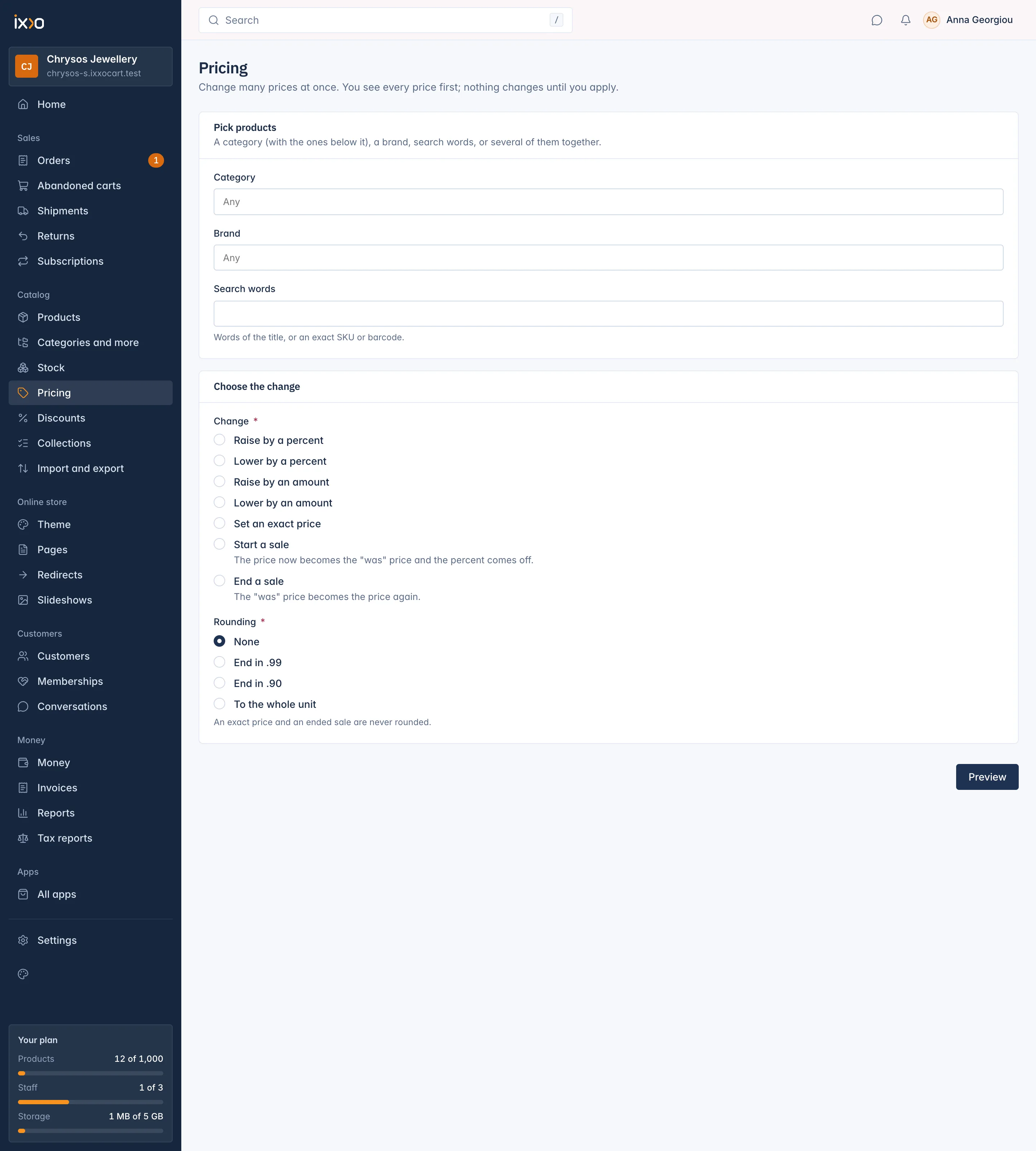
Open Catalog > Pricing. Under Pick products, choose any of these, alone or together:
- Category: the products in this category and the categories below it.
- Brand
- Search words: words of the title, or an exact SKU or barcode.
When you use more than one, a product must match all of them.
You can also start from the product list: on Catalog > Products, tick the products and choose the bulk action Change price. The Pricing screen then opens with those products picked ("3 products picked"). Click Pick other products to go back to choosing by category, brand or words.
Step 2: choose the change
Under Choose the change, pick one Change:
| Change | What it does | Field |
|---|---|---|
| Raise by a percent | Adds a percent to the price. | Percent, 0.01 to 999.99 |
| Lower by a percent | Takes a percent off the price. | Percent, 0.01 to 99.99 |
| Raise by an amount | Adds a fixed amount. | Amount |
| Lower by an amount | Takes a fixed amount off. | Amount |
| Set an exact price | Every picked price becomes this amount. | Amount |
| Start a sale | "The price now becomes the "was" price and the percent comes off." | Percent, 0.01 to 99.99 |
| End a sale | "The "was" price becomes the price again." | none |
Only the field your change needs is shown. Amounts are in your shop's main currency.
Then pick a Rounding for the new prices:
- None
- End in .99: keeps the whole units and replaces the cents, so 113.40 becomes 113.99.
- End in .90: the same with .90.
- To the whole unit: the nearest whole amount, halves going up (12.50 becomes 13.00).
An exact price and an ended sale are never rounded. Click Preview.
Step 3: check the preview
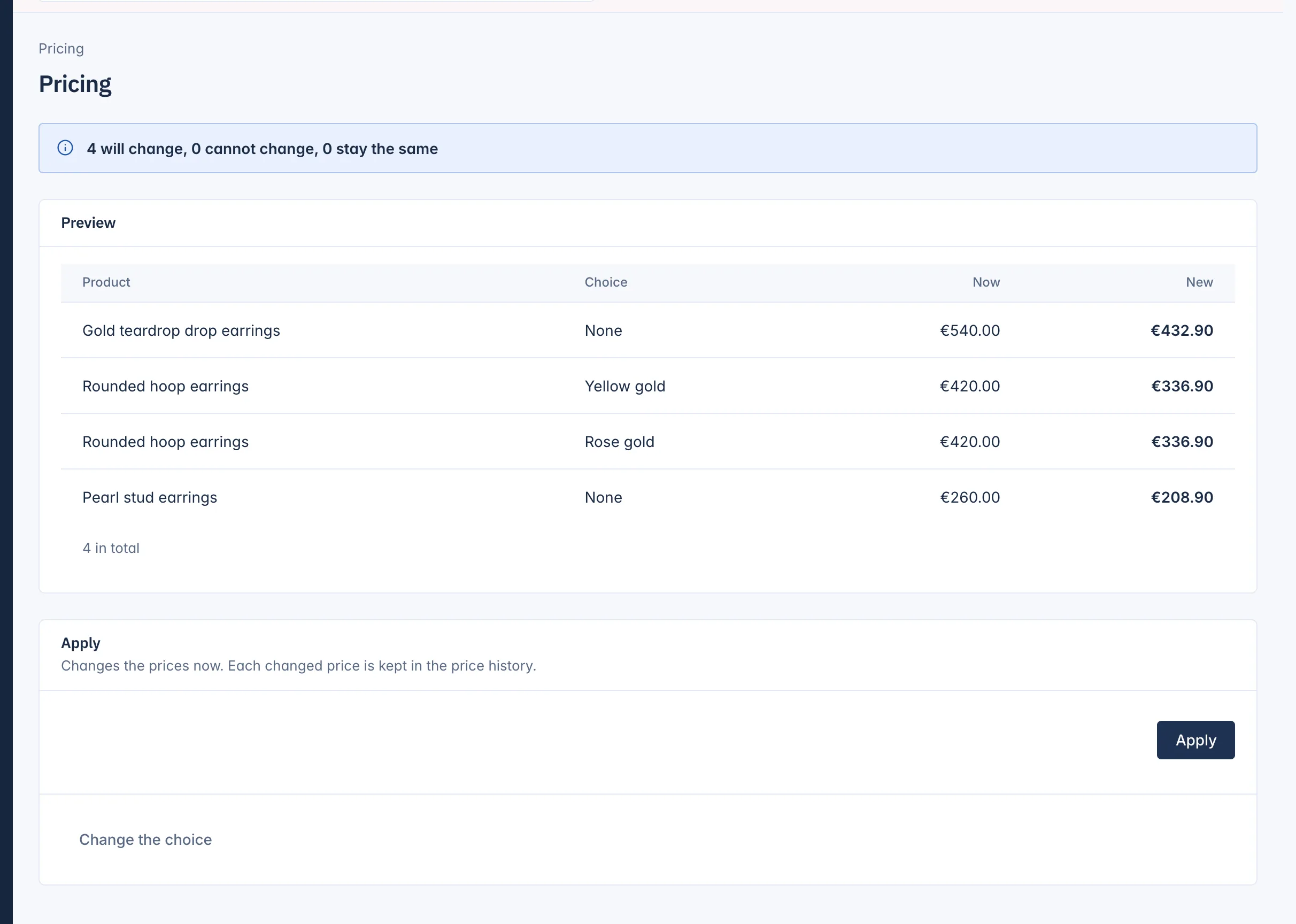
The preview lists every price the change touches, with its Product, its Choice (the combination, or "None"), the price Now and the New one. A line at the top counts how many will change, how many cannot change, and how many stay the same. Long previews are split into pages.
A price that cannot change shows the reason in its row:
- No price is set yet, so there is nothing to change.
- Priced in another currency: a fixed amount applies only to prices in the shop currency.
- Already on sale: end that sale first.
- Not on sale, so there is no sale to end.
- The new price would be zero or less.
- The compare-at ("was") price would no longer be above the new price.
- Rounding would move this price the other way to the change.
- This rounding does not fit the currency of this price.
If the preview is not what you want, click Change the choice: the form opens again with your choices kept.
Step 4: apply
Click Apply. "Changes the prices now. Each changed price is kept in the price history."
- Up to 200 prices change at once and you see the result straight away.
- A larger change runs in the background. The page shows its progress and updates by itself; you can leave it.
- At the end you see a line such as "12 changed, 0 refused", and a list of the prices not changed with their reason.
A price that someone else changed while the run was going is left alone ("The price changed since this run started"). Click Start a new change for the next one.
Limits and good to know
- One change covers at most 10,000 prices. Choose fewer products if you need more.
- Each form applies once. Clicking Apply twice does not apply the change twice.
- Every changed price is written in the price history, which the shop uses to show the lowest price of the last 30 days in the EU. See How product prices work.
- Staff need the permission to edit prices to open this screen.
Related
Updated 13 November 2026