
Translate your shop's text
Change or translate the fixed words your storefront shows, such as button labels, checkout texts and messages, one language at a time.
In the admin: SettingsTranslations
On this page
Besides your own content, your shop shows thousands of fixed words: Add to cart, checkout steps, error messages, the cookie banner. Settings > Translations lets you change any of them, in any of your shop's languages. Use it to translate the shop into a language IXXO Cart does not ship, or to change a word you do not like, for example "Basket" instead of "Cart".
What comes ready and what you translate
IXXO Cart ships its storefront texts in English and Greek. Any other language you switch on shows the English texts until you write your own.
This screen is only for these fixed words. Your own content is translated where you write it:
- products, categories, brands and collections in their own forms in Catalog,
- pages in Online store > Pages, see Create and edit shop pages,
- section texts, menu links and footer texts in the theme editor, with the language switch at the top of each section's settings,
- e-mails in the e-mail settings, see Settings.
Find the texts to change
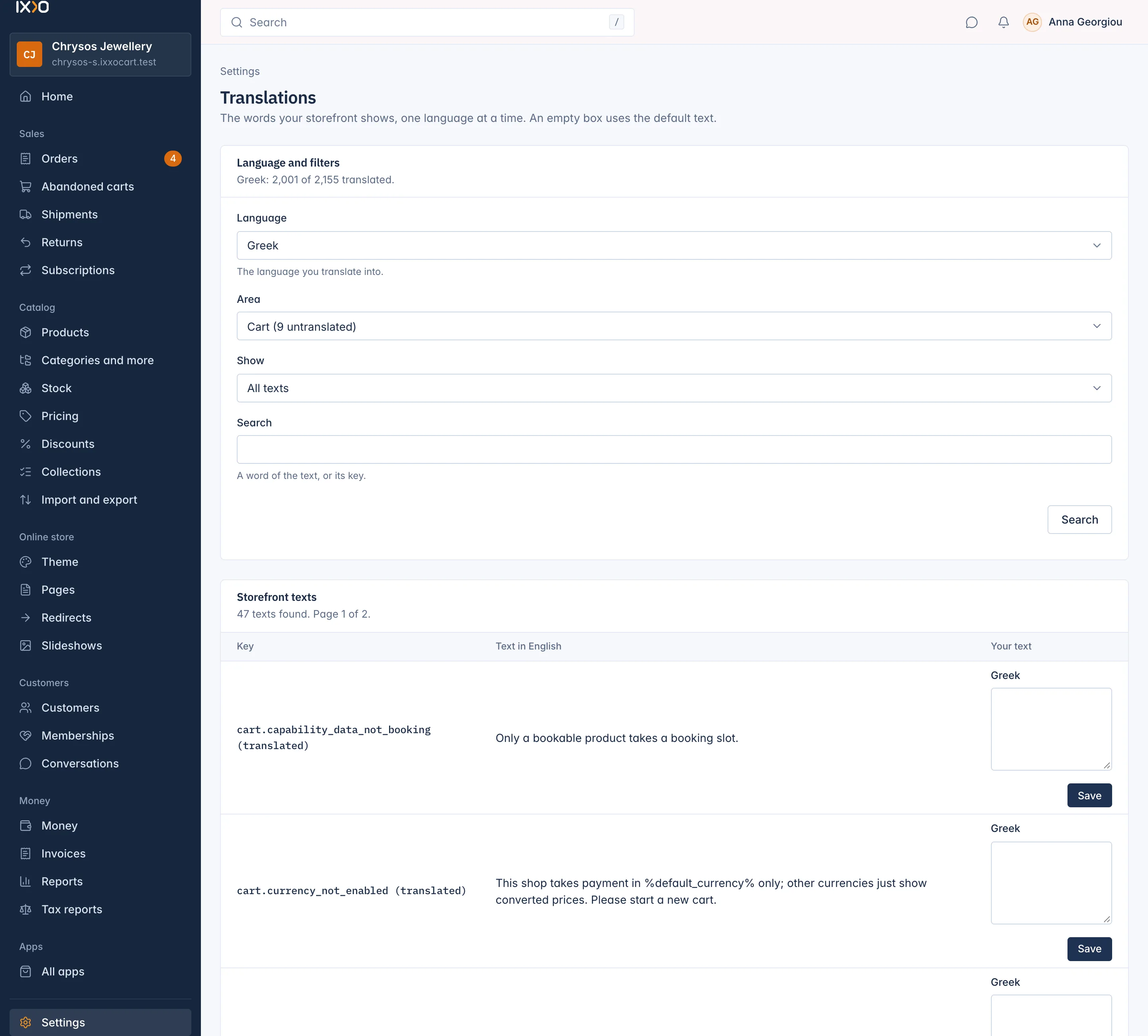
- Go to Settings > Translations.
- Choose the Language you translate into. Only your shop's switched-on languages are listed.
Narrow the list down:
- Area: Checkout, Cart, Product page, Categories and brands, Search, Account, Navigation and footer, General and errors, or All areas. Each area shows how many texts are untranslated, for example Cart (9 untranslated).
- Show: All texts, Untranslated only or Translated only.
- Search: a word of the text, or its key.
- Press Search.
The top of the screen shows your progress, for example Greek: 2,001 of 2,155 translated.
Change a text
Each row shows the text's Key (its technical name, with (translated) or (untranslated)), the Text in your main language for reference, and a box for Your text.
- Type your text in the box.
- Press Save on that row.
The message Saved. Your storefront shows the new text. confirms it. The shop shows your text at once.
An empty box uses the default text. To go back to the default after you saved your own, press Reset on the row (for example Reset Greek).
Placeholders
Some texts contain words between percent signs, such as %count% or %limit%. The shop fills these in, for example with a number. Keep them in your text, in the place that fits your sentence: "Only %count% left in stock" can become "Μόνο %count% σε απόθεμα".
Tips
- Start with Untranslated only and the Checkout and Cart areas: these are the texts every buyer reads.
- To change one word everywhere, search for it and go through the results.
- After changing texts, open your shop in that language and walk through a test order to see them in place.
In a marketplace there is also a Seller pages area.
Related
Updated 13 November 2026