
Memberships
Sell paid memberships or grant free ones: how plans, member prices and members-only products work, and how to grant and end a membership.
In the admin: CustomersMemberships
On this page
A membership is a club your customers join, for example "Gold Club, €5 a month, 10% off everything". Members get their benefits for as long as the membership runs. You can sell memberships on your shop, and you can give free memberships to anyone you like.
How memberships work
Each membership plan has a name, a price for each period (for example a month or a year), an optional free trial, and its own customer group. While someone's membership runs, they are in the plan's group. The group is what gives the benefits:
- Member prices: the group's prices and discounts apply to the member.
- Members-only products: a category locked to the group (Only for members of) can be bought only by members.
When the membership ends or is on hold, the customer goes back to the group they were in before.
A customer can have one membership at a time.
Setting up plans
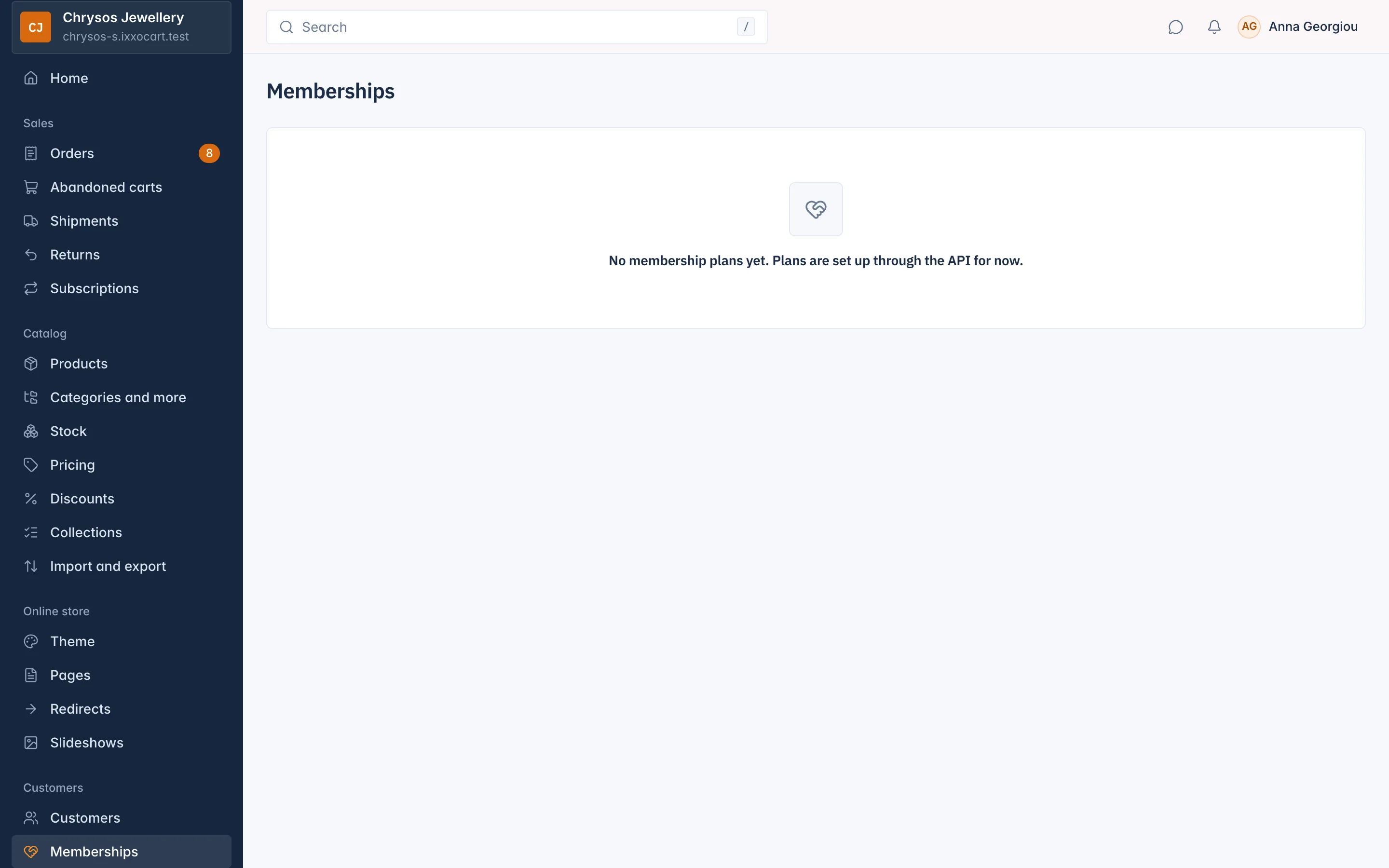
The Memberships screen says "No membership plans yet. Plans are set up through the API for now." until your shop has a plan. Plans are created, changed and archived through the API. Some rules:
- A plan needs a new, empty customer group of its own. It cannot use your default group.
- One active plan per group. Archiving a plan frees its group for a new plan.
- Changing the price is fine: members renew at the price of the day. Changing the period or the trial counts as new terms.
How customers join and pay
Signed-in customers join from your shop. The first payment is an ordinary order; after that, the membership renews by itself like a subscription, with the card the customer saved. Paid memberships therefore need Stripe: PayPal cannot take renewals. Memberships are not sold in the "Listing only" selling mode.
From the Membership page of their account, customers can see their plan and next renewal, switch to another plan (from the next renewal) or cancel. A cancelled paid membership runs to the end of the period already paid.
The Memberships screen
Customers > Memberships lists every membership, newest first.
| Column | What it means |
|---|---|
| Customer and E-mail | The member. The name opens their customer page. |
| Plan | The membership plan. |
| Status | Active, Suspended or Ended. |
| Started | The day it started. |
| Ends or renews | For example "Renews 1 Dec 2026", "Ends at the period end", or "No end date". |
| Free or paid | Free for a granted membership, Paid for one the customer pays for. |
Search by the member's name or e-mail, and filter by Plan and Status. Select Open on a row to see its details, the staff note, Open the customer, and the form to end it.
Why a membership is suspended
A paid membership goes on hold (Suspended, shown as On hold on the customer's page) when:
- a renewal payment failed, or waits for the customer to pay it by link,
- its subscription was paused, or
- you blocked the customer.
While suspended, the customer is back in their old group and loses the member prices. When the renewal is paid, or you unblock the customer, the membership is active again. The customer gets an e-mail when a failed payment puts it on hold and when it resumes.
Grant a free membership
Give a membership without payment, for example to a partner, an employee or a prize winner.
- On Customers > Memberships, select Grant a membership. (Or, on a customer's page, select Grant a membership in the Membership card.)
- Type the Customer e-mail: the address the customer uses at your shop. The customer must have a customer record.
- Choose the Plan.
- Optionally set Ends on. The membership ends at the start of that day. Leave it empty for no end.
- Select Grant the membership.
It starts at once. No order or payment is made. The customer gets the welcome e-mail.
You cannot grant a membership to someone who is already a member or has a membership order waiting for payment: end that membership or cancel the order first. Plans that take no new members are not offered.
End a membership
- Open the membership with Open, or select End membership on the customer's page.
- Write Why it ends. Only your staff see this note; the customer's e-mail does not show it.
For a paid membership, choose:
- leave End now unticked: it runs to the end of the period already paid, then ends;
- tick End now: it ends today. Nothing is refunded. Refund the last order yourself if you want to.
- Select End the membership and confirm.
A free membership always ends at once. Ending now cannot be undone. The customer gets an e-mail when the membership ends.
Related
Updated 13 November 2026