
Product families
Join separate products, such as one mug in four colours, under one main product with a colour or text switcher on the product page.
In the admin: CatalogProductsFamily
On this page
A product family joins separate products under one main product, with a switcher on the product page. Think of one ring in three metals where each metal is its own product, with its own title, photos, description, reviews and address. Customers move between them with swatches or words, as if they were choices of one product. This article explains when to use a family, how to make one from the product editor or from Catalog > Categories and more, and the family settings.
Family or combinations?
| Use | When |
|---|---|
| Combinations of one product | The choices share one page, one description and one set of reviews, for example ring sizes. See Build combinations of choices. |
| A product family | Each choice deserves its own page: its own photos, texts, search engine address and reviews, for example a phone in three colours. |
The two work together: each product of a family can still have its own sizes as combinations.
Levels and values
A family has one or two levels. A level is what the products differ in, such as Colour, and each product has a value on it, such as Rose gold. A second level, such as Capacity, is optional.
Each level is Shown as colour swatches (with a colour per value, written #rrggbb) or as words.
No two products of a family may have the same values. A family has at most two levels.
Make a family from a product
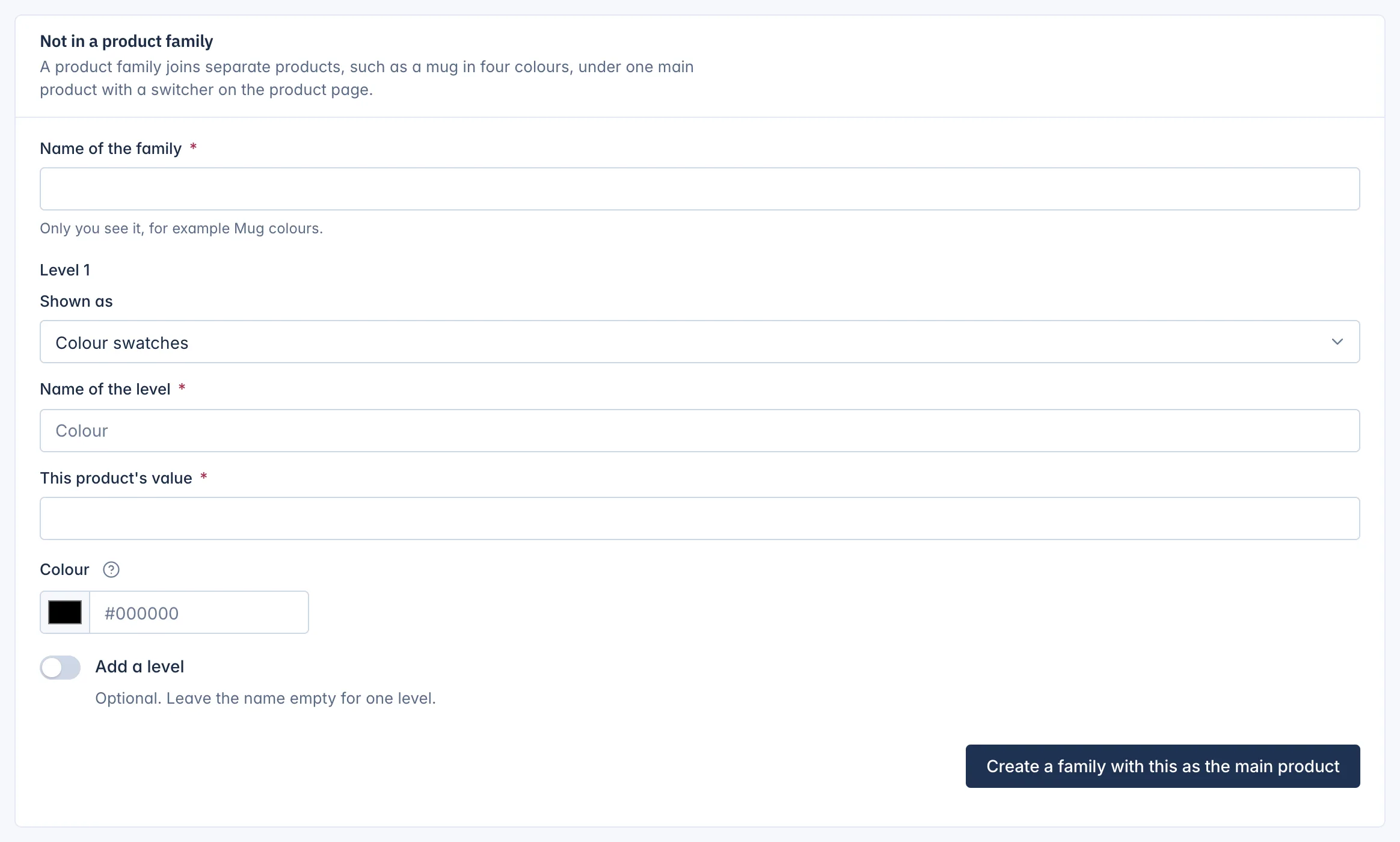
- Open the product that should be the main product, and go to the Family tab. It says Not in a product family.
- Type the Name of the family. Only you see it, for example "Hoop colours".
- Under Level 1, choose Shown as, type the Name of the level, such as Colour, and This product's value, such as Yellow gold. For swatches, pick the Colour.
- To add a second level, turn on Add a level and fill it in the same way.
- Click Create a family with this as the main product.
Add a product to a family
- Open the other product and go to its Family tab.
- Under Join a family (shown once a family exists), choose the Family and type its Value on level 1 (and level 2 if the family has one).
- Click Join.
The product now shows in the switcher of every product of the family. A product can be in one family only, and an archived product cannot join.
A product in a family
Once a product is in a family, its Family tab shows:
- This product in the family: change its values and click Save values.
- Make this the main product: the main product stands for the family in lists.
- Leave the family: "It stays a product of its own, without the switcher." The main product cannot leave; make another product the main product first.
- Edit family: opens the family settings.
Make a family from Categories and more
You can also make and manage families on the Families tab of Catalog > Categories and more. The list shows each family's Name, Main product, number of Products and what it shows In category and brand lists.
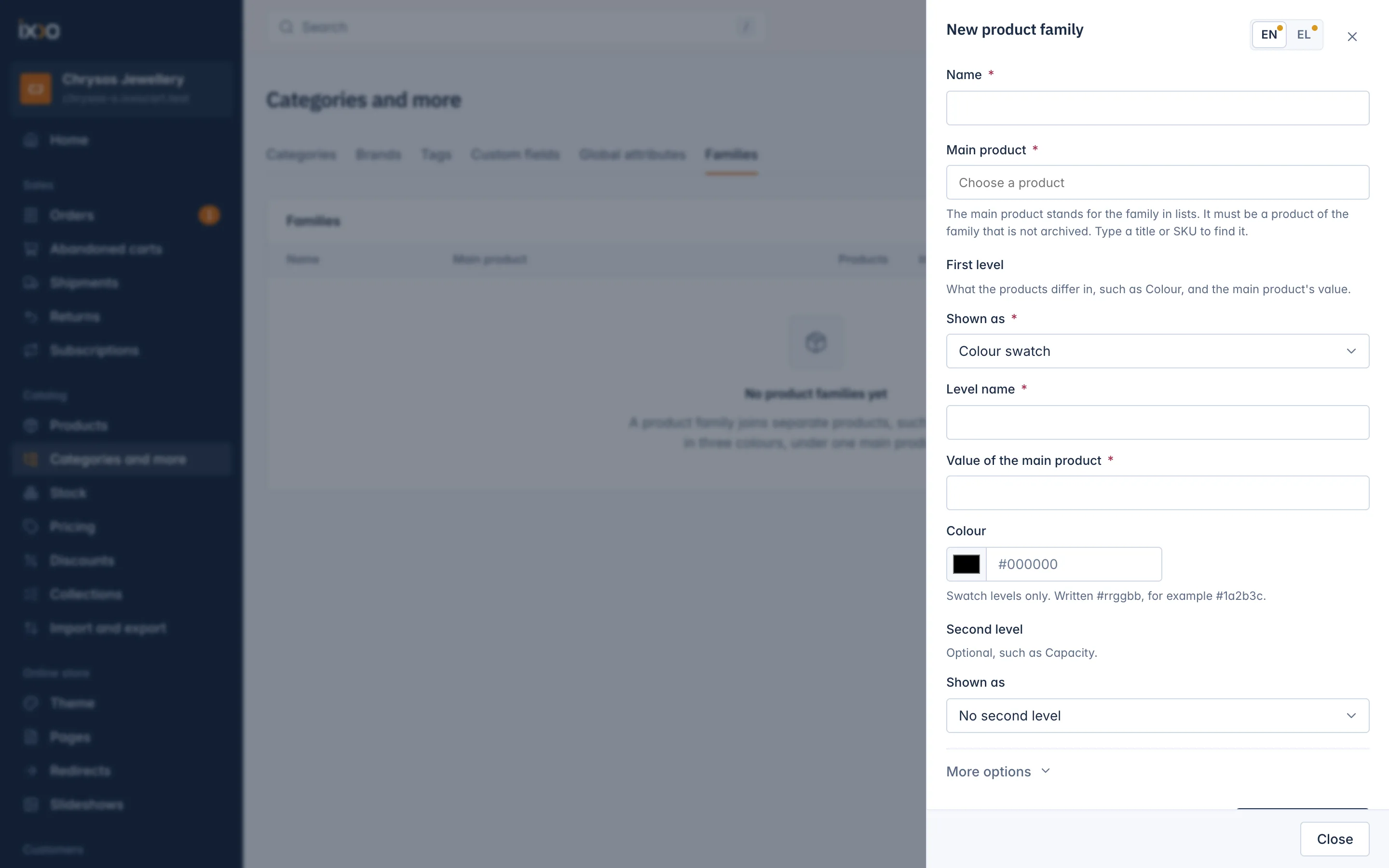
- Click Make a product family.
- Type the Name and choose the Main product (type a title or SKU to find it).
- Under First level, choose Shown as (Colour swatch or Text), type the Level name and the Value of the main product, with a Colour for swatches.
- Under Second level, keep No second level or add one.
- Click Make the family.
Open a family from the list to manage it in one place: Add a product, set the Values of each product, change the Order of the switcher by dragging or with the Move menu, Remove a product, or Delete the family. Deleting a family keeps its products, "each on its own, without the switcher".
Family settings
- In product lists show and In search show: As the shop setting says, The main product only or Every product of the family. Showing the main product only keeps category and brand lists short; customers pick the others on its page.
- Shared from the main product: products without photos, a description or specifications of their own show the main product's. Handy when the products differ only in colour.
- Order in the switcher: the order of the products on the product page.
- Add a level: possible only while the main product is the only product of the family, since every product needs a value on every level.
The shop-wide rules are under Settings > Products: Product families in category and brand lists and Product families in search results. Each family can choose otherwise.
Rules to know
- The main product of a family cannot be archived. Make another product the main product first.
- In the products list, family products show a Family: name tag. Filter by Product family to see them.
Related
Updated 13 November 2026