
Set your logo, favicon and demo content
Upload your shop logo and favicon on the Theme page, import a theme's demo content to start fast, and remove the demo when you are done.
In the admin: Online storeTheme
On this page
The Theme page is the front door to your shop's design. It shows which theme you use, when it was last published, and holds the two pictures that stay with your shop whatever theme you choose: your logo and your favicon. It is also where you remove a theme's demo content.
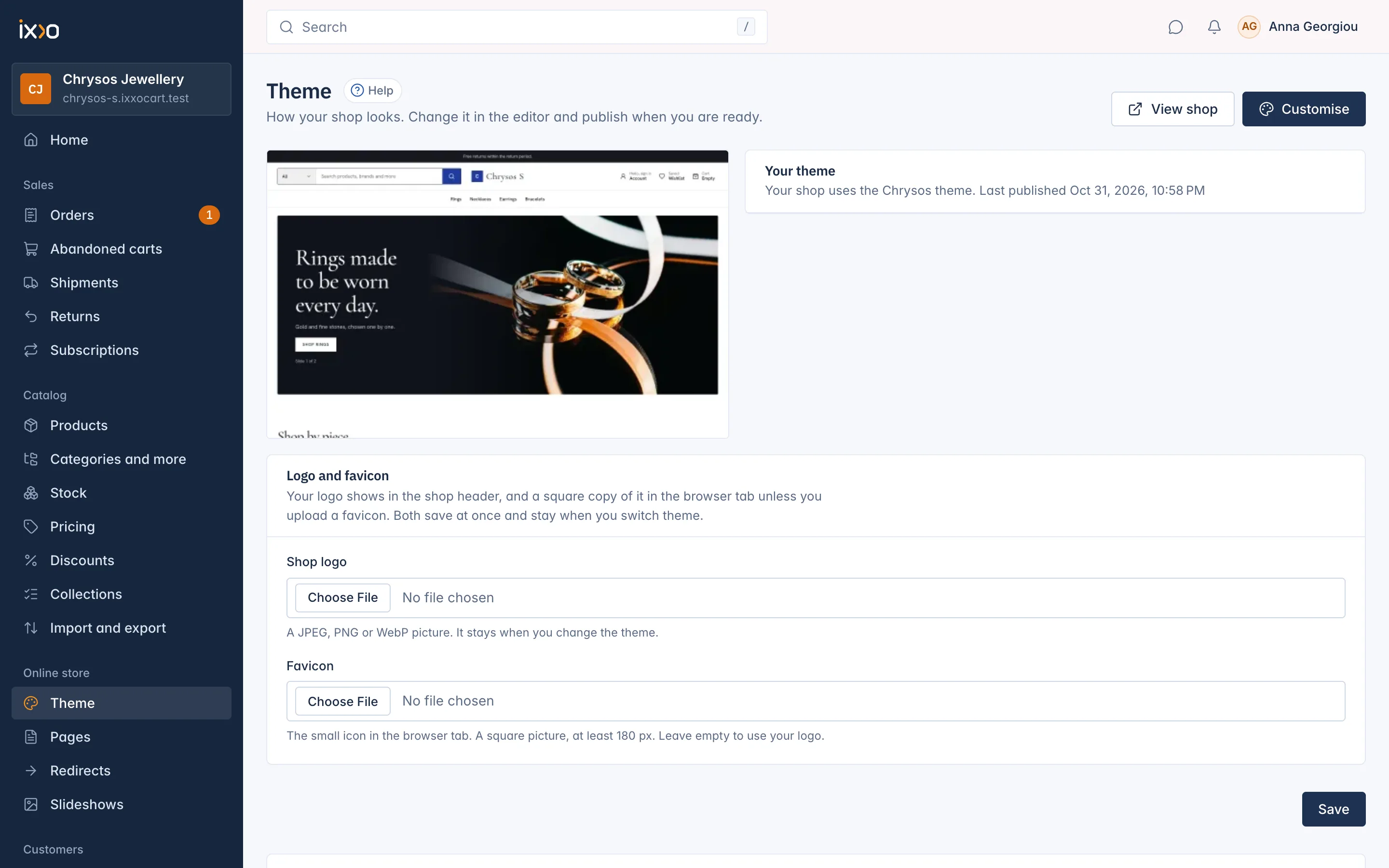
The Theme page
At the top you see a preview picture of your theme and the Your theme card, which names the theme and says when it was last published. If you changed something in the editor and did not publish yet, the page says You have unpublished changes.
Press View shop to open your shop in a new tab, or Customise to open the theme editor. Everything about colours, fonts, sections, header and footer is done there. See How the theme editor works.
Upload your logo
Your logo shows in the shop header. Without a logo, the header shows your shop name as text.
- Go to Online store > Theme.
- In Logo and favicon, choose a picture for Shop logo. It must be a JPEG, PNG or WebP picture.
- Press Save.
The logo saves at once. It does not wait for Publish, and it stays when you switch theme. Once a logo is saved, you can take it away: tick Remove the logo (the shop name shows instead) and save.
Add a favicon
The favicon is the small icon in the browser tab and in bookmarks. If you do not upload one, a square copy of your logo is used.
- In Logo and favicon, choose a picture for Favicon. Use a square picture of at least 180 px.
- Press Save.
To go back to using your logo, tick Remove the favicon (your logo is used instead) and save.
Import a theme's demo content
Each theme has a demo: sample products with pictures, categories, brands, a collection, a slideshow and a finished home page. It is useful when you want to see how the theme looks with real content, or when you want to start from an example and replace it bit by bit.
You import the demo while choosing a theme:
- Press Customise to open the editor.
- Open More options in the top bar.
- Choose the theme under Theme and tick Also import demo content.
- Press Switch theme and confirm.
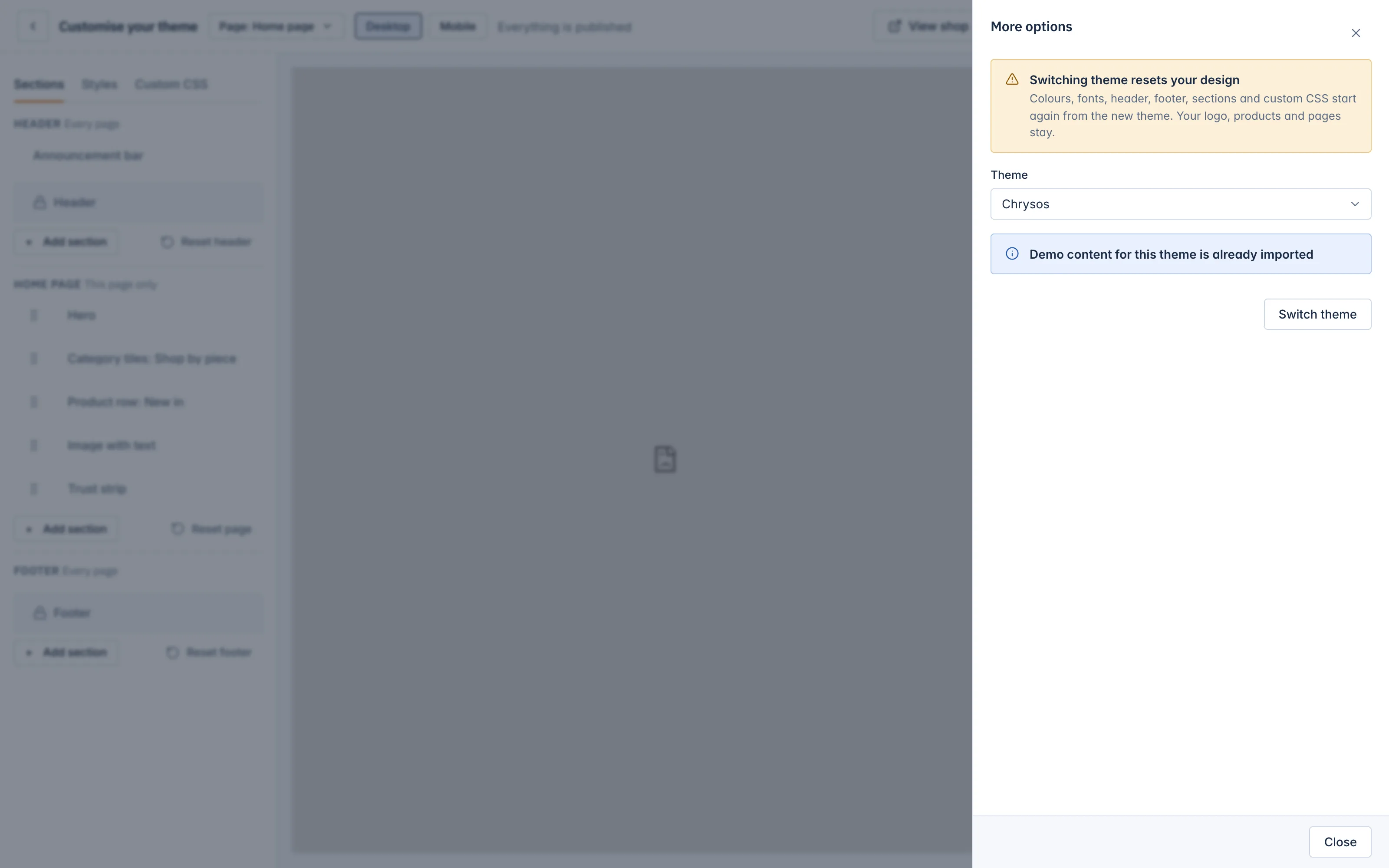
What happens:
- The demo products, categories, brands, collection and slideshow are added to your shop and go live at once.
- The demo home page goes into your theme draft. Customers see it only after you press Publish.
- Your own products are not changed.
The import stops and changes nothing if the demo has more products than your plan allows, or if its pictures do not fit your storage. You need the right to manage the theme and the right to import catalogue data.
Remove the demo content
When the demo has done its job, remove it in one step.
- Go to Online store > Theme.
- In the Demo content card, press Remove demo data.
- Confirm.
All demo products, categories, brands, the demo collection, slideshow and pictures are removed. Your own items are not touched. If one of your own items uses a demo item, for example your product sits in a demo category, that demo item stays, and the message lists which ones stayed so you can tidy them by hand.
Removing the demo does not change your theme's sections. If your home page still shows sections from the demo, change or delete them in the editor and publish.
Related
Updated 13 November 2026