
Buy shipping labels and track parcels
Buy a carrier label from an order, choose a rate, print the label, hand the parcels over, void a label and follow tracking in Sales > Shipments.
In the admin: SalesShipments
On this page
With a carrier account connected, you can buy shipping labels from inside the shop. The shop asks the carrier for rates, buys the label you choose, gives you the PDF to print and then follows the parcel until it is delivered. The customer gets the tracking details by e-mail without you typing anything.
Labels are bought on your own carrier account: the carrier bills you, not IXXO Cart. To connect one, see Connect a carrier for live rates and labels.
Before you start
- A carrier account is connected in Settings > Shipping, on the Carrier accounts tab.
- The shipping profile has a Ships from address with a street. The carrier needs it to print the sender on the label.
- Your products have a weight, or you type the parcel size and weight when you buy the label. See Shipping profiles, boxes and product weights.
Labels are not offered for orders the customer collects, or when your shipping settings say We arrange delivery ourselves.
Buy a label
- Open a paid order and press Buy label on the Items card.
- The Buy a label panel opens. If you have more than one carrier account, choose the Carrier.
- Type the parcel's Length, Width and Height (cm) and its Weight (kg), or leave the sizes empty: "Leave the sizes empty to pack into your boxes." The shop then packs the items into your boxes using the product weights and sizes.
- Press Continue to rates.
The shop opens the shipment in Sales > Shipments with "Parcels ready. Choose a rate."
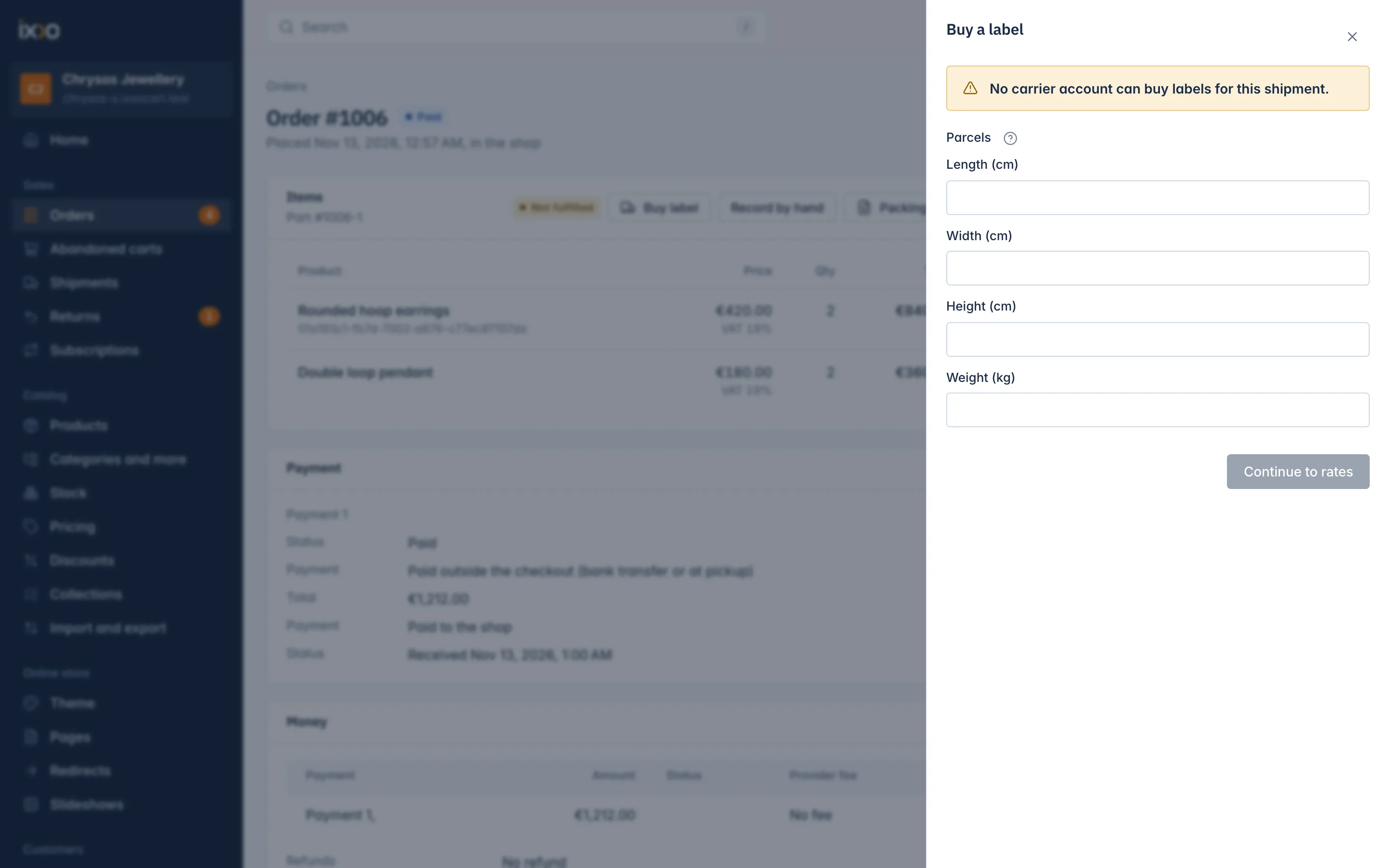
If no account can serve this shipment you see "No carrier account can buy labels for this shipment." Check that an account is connected and switched on, and that the carrier ships to the customer's country.
Choose a rate and print
The shipment panel lists the Carrier rates: each service with its price and delivery time. If the customer chose a live carrier price at checkout, that rate is marked "The buyer chose this".
- Press Buy next to the rate you want. The carrier checks the rate once more at the moment of purchase, so the price you pay can differ slightly from the one the customer paid at checkout.
- When the label is bought, the parcel shows a tracking number and Print label. Press it to open the label PDF and print it.
- If the rates do not load, press Try again.
The units on a bought label count as shipped. They can no longer be cancelled from the order until you void the label.
Hand the parcels over
When the carrier collects the parcels, press Hand over and confirm "Hand the parcels to the carrier?". The panel explains: "The units count as shipped and the buyer gets the shipped e-mail."
You can skip this step: when the carrier reports the first movement of a parcel, the shop hands it over by itself.
Void a label
Bought a label by mistake, or the parcel will not go? Press Void label: "The carrier cancels the label and the units can ship again." You can void only until the parcels are handed over. The carrier refunds unused labels on your carrier account, by its own rules.
The Shipments list
Sales > Shipments lists every shipment of the shop, the most recently changed first.
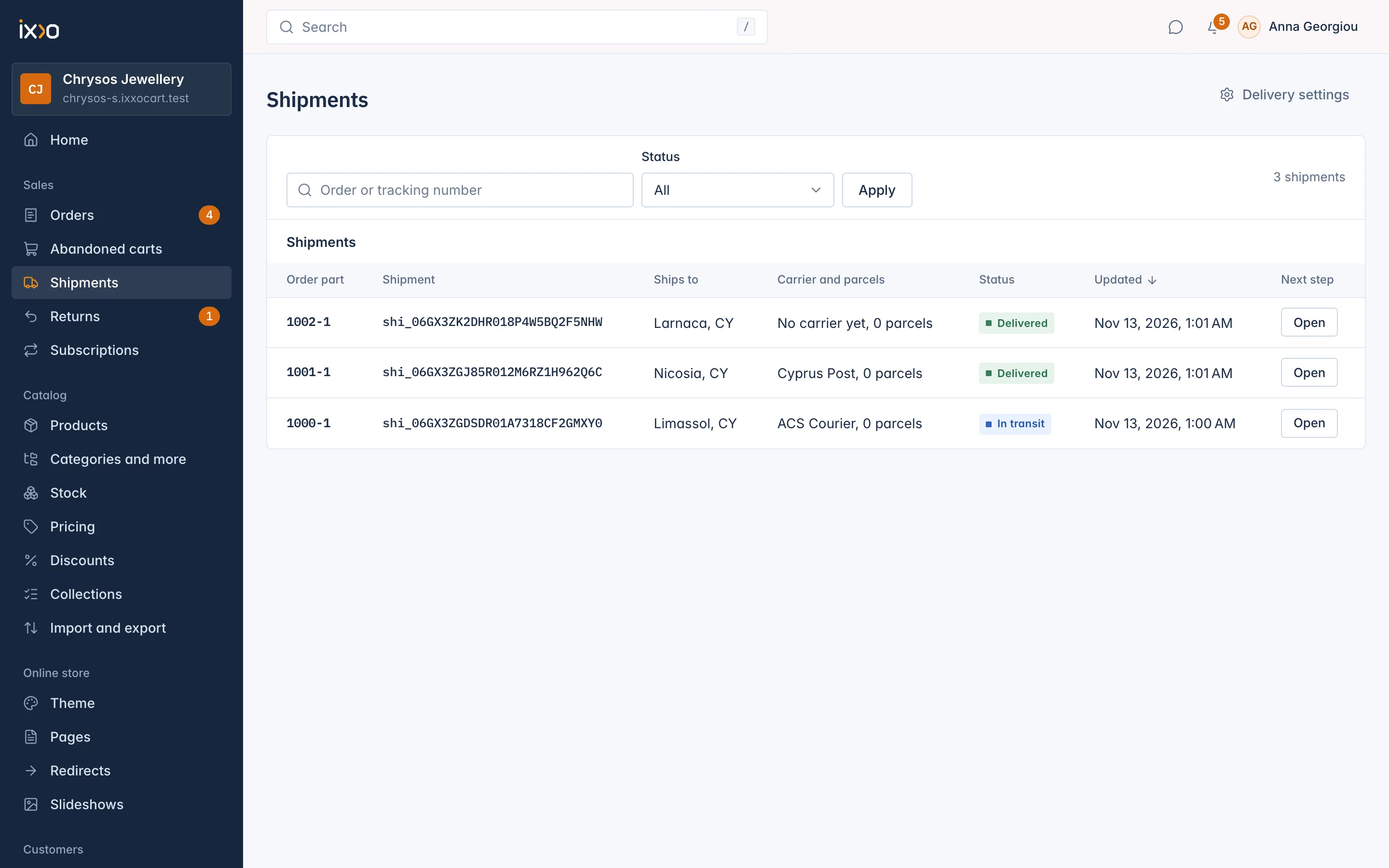
| Column | What it shows |
|---|---|
| Order part | The order the shipment belongs to. |
| Shipment | The shipment's number. |
| Ships to | The town and country it goes to. |
| Carrier and parcels | The carrier and the number of parcels. |
| Status | Where the shipment stands (see below). |
| Updated | When it last changed. |
| Next step | The button for what to do now: Buy label, Print, Fix or Open. |
Search with Order or tracking number, or filter by status. Shipments you record by hand on an order are listed here too. Delivery settings at the top takes you to Settings > Shipping.
Click a shipment to open its panel: status, carrier and tracking number, the rates, the parcels with Print label and Refresh, and the tracking timeline with every scan the carrier reported. Open the order takes you to the order.
Shipment statuses
| Status | Meaning |
|---|---|
| Draft | The shipment is being prepared. |
| Ready for a label | Parcels are measured; choose a rate. |
| Label bought | The label is paid and ready to print. |
| In transit | The carrier has the parcel. |
| Out for delivery | The parcel is with the driver today. |
| Delivered | The carrier delivered it. The order's delivery is marked delivered. |
| Problem | The carrier reported a delivery problem. Contact the carrier. |
| Back to sender | The parcel is on its way back to you. |
| Cancelled | The label was voided. |
Tracking
The carrier tells the shop about every scan, and the shop also checks open shipments every hour. Press Refresh on a parcel to check now.
The customer gets an e-mail when the parcel is out for delivery, when it is delivered and when the carrier reports a problem. A delivered parcel marks the order delivered, which starts the returns window, so you do not need to press Mark as delivered for labelled parcels.
Related
Updated 13 November 2026