
Set up shipping zones and rates
Group countries into zones, add delivery methods with flat, per item, weight, order value, pickup or live carrier prices, and offer free shipping.
In the admin: SettingsShipping
On this page
Shipping prices come from two things you set up in Settings > Shipping: zones say where you deliver, and methods say how and for how much. At checkout the shop finds the zone of the customer's address and offers every method of that zone that fits the order. This article is the full reference. For a five-minute set-up, see Set up shipping.
The page Shipping and delivery has seven tabs: Zones, Methods, Profiles, Boxes, Pickup points, Carrier accounts and Settings. Each tab has a short guided tour.
Zones
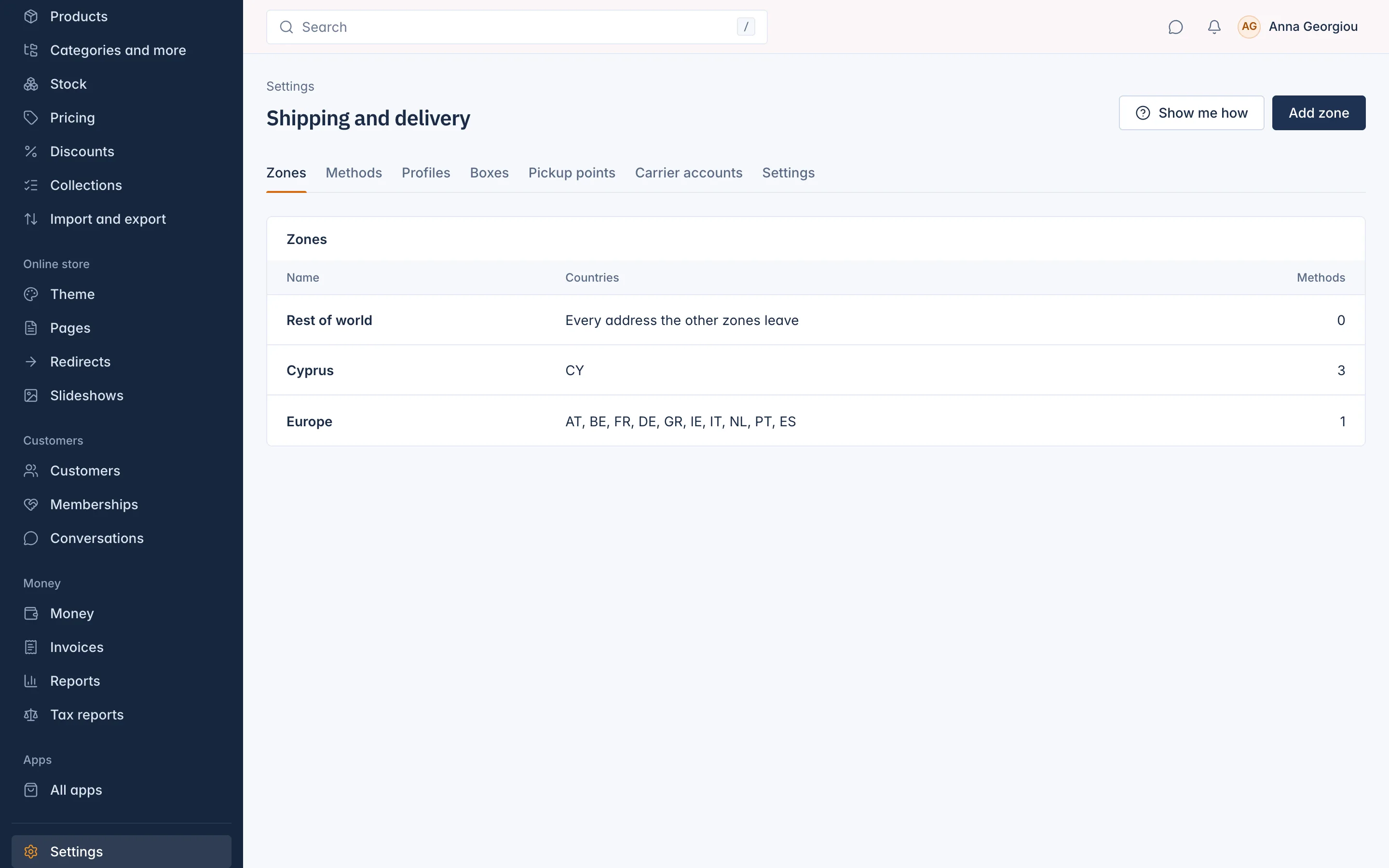
A zone is a group of countries that share the same delivery methods, for example "Cyprus", "Greece" and "Rest of Europe".
Add a zone
- On the Zones tab, press Add zone.
- Type a Name. Customers do not see it.
- Choose the Countries: "Addresses in these countries use the methods of this zone."
- Save. You see "Zone saved."
Each address belongs to one zone. Put each country in one zone only, so you always know which prices apply.
The Rest of world zone
Every shop has a default zone that takes "Every address the other zones leave". It holds no countries of its own and cannot be deleted. Give it methods if you deliver everywhere; leave it without methods if you only deliver to the countries of your other zones.
Delete a zone
A zone used by methods cannot be deleted: "Used by 2 methods: remove them from the zone first." Once it is empty, Delete asks "Delete this zone?"; its countries then fall to the other zones.
Methods
A method is a delivery option the customer chooses at checkout, such as "Courier, 1 to 2 days" or "Collect from the shop".
Add a method
- On the Methods tab, press Add method.
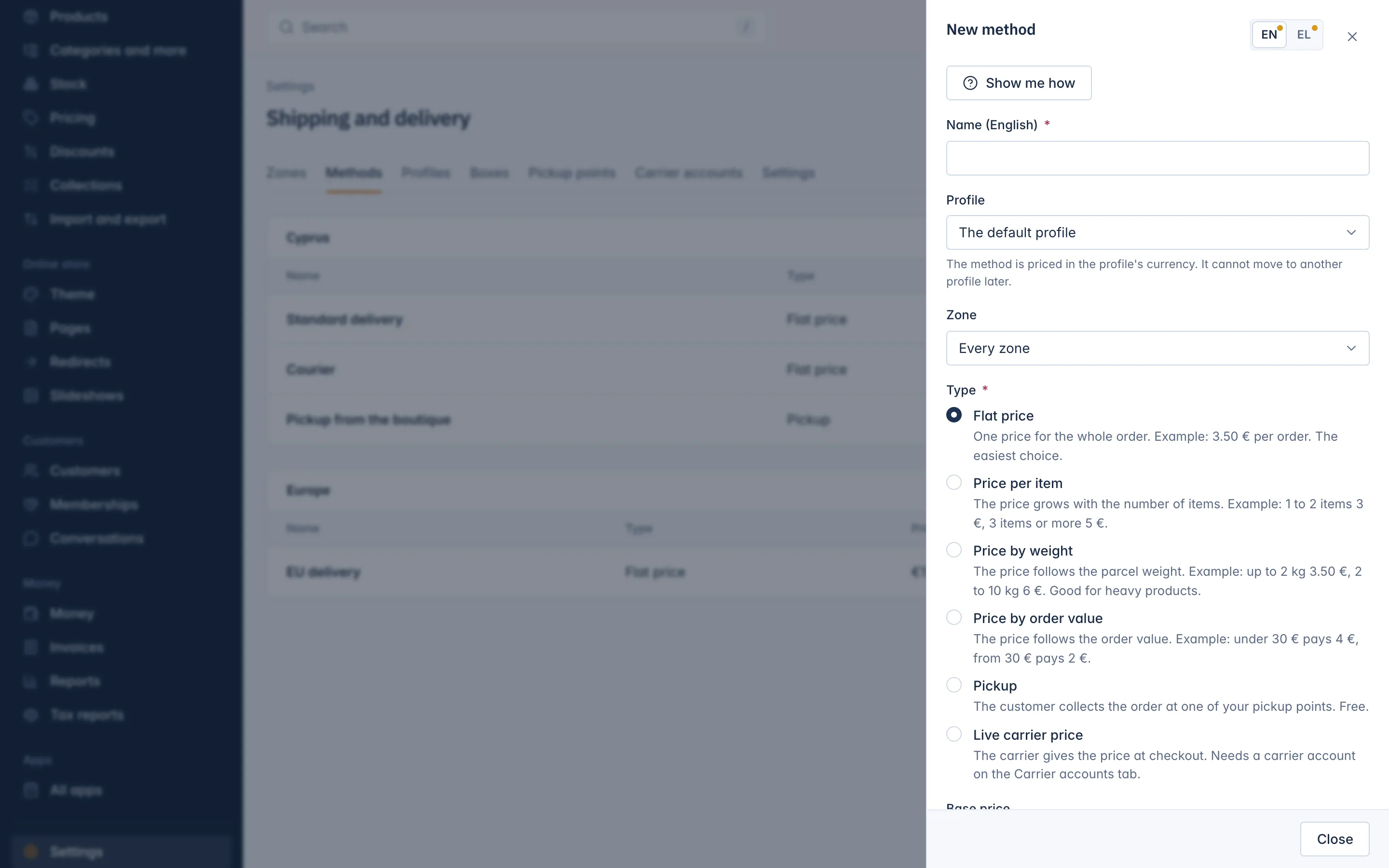
- Type the Name customers see. With several shop languages you get one name field per language.
- Choose the Profile. "The method is priced in the profile's currency. It cannot move to another profile later." Most shops have only the default profile.
- Choose the Zone, or Every zone.
- Choose the Type (see the next section) and fill in its prices.
- Fill in Delivery days from and Delivery days to to show a delivery time at checkout. The shop adds the profile's handling time to it.
- Leave Offered at checkout on. Switched off, the method is kept but not offered.
- Save. You see "Method saved."
Price types
| Type | How the price is worked out | Example |
|---|---|---|
| Flat price | One price for the whole order: the Base price. | €3.50 per order |
| Price per item | The band that matches the number of items gives a price per item, multiplied by the number of items, plus the base price. | 1 to 3 items: €2 each |
| Price by weight | The band that matches the order's weight gives the price, plus the base price. | Up to 2 kg €3.50, 2 to 10 kg €6 |
| Price by order value | The band that matches the value of the goods gives the price, plus the base price. | Under €30 pays €4, from €30 pays €2 |
| Pickup | Free. The customer collects the order at one of your pickup points. | |
| Live carrier price | The carrier gives the price at checkout. Needs a carrier account. |
Price bands
The band types use Price bands. Each band has a From, a To and a price. From is included and To is not: a band from 2 to 10 kg covers 2 kg but not 10 kg, which falls in the next band. Leave To empty on the last band, so it covers everything above.
- Price per item counts items: 3 rings and 2 chains are 5 items.
- Price by weight counts the weight of the items in the profile's unit (kg or lb), from the weights on your products.
- Price by order value counts the goods after discounts.
If the order falls outside every band, for example heavier than your last band with a To, the method is not offered.
Free shipping over an amount
Fill in Free over to ship free once the goods reach that amount: "Orders above this amount ship free. Leave it empty for never." The amount is compared with the value of the goods after discounts, and an order at exactly that amount ships free too. A free method also drops any handling fee.
More options
| Field | What it does |
|---|---|
| Tax class | The VAT class of the shipping charge. As set on the Settings tab follows your shipping settings. |
| Shipping classes it serves | Codes separated by commas, such as bulky, fragile. Leave it empty for every product. A method with codes is offered only when every product in the parcel has one of them; a product without a class does not fit it. |
| Carrier, Carrier service | Only for Live carrier price: which carrier account prices it, and optionally one service code such as express. |
| When the carrier does not answer | Only for Live carrier price: a method of the same profile with your own prices, offered when the carrier cannot be reached. Offer nothing shows no option then. |
Delete a method
Delete asks "Delete this method?": "Customers can no longer choose it. Orders already placed keep their shipping." To stop offering a method for a while, switch off Offered at checkout instead.
How the shop picks the price at checkout
- It finds the zone of the delivery address.
- It keeps the methods of that zone (and those for Every zone) that are offered at checkout and fit the products.
- For each, it works out the price: base price and band, then free over, then the profile's handling fee.
- If the customer pays in another currency, the price is converted and rounded once.
The customer sees each method with its price and delivery time, cheapest first, and picks one.
When nothing fits
- If you have no active methods at all, checkout shows no shipping step and charges no shipping.
- If you have methods but none fits the address or the order, the customer cannot place the order. Choose on the Settings tab, under When no shipping method fits an address: block the checkout, or show a "contact us" note, whether checkout simply stops (Stop the checkout) or also shows a "contact us" note (Show a "contact us" note), so the customer can ask you for a price.
See Shipping settings and tax on shipping.
Related
Updated 13 November 2026