
Find your way around the admin
What IXXO Cart is, how the shop admin is laid out, and where to find search, notifications, help and every setting.
IXXO Cart is a hosted ecommerce platform: you get an online shop and an admin to run it, and IXXO looks after the servers, security and updates. This article is a short tour of the admin, so you know where things live before you set up your shop.
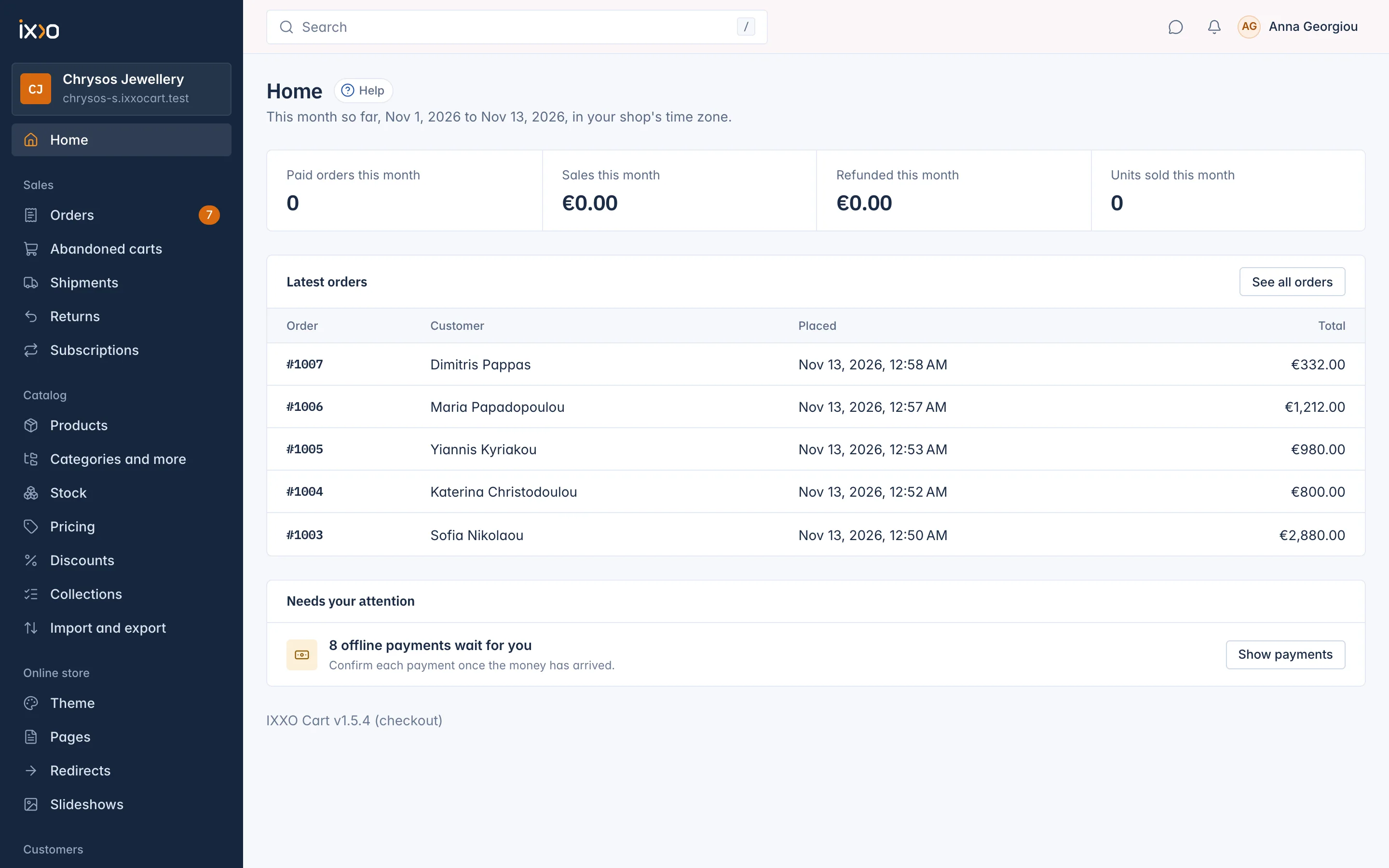
The sidebar
The navy sidebar on the left holds everything you do day to day.
- The shop card at the top shows your shop's name and its web address. Click the address to open your shop in a new tab.
- Home is your admin home page, with this month's numbers and what needs you. See Your admin home page.
- Sales: Orders, Abandoned carts, Shipments, Returns and Subscriptions.
- Catalog: Products, Categories and more (categories, brands, tags, custom fields, global attributes and product families), Stock, Pricing (change many prices at once), Discounts, Collections and Import and export.
- Online store: Theme, Pages, Redirects and Slideshows.
- Customers: Customers, Memberships and Conversations.
- Money: Money, Invoices, Reports and Tax reports.
- Apps: All apps, followed by the apps you have added.
- Settings, set apart at the bottom.
You only see the entries your role allows. A staff member who may not see orders, for example, has no Orders entry. On a small screen the sidebar is hidden; open it with the menu button at the top left.
When your plan has limits, a Your plan box at the foot of the sidebar shows how much of each you use, such as staff and storage.
The top bar
The top bar runs across every page.
- Search finds orders, products, customers and invoices, and also takes you to any screen or setting: type "payments" or "shipping" and pick the page. Press the / key to jump to the search from anywhere.
- Conversations (the speech bubble) opens your customer messages and shows how many are unread.
- Background tasks appears only while you have a long job running, such as a product import or a price change, and shows its progress.
- Notifications (the bell) lists what happened that concerns you, with All and Unread views and Mark all as read. Choose what reaches you opens Your notifications, where you pick what arrives in the bell and what by e-mail.
- Your name opens your account menu.
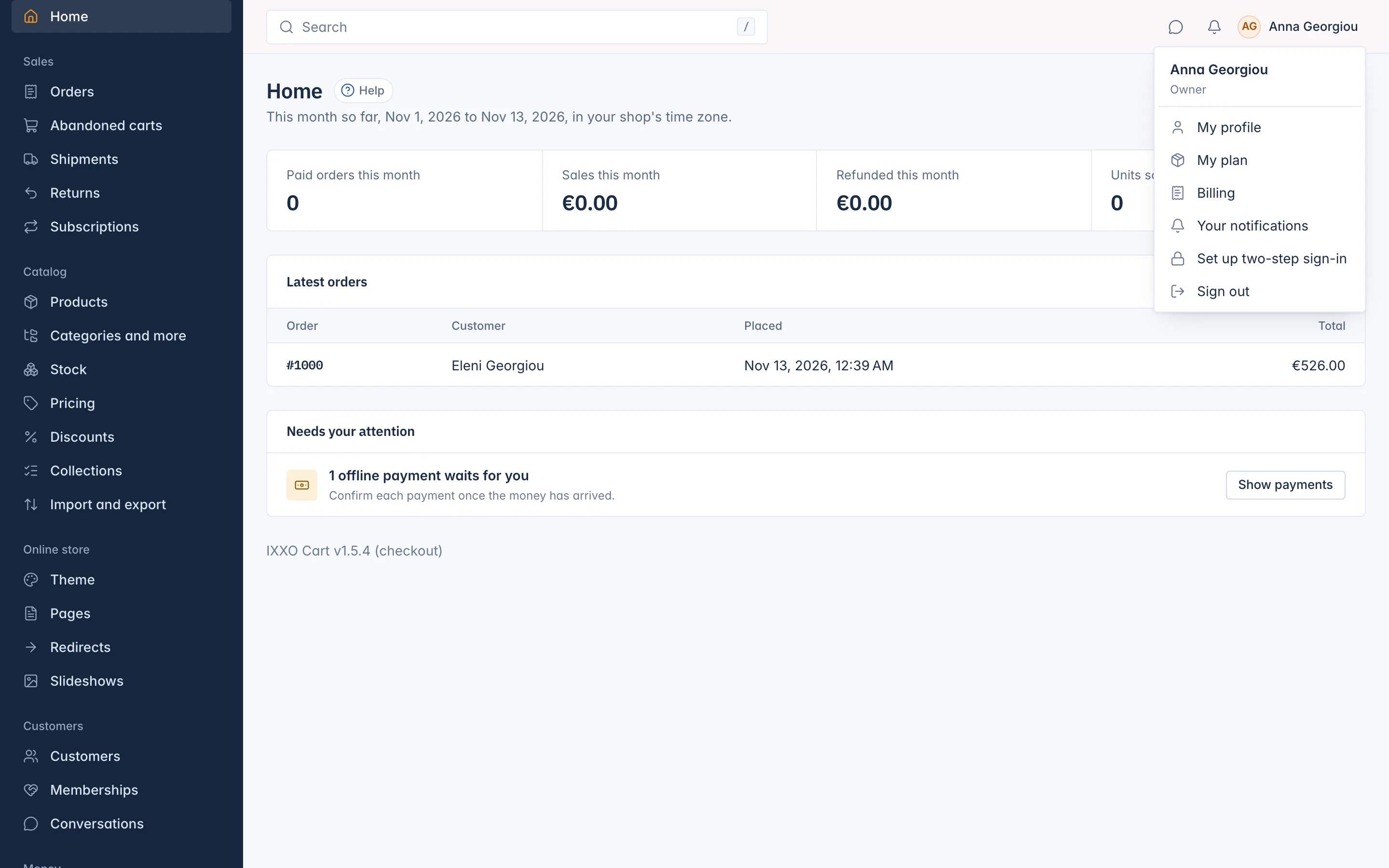
The account menu holds My profile (your name, e-mail and password), My plan and Billing (for people who may see the shop's billing), Your notifications, Set up two-step sign-in and Sign out. Your role is shown under your name.
Each person signs in to one shop. There is no menu to switch between shops: if you run more than one shop, each has its own sign-in.
Help on every screen
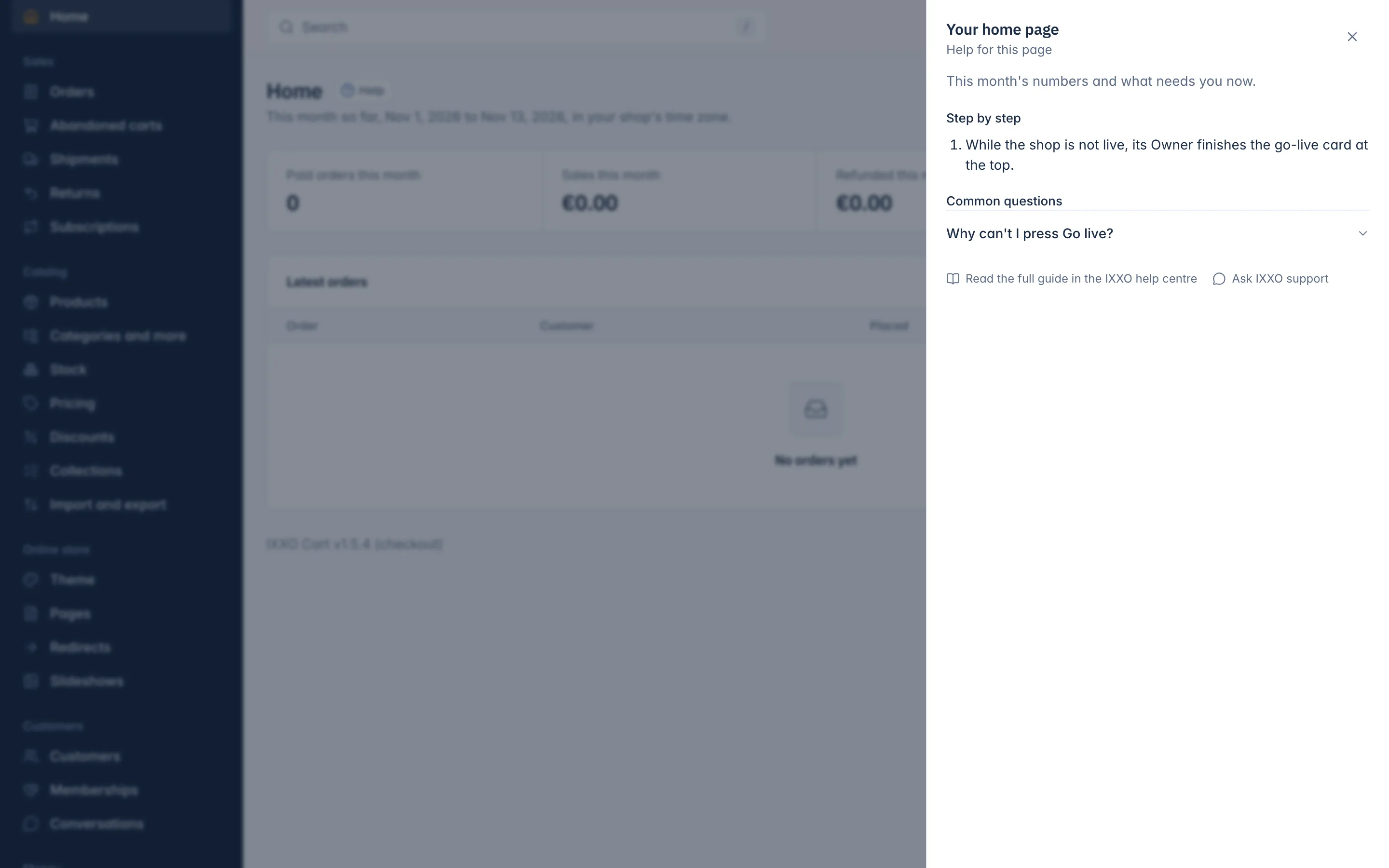
Most screens have a Help button next to their title. It opens a panel with a short explanation of the screen, the steps in order and common questions, plus links to the full guide and to IXXO support. Press the ? key to open it without the mouse.
The Settings page
Settings is the hub for everything you set up once and change rarely. It groups the set-up screens by topic:
- Your shop: Shop, Security, Privacy and cookies, Files, Languages and currencies, Translations, My plan and Billing.
- Selling: Checkout, Countries, Products, Search, Cart, Stock, Orders, Returns, Subscription settings and Payments.
- Delivery and tax: Shipping, Tax and Invoice numbers.
- Messages: E-mails, Mail account, E-mail, E-mail log and Your notifications.
- Team: Staff and Roles and permissions.
- More settings: Customers and Advanced.
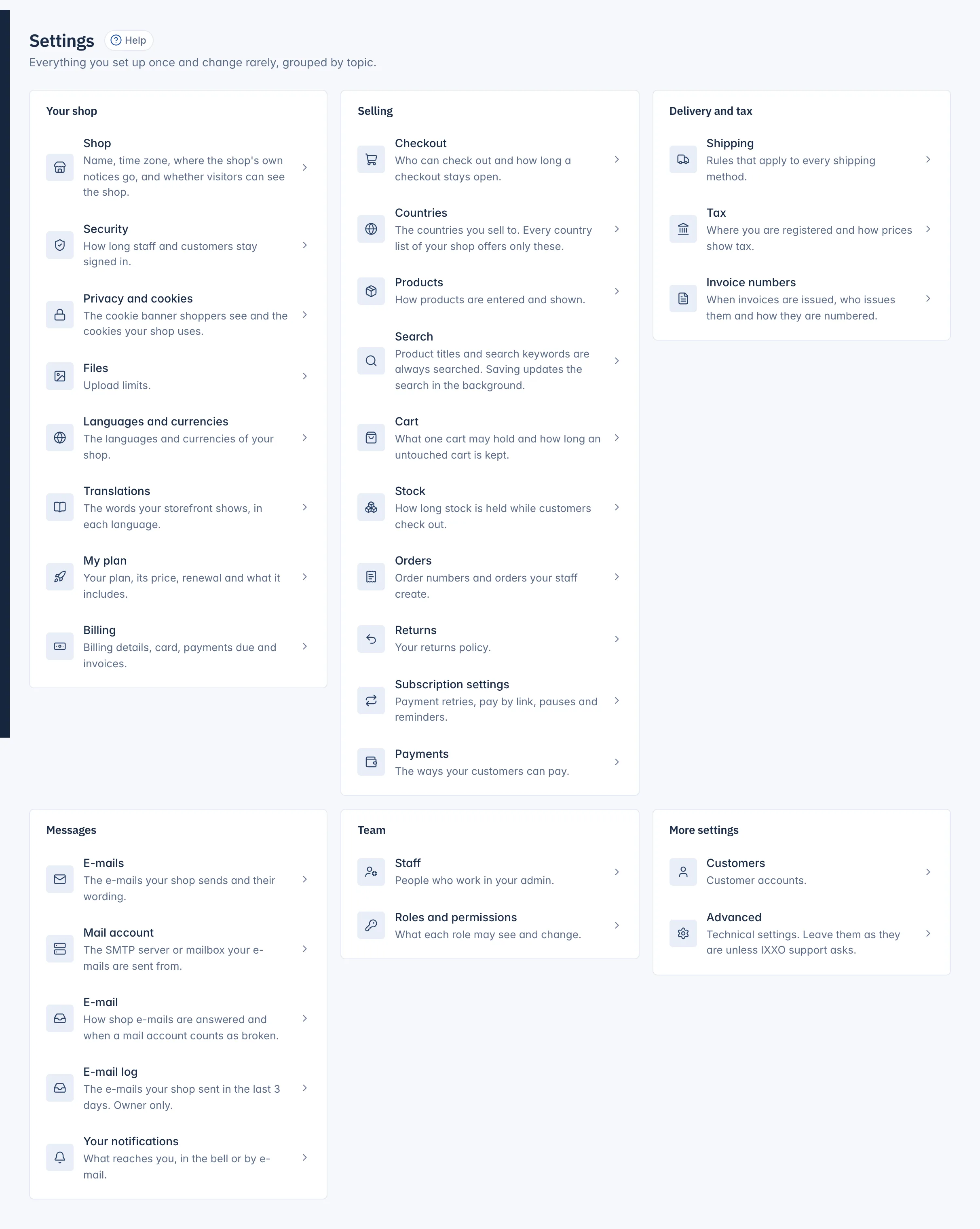
Like the sidebar, the Settings page shows only the screens you may open, and some rows (My plan, Billing, E-mail log) are for the shop's Owner. Each row opens its own screen. The details of each one are in Settings.
Who can do what
The person who created the shop is its Owner. The Owner can do everything, and some things only the Owner can do, such as putting the shop live. Other people get a role that decides what they see and change. Staff and roles are explained in Settings.
Related
Updated 13 November 2026