
Write blog posts that link your products
Install the Blog app, write and schedule posts in every shop language, sort them into categories and show the products they talk about.
In the admin: AppsBlogPosts
The Blog app gives your shop a blog at /blog. Posts bring visitors from search engines, and each post can show the products it talks about. The same post then shows on those products' pages, so shoppers find it from both sides.
Install the app
- Go to Apps > All apps and open Blog.
- Click Install.
The app adds Blog under Apps, with Posts and Categories. It places Latest posts on your home page and From the blog on your product page. Both stay empty until a post is live. It adds no menu link: the posts list shows your blog's address and an Open the menu editor link, so you can add it to your menu.
If a page, product or category already uses the address /blog, the install stops and names it. Change that item's address first, then install again.
Write a post
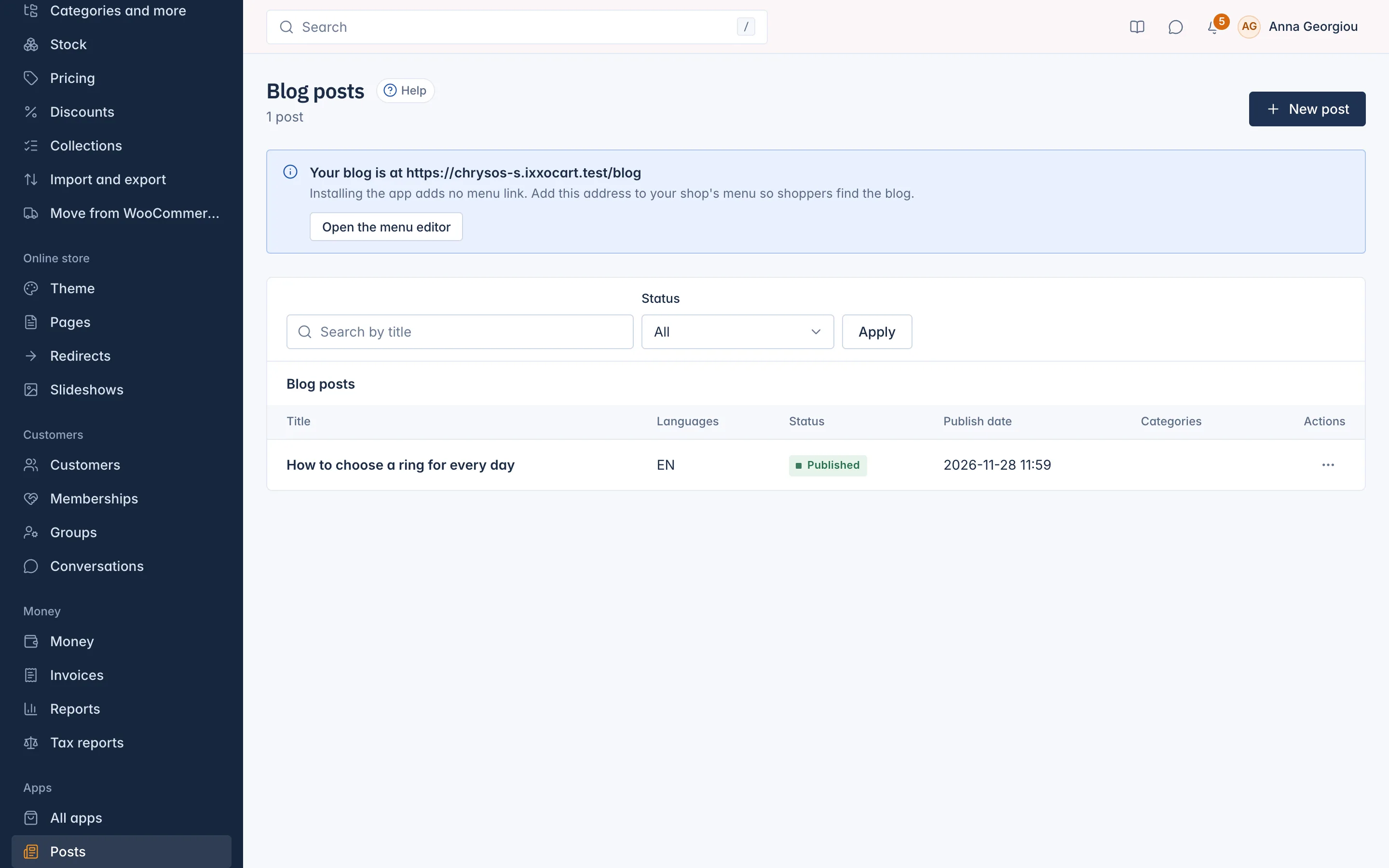
- Go to Apps > Blog > Posts and click New post.
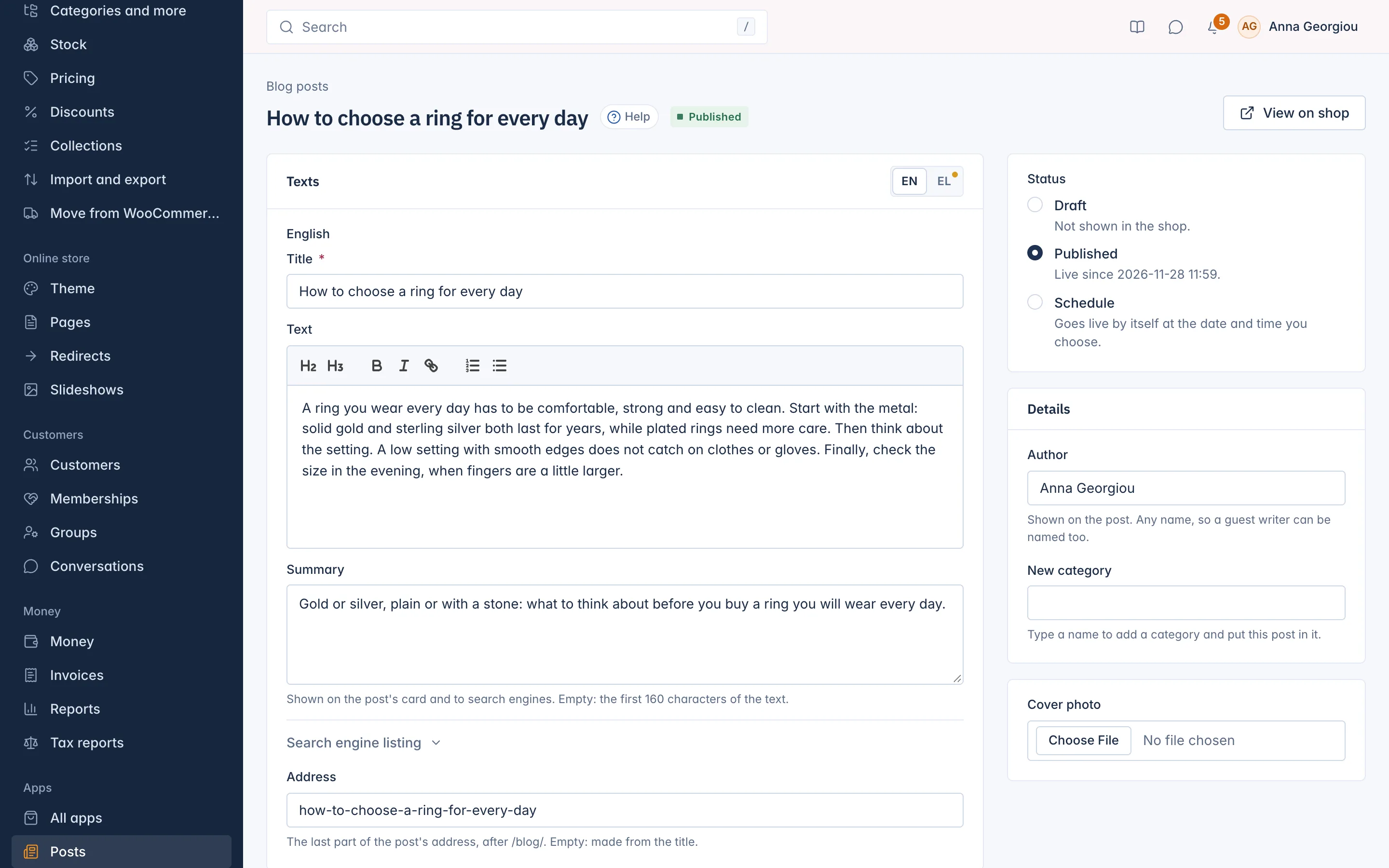
- Type the Title and the Text. The Address is made from the title.
- Add a Summary if you like. Without one, cards use the first 160 characters of the text.
- Under Details, check the Author, pick Categories or type a New category, and upload a Cover photo.
- Under Products in this post, add up to 8 products and drag them into order.
- Choose the Status: Draft, Publish now or Schedule. For Schedule, pick the date and time under Publish on. The post goes live by itself at that time.
- Click Save. Use Preview to see a draft or scheduled post in your shop.
Languages
Use the language switch on the form to write the post in your other shop languages, each with its own address. A post shows in a language only when it has a title and text in that language. Categories work the same way by their name.
On paid plans, Write with AI on the New post screen writes a draft from a topic and the products you pick, and a saved post has buttons to translate it. See AI writing tools.
Categories
Apps > Blog > Categories lists your categories. Drag the rows to set their order on the blog. Deleting a category keeps its posts.
Show posts in your shop
In the theme editor, Latest posts has a Title, Number of posts (1 to 12), a Category and a Layout. From the blog shows up to 3 posts that link the product. Your blog also has a feed at /blog/feed.xml and its own part of the sitemap.
Uninstall
When you uninstall the app, your blog pages and both sections disappear from the shop. Your posts are kept for 30 days: install the app again in that time and everything is back. After 30 days they are deleted.
Related
Updated 28 November 2026